Bridging retail and online: How Shopify POS preorders actually work
A customer comes to the counter and asks if they can reserve your new soon-to-drop product. Obviously, you'd like to say “yes”. You'd also like the preorder process to be smooth for you and the customer. And you want their reservation to count against the same inventory pool your online store is drawing from to guard against overselling.
Fortunately, all those things are possible! Here’s how that setup actually works.
What "preorders on Shopify POS" actually means in practice
Here’s what happens when a customer asks to reserve a product in-store:
- The sale is recorded
- The retailer either charges the full price upfront or takes a “split” payment (say, 50%) as a deposit
- The customer gets a confirmation
On the online side, the same product is available through your storefront, and with exactly the same fulfillment messaging.
Both online and in-person sales feed into a single inventory count and preorder limit. So when that limit is reached – whether in-store, online, or a combination – preorders shut down across each channel.
What Shopify POS does natively – and where it stops
Shopify POS tracks inventory across locations and syncs with your online store. What it doesn't do natively is manage preorder logic – so there’s a risk of accepting preorders you know you can’t fulfil, or displaying preorder messaging instead of a sold-out state.
How STOQ connects POS and online preorders
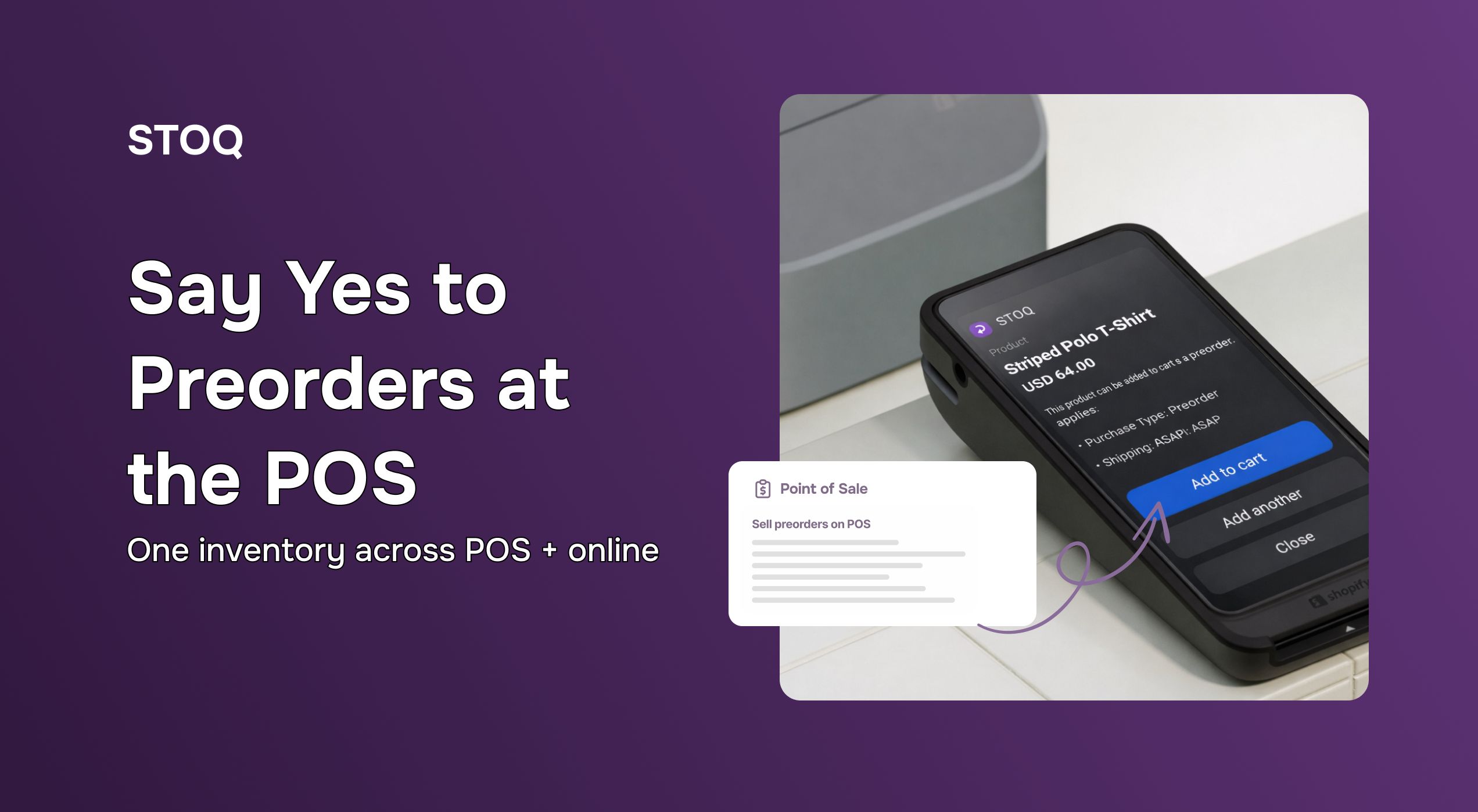
Setup on the POS starts with adding STOQ's tile to your device:
- App > STOQ > Add preorder to cart
From there, staff select the product and variant, hit "Add preorder to cart," and the item lands in-cart with all preorder details attached. Then checkout completes as normal. Easy breezy.
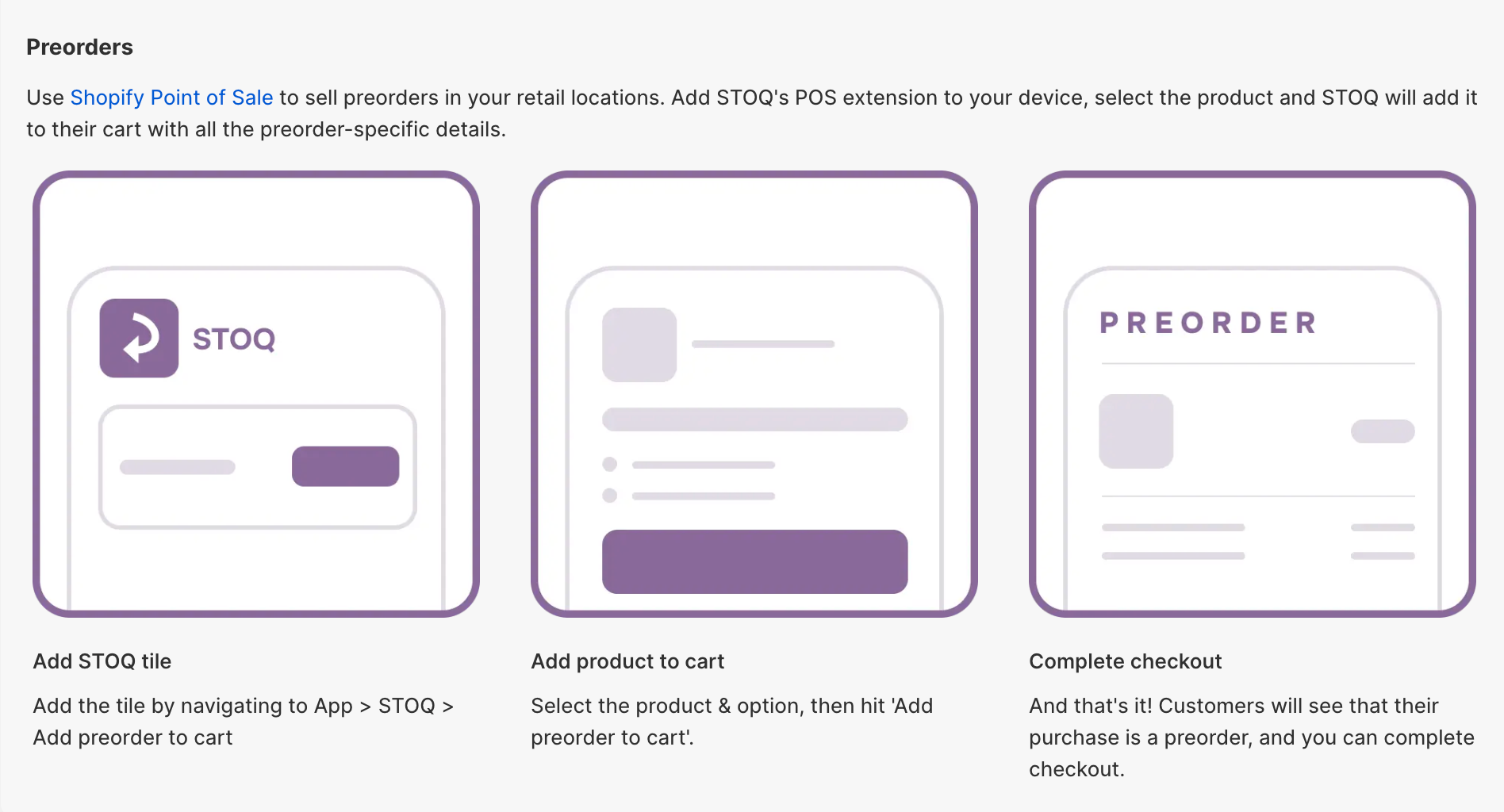
For a full walkthrough, check out our help center guide: Set Up Preorders on Shopify POS
Online preorders run through your storefront in parallel. Both channels draw from a single shared inventory pool, so everything counts together and fulfils from one list. When you hit your preorder limit, preorders close across both channels automatically – so there’s no chance of overselling.
One thing worth knowing before you go live: partial payments and discounts configured in your preorder offer don't currently pull through on POS (although it’s possible to take a split payment directly in the POS while placing the order). You’ll want to factor that into how your staff communicate pricing at the counter.
Before you go live
There’s a little house-keeping to sort before you start accepting pre-orders through Shopify POS:
- Confirm inventory is set to track across both your physical location(s) and online store – limits only work if they're drawing from a shared pool.
- Decide whether in-store preorders require full payment or a deposit.
- When it comes to discussing fulfillment timings, make sure your store staff are saying the same thing as your online product page.
- Test the full flow by processing one POS preorder and one online preorder, then confirming both deduct from the same inventory count.
Whether your customer finds the product on their phone at midnight or asks about it at the counter on a Saturday, they should get the same answer, the same process, and the same confirmation. This isn’t some technical wizardry that’s only available to massive retailers – any store can coordinate product launches like this. You just need the right tools in place.
Not using STOQ yet? Start for free today

Anaam heads Merchant Success at Artos Software, working with Shopify merchants to help them unlock the full potential of STOQ and our other apps.