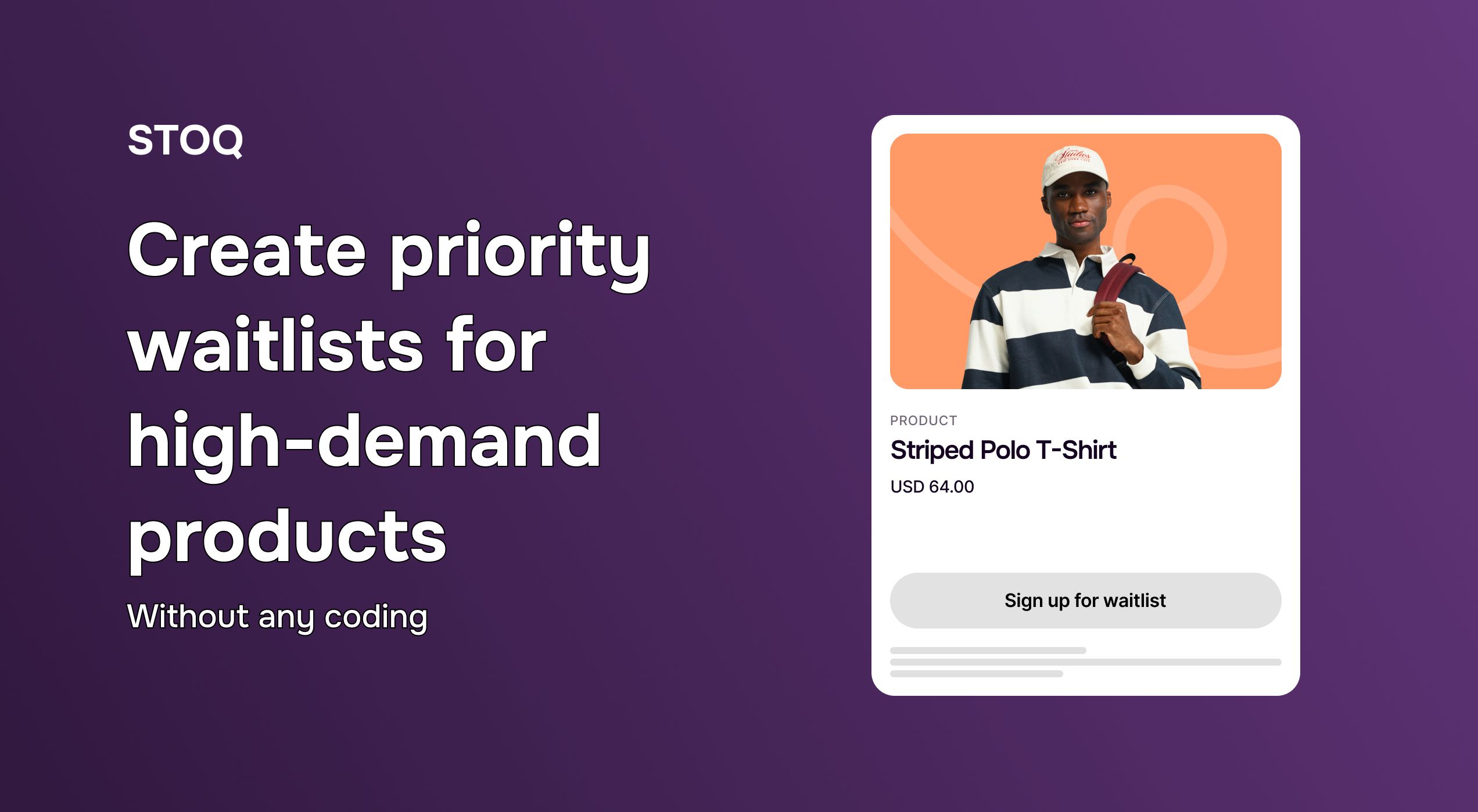
How to create a waitlist on Shopify (without coding)
A customer lands on your product page ready to buy, and the size they want is sold out. You know what happens next: they don't bookmark the page and check back Thursday. 69% of shoppers head to a competitor instead, and the sale walks out with them.
A waitlist is how you stop the walk-out.
Quick answer: To create a waitlist on Shopify, install a waitlist app like STOQ, turn on a "Notify Me" button for your out-of-stock products, and the app emails or texts everyone on the list the moment you restock. Shopify has no built-in waitlist feature, so an app is the only no-code route. Setup takes under 10 minutes.
The rest of this guide covers what merchants actually ask about: waitlists for one specific product, for individual sizes and colors, on collection pages, and what to check when the button doesn't show up where you expect it.
What is a product waitlist on Shopify?
A product waitlist lets customers leave their email or phone number on an out-of-stock (or unreleased) product so you can notify them when it's available. Instead of a dead-end Sold Out page, you walk away with two things: a list of buyers to bring back, and a number that tells you how much to restock.
Waitlists earn their keep in three situations:
- Out-of-stock products — capture buyers while you restock, then bring them back with back-in-stock alerts
- Upcoming products — collect interest before launch without taking payment
- Limited drops — build the list before the drop, then notify everyone the minute it goes live
Want the full picture on restock alerts? Here's our complete guide to back in stock alerts on Shopify
How to create a waitlist on Shopify: step-by-step
Here's the setup using STOQ. The flow is identical whether you're adding a waitlist to one product or your whole catalog.
Step 1: Install a waitlist app
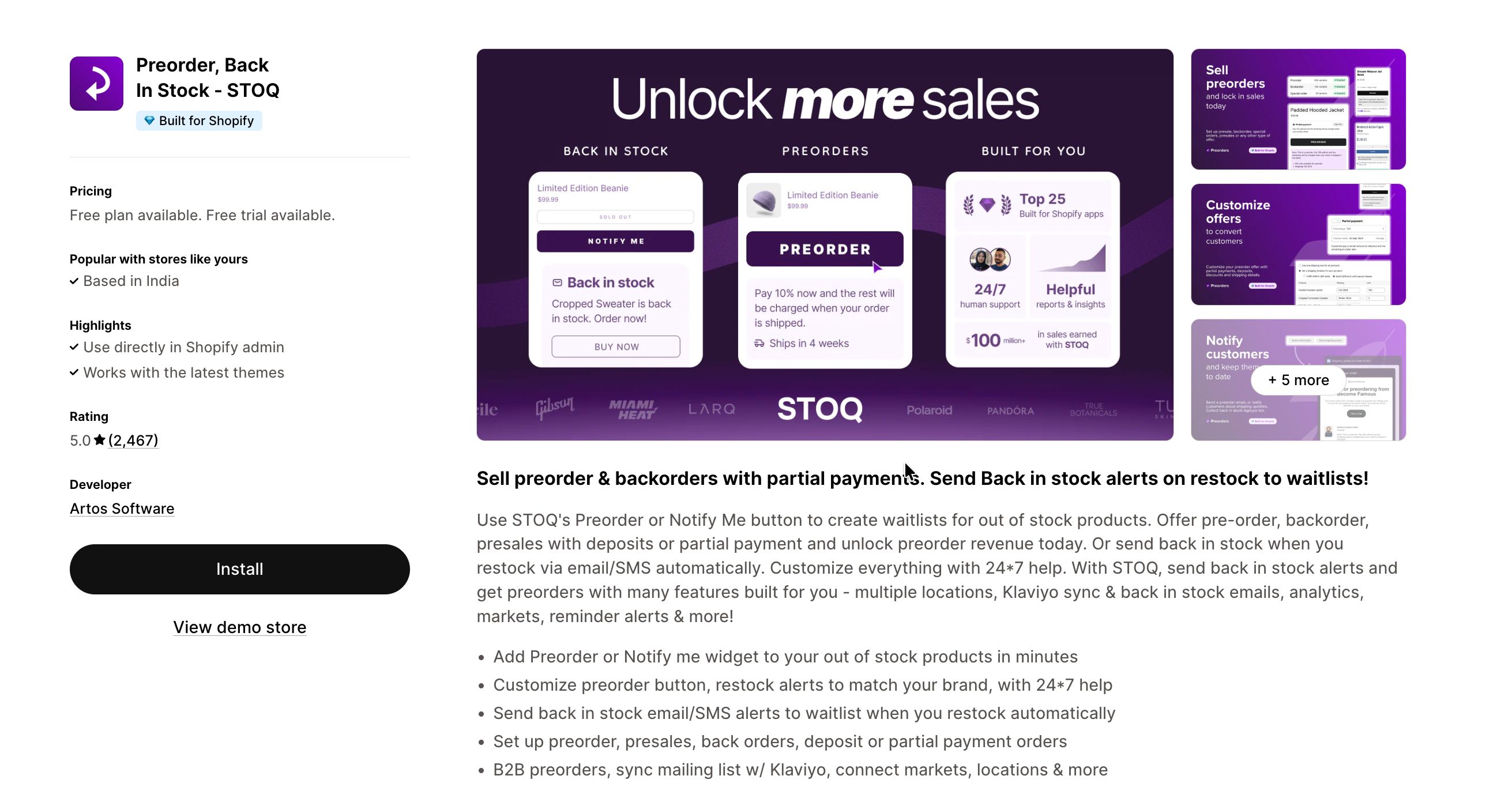
Shopify doesn't do waitlists natively, so grab STOQ from the App Store and open it from your admin. It picks up your theme's styling automatically — no code, no theme edits.
Step 2: Turn on the "Notify Me" button
- In STOQ's left menu, click Back in stock alerts
- Under Signup Widget, click Customize
- In the Button tab, click Products, and choose Show button on all out-of-stock products
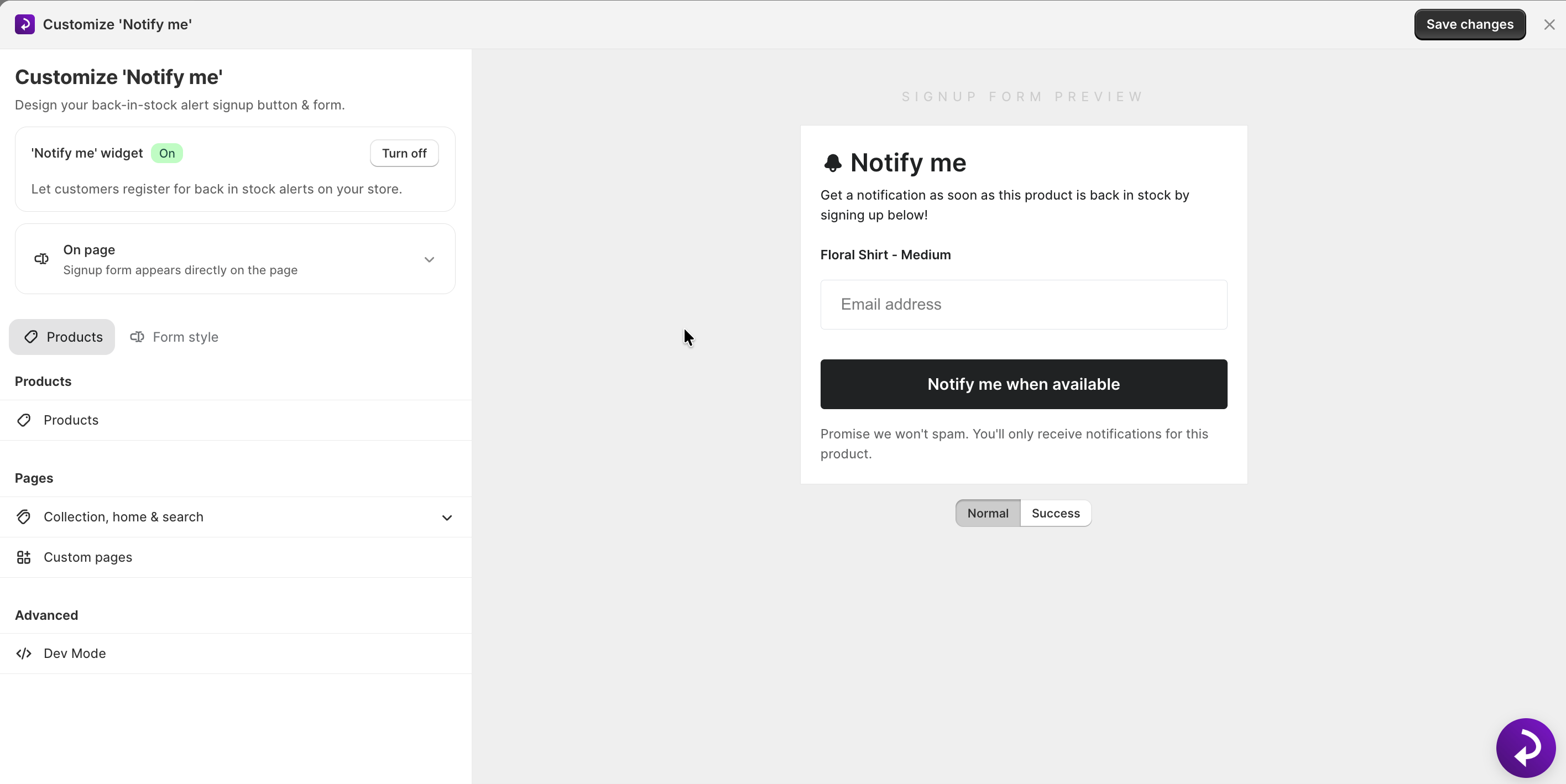
Done. Every product that hits zero inventory now shows a Notify Me button instead of a dead end. If you only want it on certain products, that's the next section.
Step 3: Customize your waitlist form
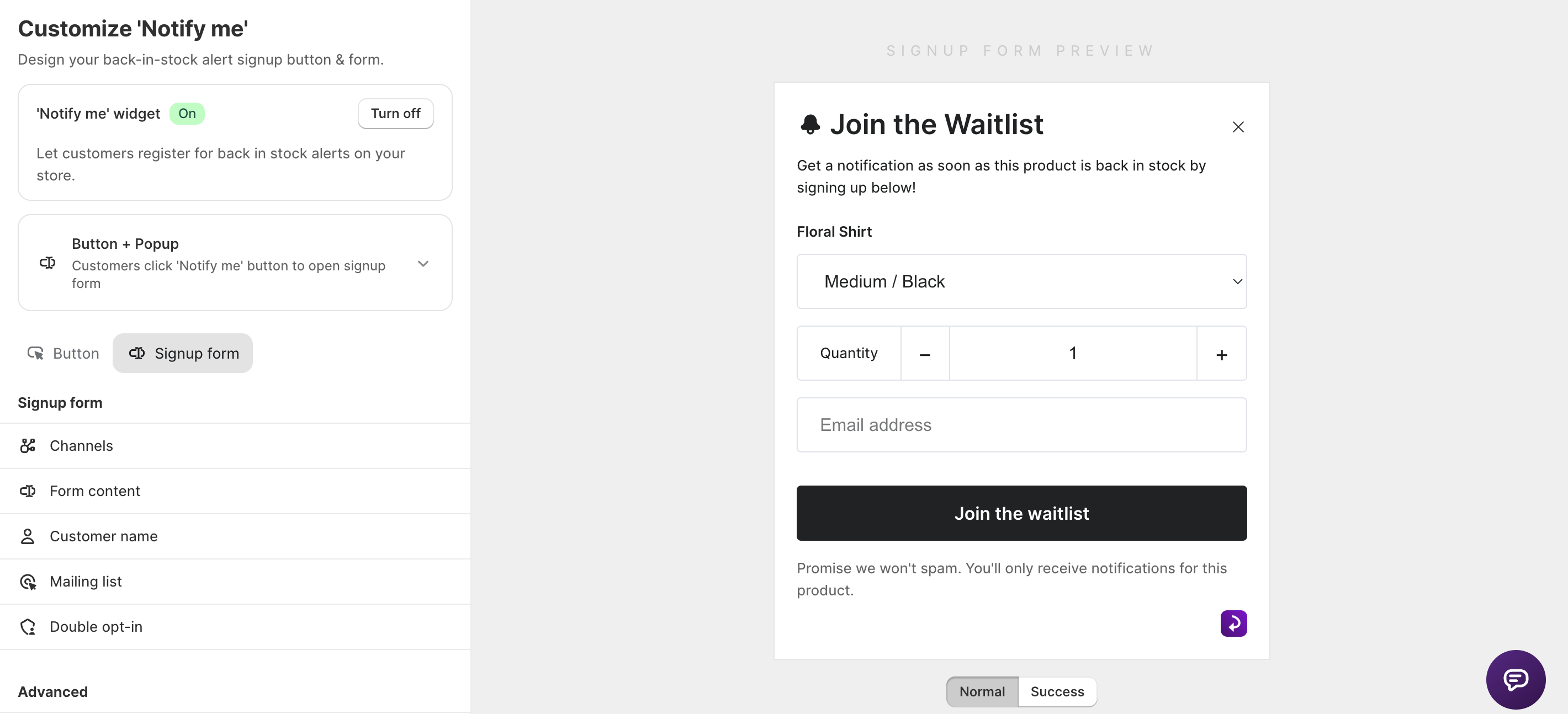
Set what the signup form collects:
- Email, phone number, or both. Turn on the phone field if you plan to send SMS alerts — see our back in stock SMS examples for why it's worth it.
- Button text. "Notify Me," "Join the Waitlist," "Email me when available" — whatever fits your brand
- Colors and fonts. Adjust button colors and fonts as per your theme and branding.
Step 4: Set up the restock notifications
Decide what happens when inventory comes back. STOQ can fire alerts automatically the moment stock rises above zero, or wait for you to send manually. You can also batch the sends: restock 20 units with 500 people waiting, and you notify only as many customers as you can actually serve.
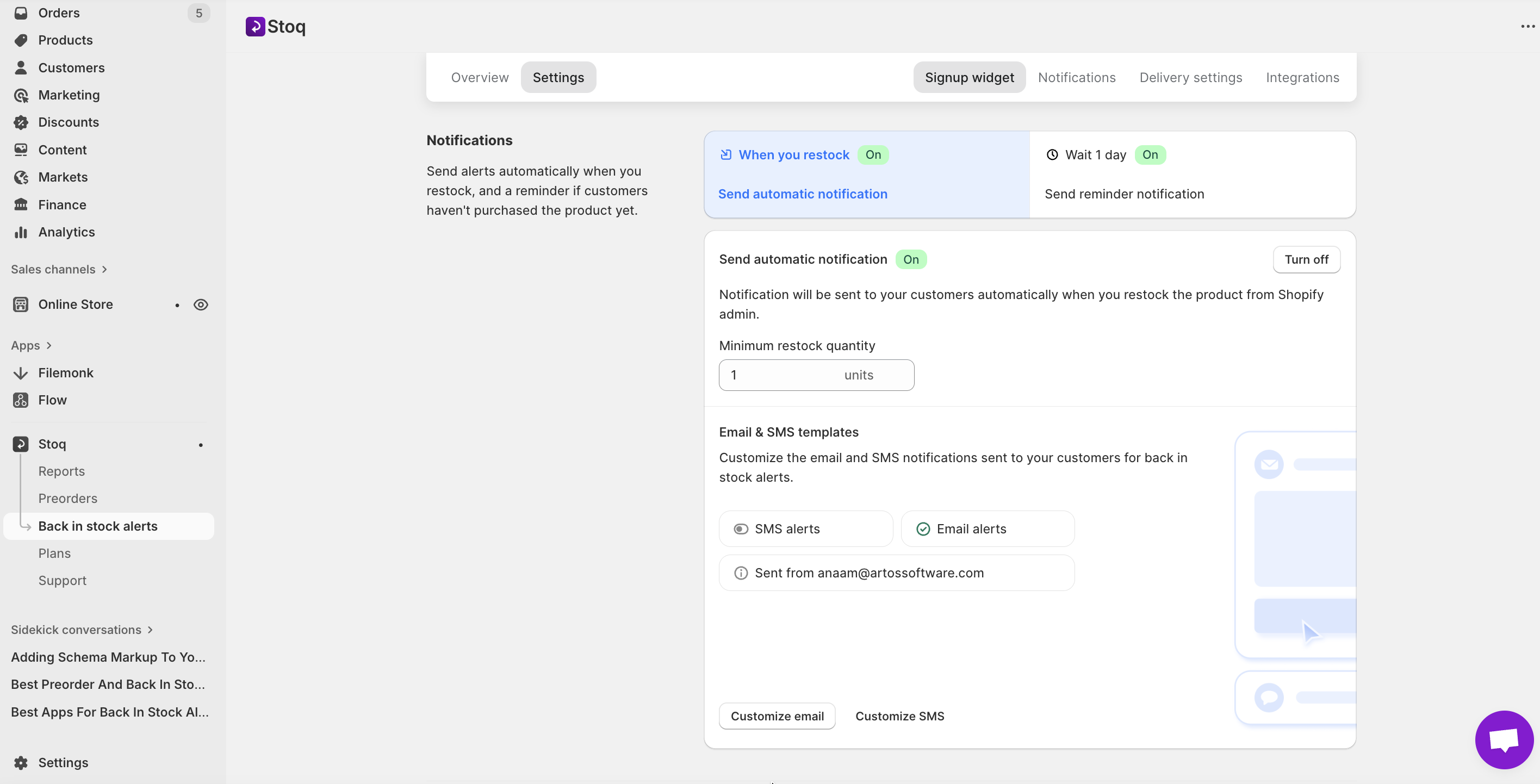
The tradeoff on automatic sends: fast, but unforgiving. If you receive inventory into Shopify before it's ready to sell, those alerts have already gone out. Stores that stage inventory should batch or send manually.
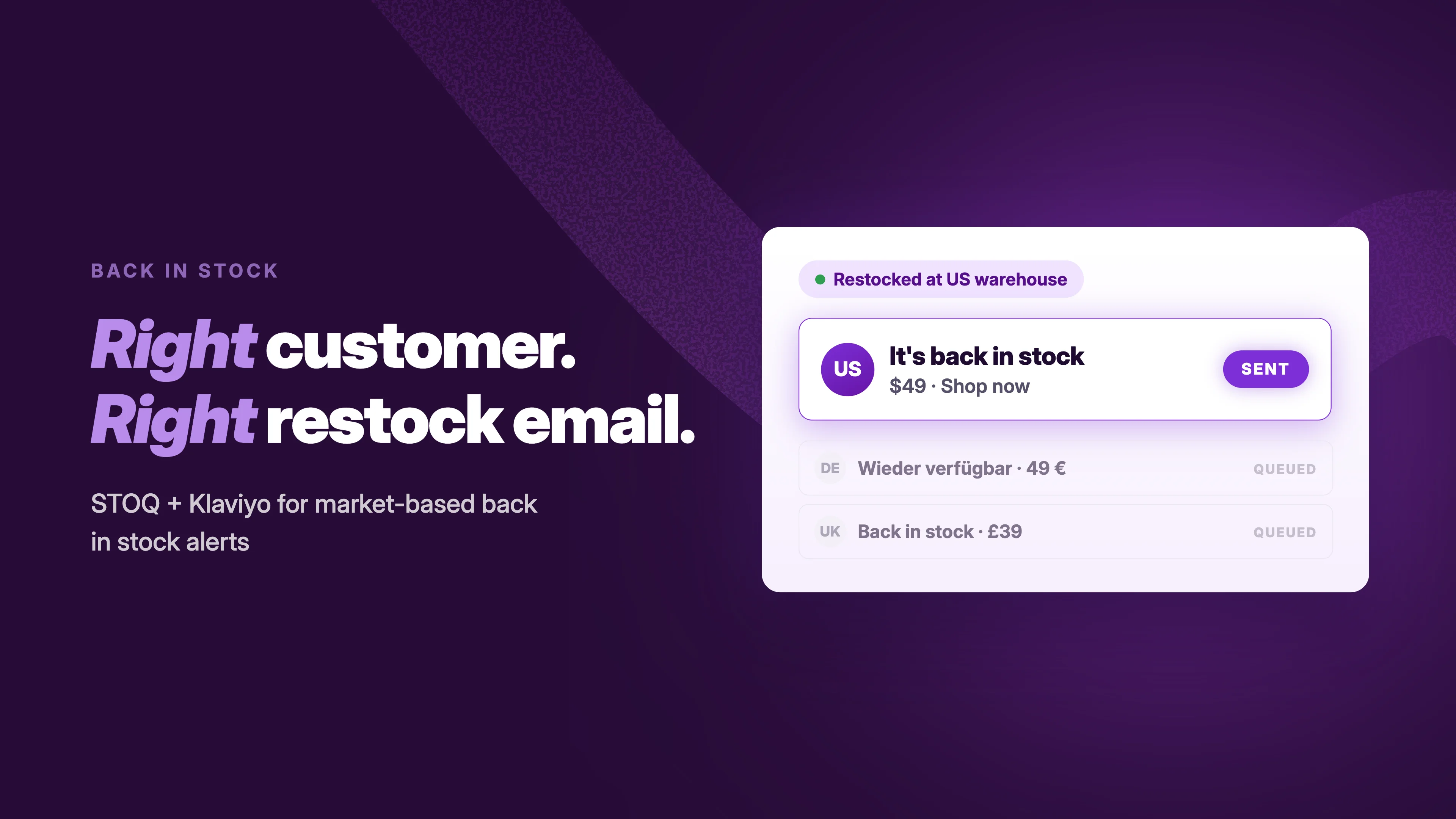
If you run email through Klaviyo, connect it so waitlist alerts send from your own flows. Know more on STOQ x Klaviyo integration.
Step 5: Test it
Set a test product to zero inventory, join the waitlist as a customer, restock it in Shopify, and confirm the alert lands. If you sell in multiple markets, test one product per market — alert behavior can differ with market settings.
That's a live waitlist.
How to add a waitlist to a specific product (not your whole store)
Plenty of reasons to scope it: you only want waitlists on hero products, you're discontinuing items and don't want signups piling up on them, or you're testing on one collection first.
In STOQ, under Signup Widget → Customize widget → Button → Products, switch to Specific products and use product tags.
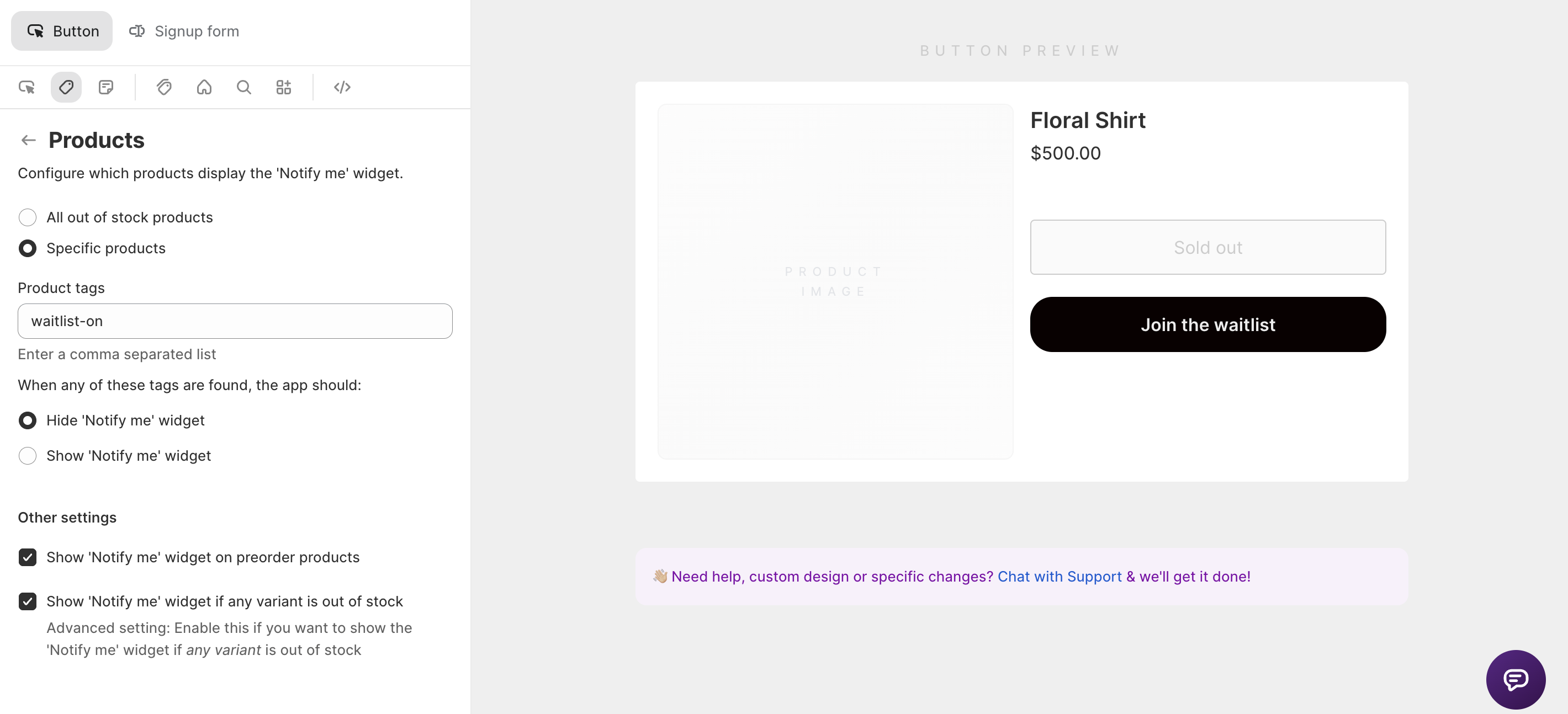
Tag products in Shopify (say, waitlist-on) and STOQ shows or hides the button based on the tag. Tags give you scale — your team controls waitlist visibility from the product page in Shopify admin without ever opening the app.
Can customers join a waitlist for one variant, size, or color?
Yes — and if you sell apparel, this is the part that matters most. A t-shirt that's in stock in Medium but gone in Large should capture Large signups specifically, and alert only those customers when Large returns.
STOQ handles waitlists at the variant level: the Notify Me button appears when the selected variant is out of stock, even while the product overall is available. Every signup ties to that exact variant, so restock alerts go only to the people waiting on that size, and your reports show which variants people want — not just which products. Just check the "Show 'Notify me' widget if any variant is out of stock" in Products section under Customize widget.
Where your waitlist button appears (and how to add it everywhere)
By default, the button lives on product pages. But shoppers hit sold-out items in other places too, and each surface has its own setting:
- Collection pages — show a Notify Me trigger on sold-out items right in the grid, so shoppers don't have to click through
- Home page — featured products sell out too
- Quick-buy popups — check the button shows inside them; some themes need the widget placement adjusted
- Page builders (PageFly, GemPages, etc.) — custom layouts sometimes drop the default button block. STOQ integrates with PageFly; for other builders, place the widget block manually in the layout
If the button isn't showing where you expect after setup, it's almost always one of three things: the product isn't actually tracked as out of stock in Shopify (inventory tracking on, quantity at zero), the theme section is missing the widget block, or a specific-products rule is excluding it. Our support team is available 24*7 if there is anything otherwise.
How to replace the "Sold Out" button with "Join the Waitlist"
A grayed-out Sold Out button sitting next to a Notify Me button is redundant. In STOQ's widget settings you can hide the default sold-out button entirely, so the waitlist becomes the primary action on the page — the signup is the obvious next step, not an afterthought under a dead button.
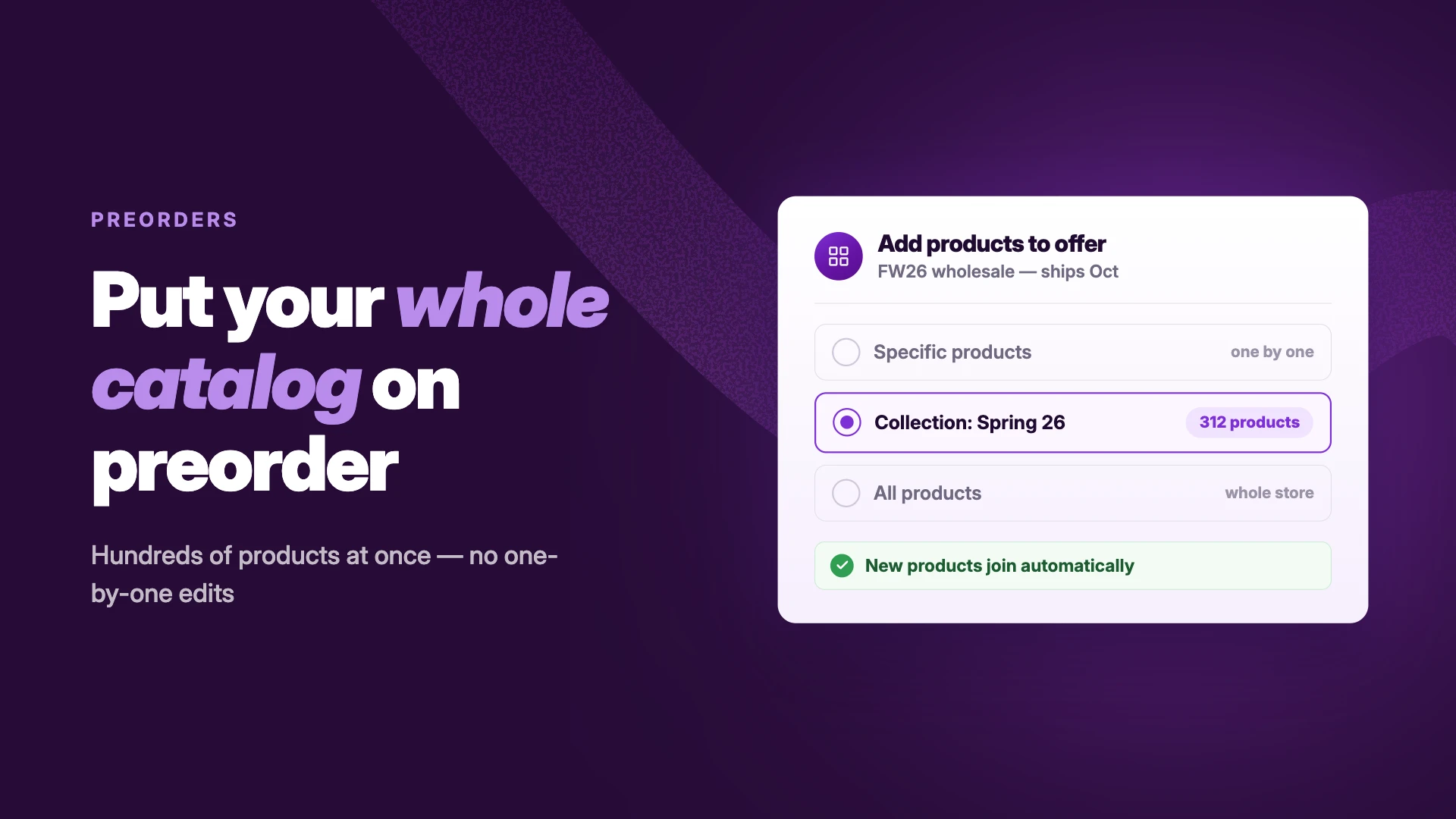
How to turn your waitlist into preorders
A waitlist captures interest. A preorder captures money. The strongest launches use both, in sequence:
- Before your restock date is confirmed — run the waitlist. You collect demand with zero commitment and zero chargeback risk.
- Once stock is on the way — open preorders and notify your waitlist first. A waitlist-only early window works well here: these customers already raised their hands, so let them lock in first.
- When inventory lands — everyone who didn't preorder gets the standard back-in-stock alert.
In STOQ you run both from one app: switch a product from Notify Me to Preorder once stock is confirmed, then send a manual alert announcing that preorders are open. If you segment in Klaviyo, keep preorder buyers and restock waiters in separate segments so the messaging matches where each group actually is.
Your waitlist size also answers the question every restock starts with: how many units to order.
Track your waitlist demand
Once waitlists are running, the signups become inventory data:
- Biggest waitlists — which products and variants have the most people waiting, ranked
- Demand by variant — order the right sizes, not just the right products
- Wait times — long waits mean restock urgency
- Engagement analytics— how customers interact with your Waitlist button, full funnel visibility
Export any of it to CSV, or sync signups to Klaviyo and use waitlist membership across the rest of your email marketing.
Frequently asked questions about Shopify waitlists
How do I let customers sign up for a sold-out product on Shopify?
Install a waitlist app like STOQ, enable the Notify Me button on out-of-stock products, and customers can leave their email or phone number right on the product page. When you restock, the app notifies them automatically.
Does Shopify have a built-in waitlist feature?
No. Shopify hides or disables the buy button when inventory hits zero, but it has no native way to collect signups for out-of-stock products. You need a waitlist app, or custom code.
How do I build an email waitlist for one specific product?
In your waitlist app's settings, choose "show button on specific products" (or use product tags) and select the product. Only that product shows the signup form — everything else stays unchanged.
Can I create a waitlist for a product that hasn't launched yet?
Yes. Add the product to your store as unavailable (inventory at zero, or unpublished price), and the waitlist button captures signups with no payment. When you launch, notify the whole list at once — or open preorders to the waitlist first.
How do I set up automated back-in-stock alerts so waitlisted shoppers become buyers?
Connect your waitlist app to send alerts automatically on restock, and batch the sends to match your inventory — notify 50 people when 50 units arrive. Send within minutes of restocking; speed is the biggest conversion factor. Full walkthrough: → [link: /blog/what-are-back-in-stock-alerts-shopify-setup-guide].
Is there a free Shopify waitlist app?
Yes — STOQ has a free plan, and several other apps offer free tiers with monthly alert limits.
The takeaway
Every sold-out product page without a waitlist is quietly sending buyers to competitors. Ten minutes of setup turns those same pages into a buyer list, a restock alarm, and next month's order quantity.
Ready to stop losing restock sales? Install STOQ from the Shopify App Store — free plan, no code needed.
Already using STOQ? Here's the help guide: setting up your signup widget to fine-tune your waitlist.

Anaam heads Merchant Success at Artos Software, working with Shopify merchants to help them unlock the full potential of STOQ and our other apps.