How to handle chargebacks on Shopify preorders
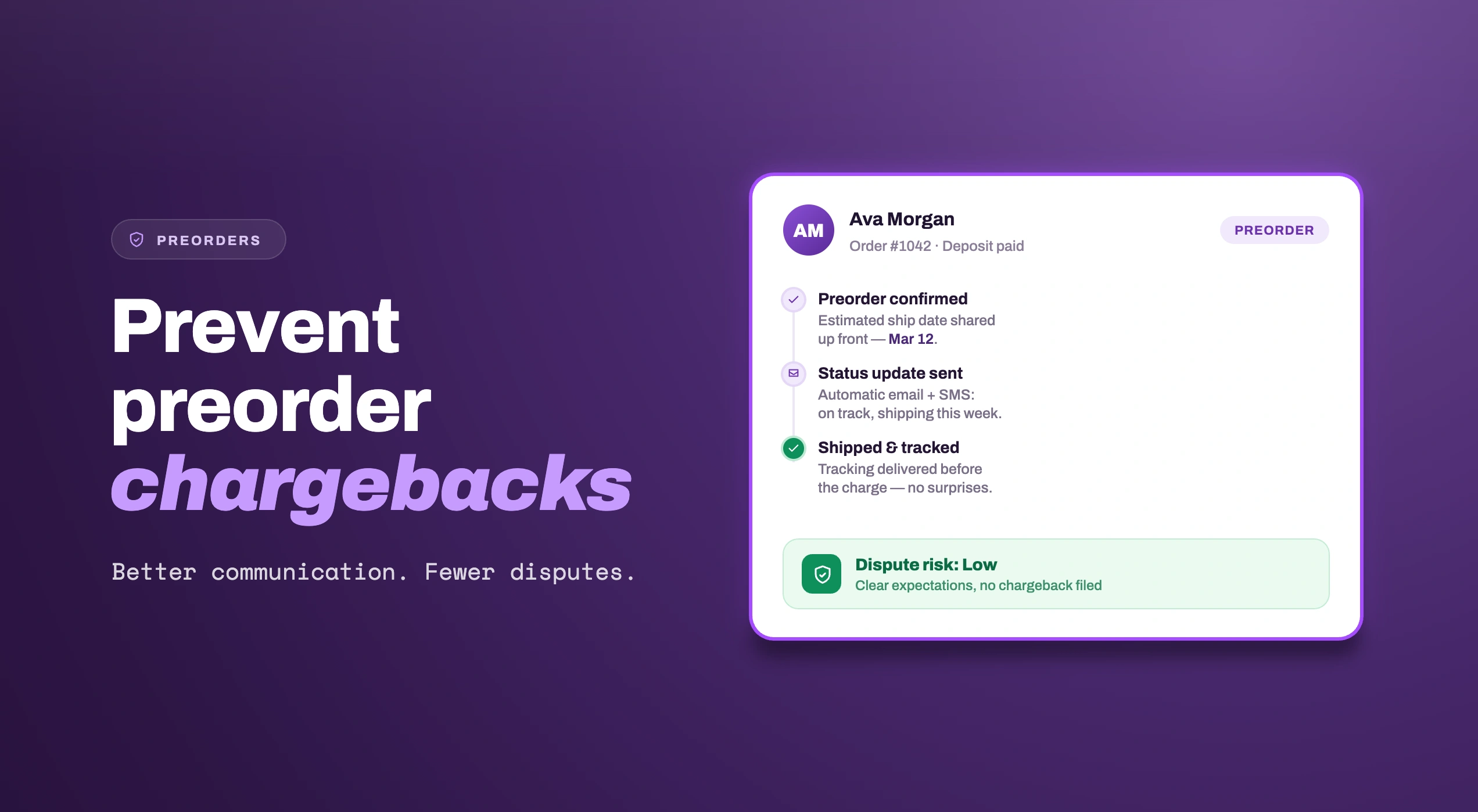
Preorders are one of the best ways to validate demand and fund production before inventory lands. But there are a couple financial considerations that merchants should bear in mind, chargebacks being one of them.
We've spent the last two years helping hundreds of Shopify merchants run preorders through STOQ, so we know how you can give yourself the best chance of avoiding those issues.
Why might preorders trigger chargebacks?
Chargebacks aren't random. In preorder land, they usually happen because the customer forgot they ordered something, the delivery date slipped, or they simply got nervous after seeing a charge on their statement weeks ago.
One merchant asked us point-blank: "What happens if a customer charges back after deposit or full payments?"
The honest answer: chargebacks are a standard e-commerce risk, but preorders can amplify them because the gap between payment and delivery is longer. The good news is that all the proof you need — order details, customer consent, delivery timelines — lives in your Shopify admin.
If a chargeback hits, you'll work directly with your payment gateway (Shopify Payments, PayPal, etc.) and submit that evidence.
Quick note: Chargebacks on preorders aren’t a sign something went wrong with your preorder setup. They're a normal part of selling on a longer timeline. The goal isn't to eliminate them entirely — it's to stack the odds in your favor and have your evidence ready before you need it.
Five ways to prevent chargebacks before they happen
The merchants who see the fewest chargebacks consistently do these five things:
1. Make the shipping date impossible to miss
If the delivery date is far out, say so everywhere — the product page, the cart, the checkout, and the order confirmation. The further out the date, the more places it needs to appear. Vague language like “ships soon” is where chargebacks start; a specific date the customer has seen multiple times is where they stop.
Learn how to display preorder shipping details throughout the entire purchase flow — from the product page to checkout to your Shopify admin.
2. Require consent, and record it
Add a checkbox that requires customers to actively accept your preorder terms before the product can be added to the cart. This does two things: it creates a small amount of intentional friction so customers can't blow past the preorder terms without noticing them, and it gives you a timestamped record of exactly when they agreed.
If a customer later disputes the charge, being able to show they explicitly accepted a delayed delivery date meaningfully improves your odds of winning that dispute.
Here's a step-by-step guide to setting up the preorder terms acceptance checkbox in STOQ.
3. Put preorder details in the order confirmation email
Don't rely on the product page alone. Add the preorder shipping date directly into the order confirmation email that Shopify sends automatically. This is often the only email a customer actually reads in full, and it becomes a second, independent record that they were informed.
Learn how to add preorder details to your Shopify order confirmation email.
4. Avoid surprise charges on split payments
If you're collecting a deposit now and a balance later, the second charge needs to be expected, not a surprise. A customer who sees a new charge on their card three weeks after the first one — with no warning — is far more likely to dispute it. State clearly, at checkout and in the confirmation email, exactly when the next charge will happen.
You can customize the due date message customers see at checkout for split-payment preorders, so the second charge is never a surprise.
5. Send shipping update emails for longer timelines
The further out your delivery date, the more valuable a mid-wait check-in becomes. If your preorder window stretches across months, send an update email reminding customers that the order hasn't been forgotten and is still on track. This is especially effective when filtered to a specific product or offer, so the message stays relevant to the order in question.
Here's how to send a shipping update email to customers waiting on a delayed preorder.
What to do if a chargeback hits
Don't panic. The process is the same for preorders as regular orders, with one caveat: you'll need to prove the customer knew what they were buying.
- Gather the order details, checkout screenshots showing delivery timelines, and any email communication from Shopify or your app confirming the preorder terms.
- Submit this through your payment provider's dispute portal. Shopify Payments handles this inside the admin; PayPal has its own resolution center.
- Respond fast. Most gateways give you a tight window to submit evidence.
The bottom line
Preorder financial risk isn't about the app you use — it's about Shopify's payment infrastructure and how well you set customer expectations. Chargebacks are manageable if you know where the traps are. The merchants who get burned are usually the ones who assumed Shopify's default settings would handle preorder logic correctly. They don't. Test your flow, communicate relentlessly, and keep your evidence folder ready.
For more detail on the dispute process itself, Shopify maintains its own guide to handling chargebacks and disputes.
Looking for a better way to manage Shopify preorders? Install STOQ to offer preorder deposits, charge customers later, automate payment collection and keep buyers informed every step of the way.

Anaam heads Merchant Success at Artos Software, working with Shopify merchants to help them unlock the full potential of STOQ and our other apps.