Market-based back in stock alerts with Klaviyo: Right customers, localized emails
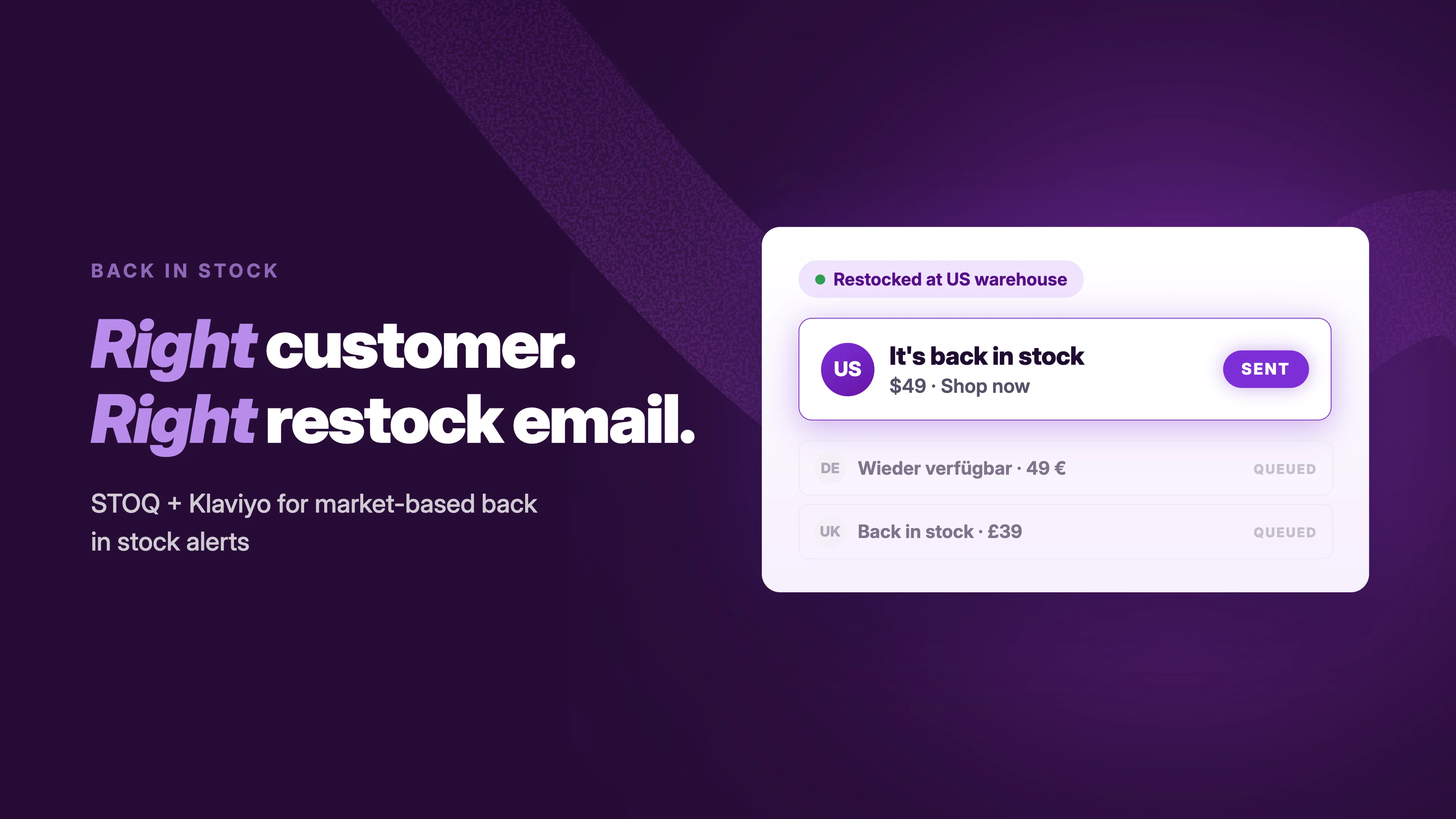
Your store sells in the US, the UK, and the EU. The US warehouse restocks, and one email goes out to everyone on the waitlist: one currency, one language, one link. A customer in Germany clicks through and lands on a product that is still sold out for her region. She won't click the next one.
There's another problem. A customer might get an alert for a restock they can't actually buy from their market. They're still waiting for the product to come back at the location that serves them, but they've already received an alert.
STOQ handles the first part. Only the waitlist for the restocked market gets notified, and the alert can link to that market's product page. You can also enable STOQ's multi-language support separately if you want alerts sent in the customer's preferred language.
You can then send those alerts through Klaviyo and keep them alongside the rest of your marketing, with the same flows, templates, sender, segments, and reporting.
Here's how to set it up, localize the emails, test each market, and troubleshoot the common issues.
The two levers: who gets the alert, and what the email says
STOQ and Klaviyo handle different parts of the job:
STOQ decides who gets notified. When a customer joins a waitlist, STOQ records which market they were shopping from. When inventory comes back at a location, only the waitlist for the market connected to that location gets the alert. Everyone else stays queued for their own restock. This works with or without Klaviyo.
Klaviyo decides what they see once you hand it the sending. The flow controls the email: currency, language, CTA, and sender name. STOQ's own emails can also send in the customer's preferred language when multi-language support is enabled. With Klaviyo, those alerts can live alongside the rest of your marketing, using the same flows, look, sender, segments, and analytics.
Before you start
Get the market setup working in STOQ before you build the Klaviyo flow.
Step 1 handles which market gets the alert and where the customer lands. STOQ's own alerts can also be localized, but that's a separate setting. By default, STOQ uses your store's default language for everyone. To send alerts in a customer's preferred language, enable Multi-language support in Delivery settings and add a translation for each language you want to support.
Before you start, make sure you have:
- Any paid STOQ plan (Lite, Pro, or Unlimited). Market-based alerts are blocked on the Free plan.
- Shopify Markets configured. Markets need to be created and locations assigned to them, not just have the Markets feature enabled. If no location is assigned to a market, STOQ has nothing to connect the restock to.
- Klaviyo connected to STOQ. STOQ uses OAuth for the connection: click Connect, then Allow in Klaviyo. No API key is required.
Step 1: Decide who gets the alert
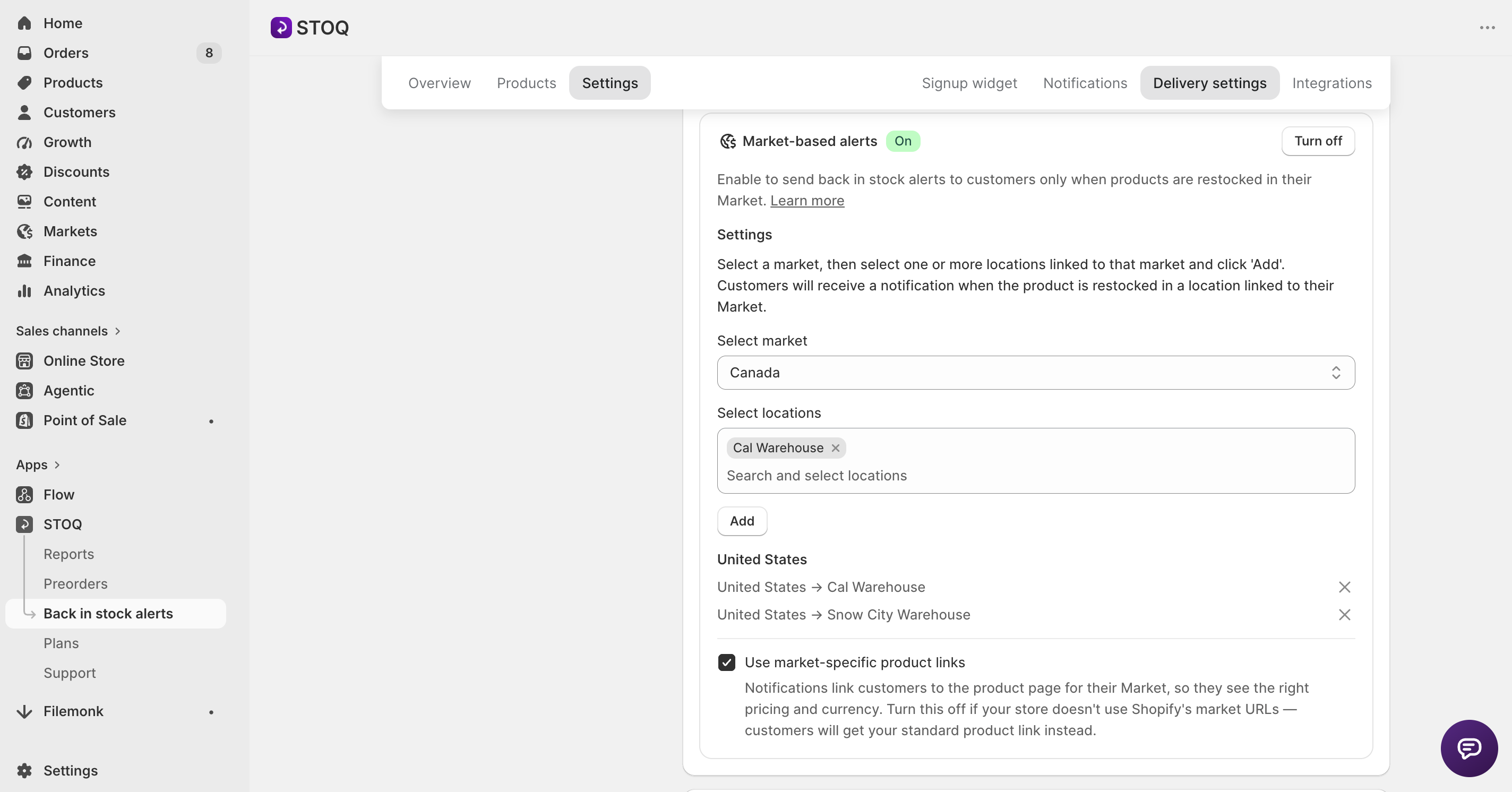
Connect markets to locations
This is what stops a customer in Germany from getting a US restock alert.
- Open STOQ from your Shopify admin and go to Back in stock alerts.
- Open the Settings tab, then the Delivery settings sub-tab.
- Click the Market setup row to expand it and choose Multiple markets.
- Turn on Market-based alerts.
- Connect each market to the locations that fulfill it: US market to US warehouses, EU market to the EU warehouse, and so on.
Save at least one market-to-location pairing before enabling Market-based alerts.
From there, a restock at a location alerts only the waitlist signups from that location's market.
Send STOQ alerts in the customer's language
Market-based alerts and language localization are separate settings.
If you want STOQ's own alerts to use the customer's preferred language:
- In Delivery settings, open the Languages card.
- Click Manage languages.
- Turn on Multi-language support.
- Add a translation for each language you want to support.
If a translation isn't available, STOQ falls back to your store's default language.
Keep customers on the right market page
Use market-specific product links switches on automatically with market-based alerts.
It controls where the product link in the alert goes: the customer's market-specific product page, with that market's currency and pricing, or the standard product link.
Leave it on. An email that reaches the right customer but sends them to a wrong-currency page undoes the work.
The link is handled in STOQ because it needs to be generated when the alert is sent. By the time you're in Klaviyo, the email itself is all that's left to build.
Step 2: Send the alerts through Klaviyo
Once STOQ has the audience right, send the alerts through Klaviyo.
Before you switch, keep two things in mind. The sender setting is shop-wide, so preorder notifications will also send through Klaviyo. Review those templates after the change.
Translations also move to Klaviyo's editor. Product and variant titles aren't translated automatically the way they are in STOQ's own emails, so if you sell in several languages, you'll need a template for each language you want to support.
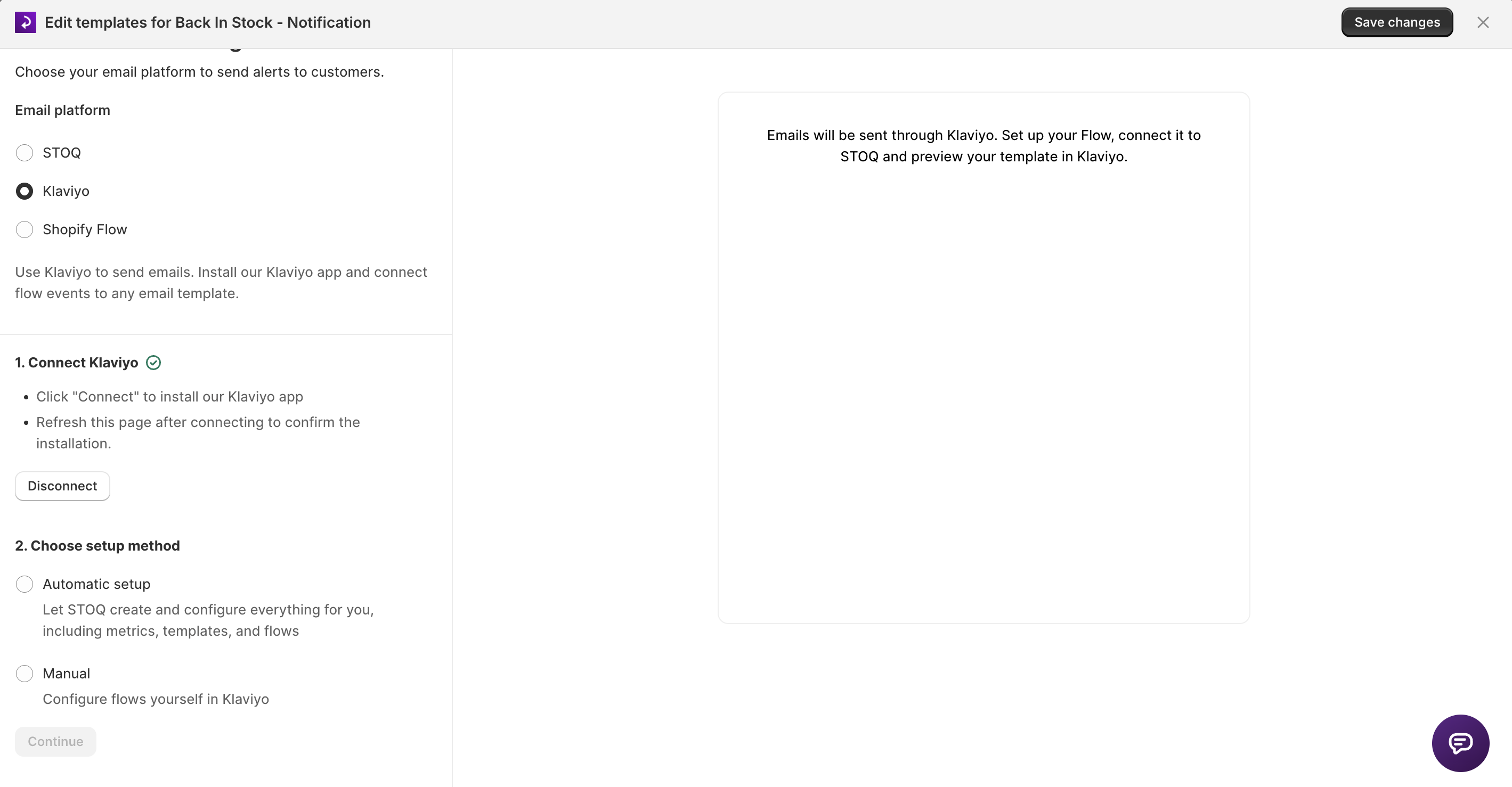
Switch the email provider to Klaviyo
- In STOQ, go to Back in stock alerts → Settings → Notifications and open the alert you want to send through Klaviyo.
- Click Customize email, then Send emails through in the sidebar and select Klaviyo.
- Under Connect Klaviyo, click Connect, complete the authorization, and refresh the page.
Choose how you want the flow built
Automatic
For most stores, use Automatic.
- Best for: most stores and first-time setups
- What it does: STOQ creates and activates the back in stock flow in Klaviyo with the correct trigger
- Why use it: you get a working flow in one click. The trade-off is a default template you'll customize afterward.
Manual
Use Manual if you already have a flow structure you want to keep.
- Best for: stores with an existing or custom-built flow
- What it does: create the flow in Klaviyo first, using the Back in stock alert (STOQ) metric as the trigger. Give the flow a name, then enter that exact name in STOQ's Flow name field and click Verify flow.
- Why use it: you can keep your own flow structure. Verify flow checks the flow name, not what's inside it. A typo fails verification, but a flow using the wrong trigger can still pass verification and never send. Check the trigger before clicking Verify.
Step 3: Build the localized email in Klaviyo
The Klaviyo flow doesn't get a Shopify market field from STOQ. In the existing flow, add a conditional split based on the customer's country or locale, then customize the email template for each branch.
The event carries:
- {{ event.customer_country }}
- {{ event.customer_country_name }}
- {{ event.customer_locale }}
You can also use STOQ's Klaviyo profile properties, locale and StoqLocaleCountry. StoqLocaleCountry can be useful when you want to branch on language and country together, such as fr-CA.
Add a default branch. customer_country and customer_locale aren't guaranteed to be populated for every signup. Without a default branch, a customer with no matching country or locale can fall through the flow without receiving an email.
Because Shopify Markets can group countries together, you can usually represent a market in Klaviyo by grouping the countries that belong to it.
Customize each email branch for that market:
- Currency: prices and offers in the market's currency
- Language: for example, German for an EU/DACH branch and English for US/UK
- CTA and link: the button goes to the product page. The market-specific links setting from Step 1 already points the customer to their market's page, so the flow only needs to add any region-specific text.
A simple setup might look like this:
Trigger → Split on country group (US/CA vs. EU) → Two email variants
You can use the same product block in both emails, then change the currency line and language. Start with the markets where the customer experience actually needs to differ. You don't need a separate branch for every market.
The market targeting was already handled in Step 1, so these splits only control the email. If you find yourself adding a branch to exclude a market, that's a delivery problem. Fix the market setup in STOQ instead.
Test it per market, from the storefront
Test from the storefront, not the STOQ admin. You want to follow the same path a real customer would take.
Make sure the Klaviyo flow is verified before you restock a test product. If a product restocks while the flow is still unverified, STOQ blocks that alert rather than falling back to sending it through STOQ. Those pending signups won't receive an alert for that restock.
Run this loop once for each market you connected in Step 1:
Then check both sides, because a flow branch firing and an email actually being delivered are two different things:
- In STOQ: go to Reports → Back in stock → Notifications sent. Click the arrow next to the customer's row and open “Why was this sent?” It shows the trigger and timestamp, and whether STOQ handed the notification off through the configured delivery path.
- In Klaviyo: check the flow's recipient activity and message status for the actual email delivery.
If you ever need to check whether a customer got their alert, these are the two places to look.
When it doesn't work
When something breaks, start with the issues below. These are the documented ways this setup can go wrong so far.
The flow is verified, but customers don't get emails
The green check is narrower than it looks: STOQ verifies that a flow with the right name exists, not what's inside it. A verified flow can still fail to deliver.
The main causes are:
- Klaviyo's Smart Sending is skipping the send. Smart Sending skips any profile emailed in the last ~16 hours. A restock alert the customer explicitly asked for shouldn't be held back by that. Fix: turn off Skip recently emailed profiles on the flow's Email action.
- The template pulls from Klaviyo's catalog instead of STOQ's event data. A block using catalog_item.title instead of {{ event.product_title }} can get skipped because the product still reads as out-of-stock in Klaviyo's catalog when the alert fires. Fix: swap catalog blocks for STOQ event variables.
- The flow is built on the wrong metric. For current OAuth connections, use STOQ's Back in stock alert (STOQ) metric. Legacy API-key connections may use the Stoq - prefixed metric. Don't use Klaviyo's native Back in Stock metric for this setup. A flow's trigger can't be changed after creation, so the fix is a new flow using the correct metric.
After any fix, use Send test event from STOQ, then check Klaviyo's flow analytics. It shows whether a message was skipped and why.
No alert fires at all
Start with the restocked location. Confirm that the location where inventory was actually added is one of the locations assigned to the relevant market in STOQ.
A market can be configured correctly while the inventory update happens at a different, unmapped location. If the location is mapped correctly, check that Shopify actually posted the inventory update to that location before troubleshooting Klaviyo.
An alert goes to the wrong market
Almost always, this is a gap in the Step 1 assignment: a location that isn't connected to its market, or a new market added after setup with no locations assigned.
Re-check the market-to-location assignment before touching the Klaviyo flow. The flow only ever sees the customers STOQ already selected.
Adding a new market
When a new market goes live:
- Assign its fulfillment locations in STOQ. Do it before the first restock.
- Decide whether it needs its own Klaviyo branch. If it has the same language and currency as an existing branch, reuse that branch. If it needs its own language, currency, or wording, add the branch.
- Run the storefront test loop for the new market before you trust it.
The takeaway
The split stays the same: STOQ decides which market hears about a restock, and Klaviyo decides what the email says.
Get that split right and your back in stock alerts can grow with your store without becoming another market-by-market maintenance job.
FAQs
Do I need Klaviyo for market-based back in stock alerts?
No. STOQ can limit alerts to the right market and link customers to their market-specific product page without Klaviyo. STOQ can also send localized alerts when multi-language support is enabled.
Sending through Klaviyo puts back in stock alerts in the same flows, look, and segments as the rest of your email.
Does switching to Klaviyo affect my preorder emails too?
Yes. The Klaviyo sender setting is shop-wide, so preorder notifications send through Klaviyo as well, not just back in stock alerts.
Review your preorder emails in Klaviyo after switching so nothing changes without you noticing.
Can I send different languages and currencies?
Yes. STOQ's own alerts can use the customer's preferred language when Multi-language support is enabled and the relevant translation has been added. Market-specific product links are handled separately.
If you send through Klaviyo, you can use a conditional split on country or locale and give each branch its own language, currency, and CTA. Because country and locale may be empty for some signups, include a default branch in your Klaviyo flow.
How do I check whether a back in stock email actually sent?
Two places.
In STOQ, go to Reports → Back in stock → Notifications sent and open “Why was this sent?” to confirm the notification trigger and timestamp.
In Klaviyo, check the flow's recipient activity and message status to confirm what happened to the email.
For Klaviyo-routed emails, STOQ does not have Klaviyo's final delivery status.

Anaam heads Merchant Success at Artos Software, working with Shopify merchants to help them unlock the full potential of STOQ and our other apps.