How to handle preorder delays on your Shopify store
The supplier email lands on a Tuesday: the container slipped a sailing, production ran long, customs wants another week. Whatever the reason, the stock now arrives after the date on every order confirmation you've sent.
How expensive this gets depends mostly on who breaks the news. In our support conversations, we’ve seen delays become harder to resolve when customers discover them on their own, days after the promised date. When merchants tell customers early and offer a way out, the conversation usually goes smoother. The refund-versus-chargeback math behind that is covered in our seasonal preorders guide (see the section on the ship date slips mid-season) and it applies to every preorder, seasonal or not.
Most delay advice stops at "communicate proactively." There's a step before the communication and skipping it is what forces a second email later.
Quick answer: Fix the dates in the system first. Then send one email with the new date and the way out. Then let anyone who wants to leave, leave cleanly.
The rest of this post walks that sequence, then covers the situations where it gets messy: orders that already half-shipped, deposit campaigns and the second delay.
Get one real date before you tell anyone
Don't announce a guess. A second delay email costs more credibility than the first delay itself, so the number you announce has to be one you won't move again.
Confirm the new date with your supplier — the actual date, from the person who controls it, not the reassuring estimate from the first phone call. Then pad it. Container clears on the 10th, receiving takes a day, something else goes wrong: the customer-facing date is the 20th, not the 11th. Announce a date you'll beat.
A padded date that crosses a hard deadline your customers are buying against, like a holiday cutoff, is a different problem — the order can no longer do what it was bought for. The seasonal guide covers that case. Short version: say exactly what you can no longer guarantee and lead with the refund.
Update the dates in the system first
This is the step everyone skips and skipping it produces a specific embarrassment: a customer opens your apology email, clicks through to their order and the order still shows the old date. Now your systems and your email disagree and the customer believes neither.
The date lives in three places and they don't update together.
The offer. Changing the shipping date on your preorder offer fixes the date for new orders only. Orders already placed keep the date they were created with. This trips merchants constantly, because the offer is the obvious place to make the change and it quietly does half the job.
The existing orders. Every open preorder on the affected products needs its fulfillment date moved, individually or in bulk. For orders that came in as Scheduled, the date also works as the release trigger: on the old date they flip to Unfulfilled and head for a warehouse with no stock to ship. Reschedule them. The mechanics (and why a schedule can be moved but never added after the fact) are in our fulfillment-status deep dive. Orders sitting On Hold are safer here — the hold blocks fulfillment regardless of dates, so you're only updating what the customer sees.
The product page. New visitors are still reading the old promise under the preorder button. Update the shipping timeline the same day, or you're creating the next batch of delayed customers while you handle this one.
In STOQ: change the date in the offer under Customize → Shipping → Fulfillment status and tick "Reschedule existing orders to this date" to move existing Scheduled orders to the new date at the same time.
Do all of this before the email goes out. It takes twenty minutes and afterward every surface a worried customer checks tells them the same thing your message does.
What goes in the delay email
You get one email. Not a saga, not a drip sequence — one message a customer can read in thirty seconds and act on.
The real question: "Is it possible to send an email to everyone who purchased this preorder letting them know about the new shipping date?
The answer is yes and the email needs four things, in this order:
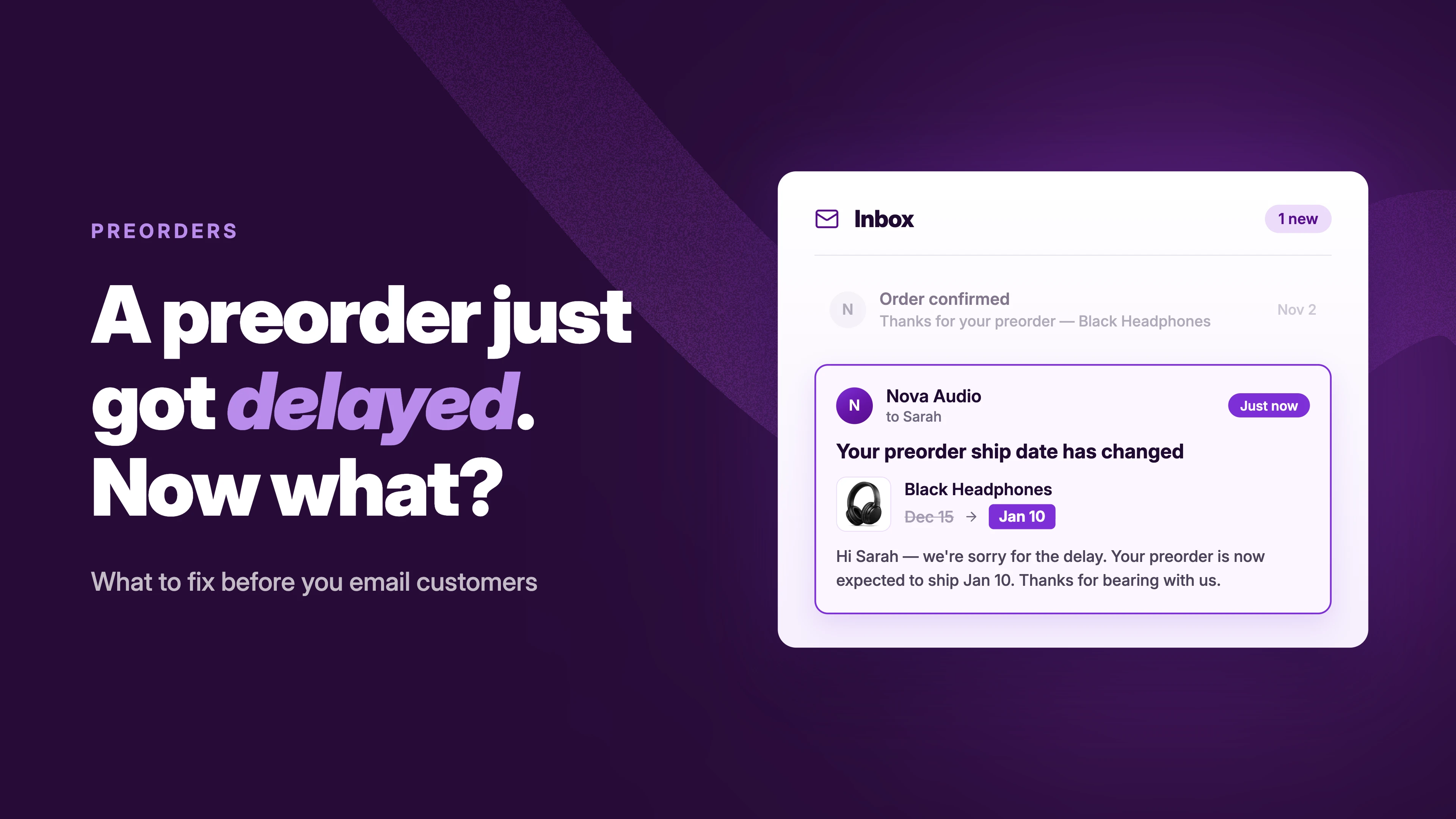
The new date. Specific and padded, per the section above. "Now shipping by March 20." Not "delayed by a few weeks," which reads as "we don't know," because it means "we don't know."
One honest line on why. "Our production run finished late" or "the shipment is held in customs longer than expected." One line. Customers don't need the supplier's excuse chain and a long explanation reads like a wind-up to worse news.
The way out, in the same email. A cancellation link, or a plain "reply and we'll refund you, no questions asked." Putting the cancellation or refund option right next to the bad news can feel like inviting losses. But in our experience it isn't: the customers who take it were canceling anyway and offering it yourself turns those exits into clean refunds instead of disputes.
What happens next. When they'll hear from you again — "we'll email you the day your order ships" — so the silence between now and then reads as normal instead of ominous.
Send it to every open preorder on the affected products. That's a tag filter; if your preorder orders aren't tagged, that's the first thing to fix. And send it before anyone asks — the same email sent as a reply to "where is my order?" arrives too late to change how the customer feels about the delay.
On tone: write it like a merchant in control of a situation, not a merchant doing damage control.
In STOQ: go to Reports → Preorders → Orders, select the affected orders and send the shipping update email. You can edit the subject, header and description with the new date before it sends (bulk sends need a paid plan; sending from a single order is on every plan). Here's the help guide: How to send a shipping update emails.
Refunds and letting customers cancel themselves
The refund offer in the email needs somewhere to land. Give customers a way to cancel without contacting you.
Turn on self-service cancellation before the email goes out. A customer who can cancel a delayed preorder from their order in a minute has less reason to open a dispute or email support. Some customers will want out when a campaign is delayed. Give them a way to leave without creating another support task. With cancellation self-serve, the "way out" in your message is just a link.
In STOQ: enable customer self-service cancellation for preorders — cancellations process the refund automatically and show in your preorder reports. Here's the help guide: How to let customers cancel preorders.
What gets refunded on deposit orders. "Will I get the full amount back?" is the first thing every canceling customer wonders, so answer it in your cancellation confirmation before they ask. For full-payment preorders the answer is simple: the whole amount was charged at checkout, so cancellation is a standard full refund. For deposit and partial-payment orders, the card was only ever charged the deposit — the balance isn't money on hold, it's a payment method Shopify saved at checkout with permission to charge later, (How card vaulting works), Cancel before the balance collects and that future charge simply never happens: the pending collection is voided with the cancellation and the deposit is refunded. The customer gets back everything they were charged, and the rest was never charged at all.
Where the line is. Made-to-order and personalized items can reasonably be non-cancelable once production starts, but only if that's what the customer agreed to at checkout. The terms shown next to the preorder button are the line and a recorded acceptance of those terms is what makes the line hold in a dispute. If you didn't set terms upfront, don't invent them mid-delay: refund generously this campaign and fix the terms for the next one.
Where it gets messy
Three situations come up often enough to plan for.
The order that already half-shipped
A customer bought an in-stock item and a preorder item together, the order split at checkout, the in-stock half delivered two weeks ago. Now the preorder half is delayed and they want out. The customer wants the preorder item canceled without touching the item that already shipped.
That works. The preorder half cancels and refunds on its own and the delivered half stands as a completed sale. This is the quiet payoff of splitting mixed carts in the first place.
One critical mechanic when you refund manually: the money lives on the original order, not the split one. When a preorder item is split into its own order, the customer's card payment stays on the order they checked out with; the split order is marked paid with a placeholder. Refund from the split order and no money reaches the customer's card. The app's cancellation flow routes this correctly, but a manual refund in Shopify admin has to start from the original order: use the refund amount field there for the preorder item's value. The preorder line may show quantity 0 on that order because it was moved — that's expected and the refundable balance is still there.
The deposit campaign mid-delay
A deposit campaign where the balance collects on a calendar date has a built-in trap. The ship date slips, the collection date doesn't and the system charges customers the remaining 70% for an order that just got delayed. We've seen this create a particularly difficult support situation: customers receive a delay email and then see another charge a few days later.
So the day the ship date moves, move the collection date with it. The collection date is set at the offer level: changing it moves every order in that offer together, which is what you want in a delay and worth knowing in advance if products in one offer run on different timelines (those need separate offers and a delay is a bad day to discover that). Where your setup allows it, collect the balance on fulfillment instead of on a date, so the charge can never outrun the shipment. Check this before the delay email goes out. Check our full breakdown on collecting remaining preorder payments.
In STOQ: move the collection date from the offer's payment settings — here's the help guide: How to reschedule the preorder payments.
The second delay
The date slips again. Don't handle it like the first one. Acknowledge it's the second one, because customers are keeping count even if your email template isn't. Re-offer the refund more prominently than before. In our experience, the first delay is usually recoverable; the second broken promise is where cancellations and disputes pile up. For customers who stay through two delays, consider a small goodwill gesture like a discount code or free shipping.
A second date that crosses a seasonal cutoff isn't a delay anymore. The order can no longer do what the customer bought it for and the seasonal guide's rules apply.
Before you close the tab
- Tag the delayed orders the day the delay lands. A tag like “delay-mar20” powers the email filter, the bulk reschedule and, two weeks later, the "did we actually update everyone" check. Without it you're filtering by memory.
- Dates → email → exit door, in that order. Email first and your apology links to an order page still showing the old date.
- Watch for chargebacks, not just replies. Silence after a delay email isn't consent. A badly handled delay can show up as an "item not received" dispute weeks later, even from customers who never replied to the delay email. Your evidence for those disputes is the delay email itself plus the terms accepted at checkout. Keep both where you can produce them.
- When customers find out before you tell them: run the same playbook, compressed. Fix the dates today, send the email today, lead with the refund offer and skip the reason line — at that point it reads as an excuse.
The bottom line
Handling a delay well is mostly systems work. The email matters, but it only holds up if the order page, the product page and the card statement all tell the customer the same thing it does. Get one real date, move every date in the system to match, send one email with the exit door open and make leaving easy for the few who take it.
Pre-write the delay email now, while nothing is delayed. The day you need it is the worst possible day to draft it.
Running preorders and want bulk date updates, delay emails and self-service cancellation in one place? Install STOQ from the Shopify App Store
Already using STOQ? Here's the help guide: sending shipping updates for preorders to set yours up.
FAQs
How do I change the shipping date on preorders that are already placed?
Changing the offer's date only affects new orders — unless you tick "Reschedule existing orders to this date" when updating it, which moves existing Scheduled orders too. Then send a shipping update so customers see the new timeline.
What should I say to customers when a preorder is delayed?
Keep it to one email: the new ship date (specific, padded), a one-line honest reason, a refund offer with a direct way to take it and when they'll hear from you next. Send it before anyone asks.
Should I offer refunds when my preorder is delayed?
Yes, proactively, in the delay email itself. A refund costs money; a chargeback adds fees, a dispute response and more work for your team. In our experience most customers don't take the offer — it gives the ones who want out a clean exit.
How do customers cancel a preorder on Shopify?
With self-service cancellation enabled, customers cancel from their order without a support ticket and the refund processes automatically. Without it, they contact you and you cancel and refund the order from the admin.
What happens to the deposit if a customer cancels a delayed preorder?
The customer gets back what they were charged: the deposit. The remaining balance was never collected, so the pending payment is voided with the cancellation rather than refunded.
Can a customer cancel a preorder if part of their order already shipped?
Yes. If the order split at checkout, the preorder half cancels and refunds while the shipped half stands. Refunding manually? Issue it from the original order — the split order's payment is a placeholder and refunds from it don't reach the customer's card.
How do I stop the remaining balance from charging while the order is delayed?
Move the collection date on the offer the same day the ship date moves — it applies to every order in the offer. Or set collection to trigger on fulfillment, so the balance only charges when the order actually ships.

Anaam heads Merchant Success at Artos Software, working with Shopify merchants to help them unlock the full potential of STOQ and our other apps.