How to launch preorders across your whole catalog (without editing products one by one)
A wholesale catalog going on preorder for the season. A 300-product apparel range arriving in six weeks. A full collection moving to made-to-order. The setup guides all show the same thing: open a product, add it to the offer, repeat. At three products that's fine. At three hundred it's an afternoon of clicking and a guarantee you'll miss a few.
Quick answer: Create one preorder offer, then feed it products in bulk: link a Shopify collection (new matching products join the offer automatically), select everything with All products, or import a CSV of exactly the items you want. Turn on Continue selling in bulk when prompted, test one product per rule, and schedule the campaign's end date.
Decision one: how products enter the offer
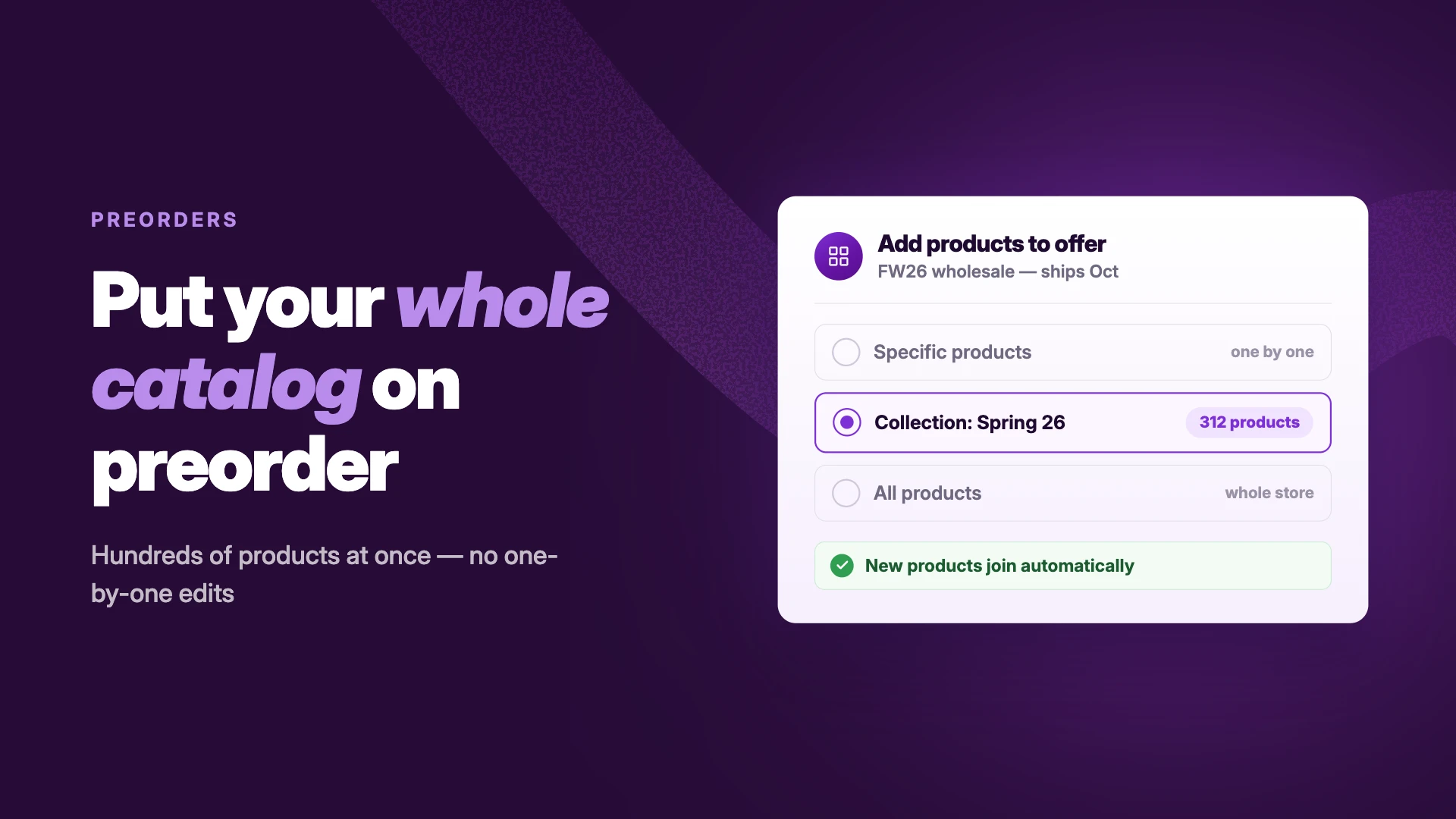
Every offer has a product type, and it decides how products get added — and how they keep getting added as the catalog changes. Pick it first, because it's the setting you can't cleanly change mid-campaign.
For most catalog-wide launches, Collection or All products is the lower-maintenance choice. Check two things before you commit.
1. In-stock preorders only work with Specific products
Taking orders on items that still have inventory — allocated stock, capped drops — rules out Collection and All-products modes. A CSV import into a Specific-products offer is your bulk path instead.
2. Switching modes on a live offer swaps the product list out from under it
Crossing modes detaches one set of variants and attaches another. Continue Selling has to be re-confirmed for everything being dropped, switching to in-stock forces the offer back to Specific products and switches inventory deduction back to at-checkout, and moving away from All products clears any exclusions you'd set.
None of that is a disaster, but at 300 products it's an afternoon of re-confirmation in the middle of a live campaign. Pick the mode for how the catalog will behave across the whole season, not for what's easiest on day one. Within a mode, you can add and remove products freely.
Decision two: one offer, or several?
The instinct at catalog scale is one big offer, and it can stretch further than you'd expect: a paid-plan offer can carry a different shipping timeline for each product, so October and December items can genuinely coexist in one offer. Two settings can't stretch that far, and they're what actually force a split.
Payment terms are one setting per offer
Full-payment items and deposit items need separate offers. The balance-collection date also moves per offer, so deposit campaigns tied to different supplier timelines should be split into their own offers — that way one supplier slipping doesn't force you to touch every product's terms. (More on handling a slip in our delay playbook.)
Scheduled fulfillment needs one timeline for the whole offer
If you want orders to release themselves automatically on a set date, per-product ship dates are off the table for that offer.
Split where the settings force you to — one offer per payment setup, and one timeline per offer if Scheduled fulfillment is doing your releasing. Everything else can share.
Don't let offers overlap
The same product landing in two offers — overlapping collections, or a CSV that duplicates a collection's contents — is a known cause of the button behaving unpredictably on exactly the products you least expect. If offers are split by collection, check that the collections are mutually exclusive before enabling the second one. And give each offer a descriptive internal name ("FW26 wholesale — ships Oct" beats "Offer 3"); the offers list is searchable by offer and product name, which is how you find things again with four campaigns live.
For developers
Stores running programmatic launches or syncing with an inventory system can skip the admin UI with STOQ's Preorders API, which creates offers and bulk-updates shipping dates from your own code. Writes cost more against the rate limit than reads, so batch bulk shipping updates rather than firing them one at a time.
Running a Collection offer
For a catalog with clean collection structure, linking the offer to a collection is the least ongoing work. The behavior to understand is automatic inclusion, and it cuts both ways.
New products join on their own — after a short lag
Merchandising adds the new colorway to the "Spring 26" collection and it becomes a preorder within about 15 minutes. The offer checks the collection on a cycle rather than live, so a just-published product may briefly show Add to cart before the Preorder button takes over. Time announcement emails accordingly.
Everything that enters the collection converts
A smart collection with broad conditions (say, vendor or product type) will pull in products you didn't have in mind, each one showing a Preorder button with the offer's payment terms and ship date attached. Before linking, open the collection and read it as a list of promises: every item in here will carry this offer's ship date. If the collection is smart, check the conditions, not just the current members — the conditions are what admit future products.
The guard for a collection you don't fully trust
Choose the tracking mode Only track products with "Continue selling" enabled, and the button appears only on products you've explicitly readied — a broad smart collection can't convert anything by surprise.
In STOQ: in the offer editor's Products section, choose Collection and pick the collection. Here's the help guide on how to add products to an offer.
Running an All-products offer
All products is Collection mode with the whole store as the collection.
Every product is tracked, on the same cycle
New products join within the same roughly-15-minute window as they're created, and the same tracking-mode guard applies as in Collection mode.
The Exclusions panel: the exception list Collection mode doesn't have
Carve out specific products or whole tags, like skip-preorder, and the sync stays automatic everywhere except the exceptions you name. Tag-based exclusions scale well: merchandising controls what sits out of the campaign from the product page in Shopify admin, without touching the offer.
Running a Specific-products offer from a CSV
Some launches don't map to a collection or the whole store: two hundred items scattered across ten collections, a subset chosen by the buying team in a spreadsheet, a migration from another preorder app. The CSV import feeds a Specific-products offer in bulk — which also makes it the bulk path for in-stock launches.
Two files, two jobs
Export first for a backup. Then build the actual edit in the official import template, a separate sheet you copy — not the export file. The template identifies products by column and carries an add-or-remove flag per row, so one file can do a whole reshuffle: add the new season, drop the discontinued items, done in a single import.
The spreadsheet is where mistakes get caught
A wrong variant is invisible in a picker of 300 checkboxes and obvious in a sorted column. If a buying team owns the assortment, let them own the file — the import is the handoff.
One import at a time per offer
When several campaigns are live at once, imports on different offers run independently. But one import runs at a time per offer and can't be cancelled once started — finish and verify one edit before queuing the next.
In STOQ: offer editor → Products section → menu (⋯) → Export to CSV; import from the same menu using the official template. Here's the help guide on import and export of preorder products.
Continue selling, multiplied by the catalog
Out-of-stock preorders need Shopify's "Continue selling when out of stock" enabled on every product in the offer — at zero inventory with it off, the product simply shows as unavailable.
Nobody opens 300 inventory screens
In a Specific-products offer, the editor flags products missing the setting and enables it for them in one pass. In Collection and All-products offers, the tracking mode you picked does the same job: Track all auto-enables Continue selling as products go out of stock, while the only-track-enabled mode leaves it to you. If a bulk change looks like it's hanging for a minute on a very large catalog, it's not broken — big batches finish in the background and the product list refreshes when they're done.
Check the inventory state, not just the setting
An out-of-stock catalog launch wants everything at zero with Continue Selling on. Stray positive quantities on a handful of SKUs mean those items sell as regular stock while the rest take preorders — and the discrepancy surfaces as confused fulfillment, not as an error message. Export inventory from Shopify, sort by quantity, and fix the outliers before the offer goes live.
Test by rule, not by product — bundles are the exception
Three hundred products in one offer share one setup, so one test order per distinct rule tells you what all three hundred will do. Testing five random products from the same offer tells you the same thing five times. The exception is bundles, which apparel and wholesale catalogs run into often: a Shopify bundle's availability is driven by its components' inventory, not the bundle product's own stock, so the "Continue selling" check flags bundles separately and adds them anyway. After a catalog-wide add, place a test order on a bundle too.
Closing the campaign at catalog scale
The end of a catalog campaign is the launch in reverse, with the same bulk problems pointing the other way.
- Schedule the end date when you schedule the start. An offer can open and close on its own; a 300-product campaign that needs a human to remember the off switch will be purchasable a week longer than intended.
- Let the confirmation step untangle Continue Selling. Turning the offer off triggers the same confirmation as turning it on — decide there whether Continue Selling stays (products keep selling against incoming stock) or goes (sold out until inventory lands). Deciding it per-product afterward is the 300-screen problem again.
- Removing products doesn't touch their orders. Dropping a product from the offer — individually, by collection removal, or by CSV remove-flag — stops new preorders. Orders already placed keep the terms they were bought with: same ship date, same payment schedule, same holds. Ending the campaign and honoring its orders are separate jobs (our delay playbook covers the second one if dates moved along the way).
- Put the leftover demand somewhere. Products that stay unavailable after the campaign closes should switch to a waitlist, so the demand you can't sell this season becomes the list you open next season with our waitlist guide.
The bottom line
Launching preorders across a catalog is two decisions and then logistics. The decisions are how products enter the offer — collection, catalog-wide, or a curated CSV — and how many offers carry the promises, split only where payment terms or Scheduled fulfillment force it. Both are best made before launch, because crossing modes later swaps the product list out from under a live campaign. The logistics are bulk versions of the usual checks: Continue Selling handled in one confirmation instead of 300 screens, one test order per rule instead of per product, and an end date scheduled on day one.
Launching a big range on preorder and want collections, CSV import, and bulk controls in one app? Install STOQ from the Shopify App Store.
Already using STOQ? Here's the help guide on adding products to an offer to set your catalog up.
FAQs
How do I add many products to a Shopify preorder offer at once?
Two bulk paths: link the offer to a Shopify collection so every product in it converts to preorder automatically, or import a CSV listing exactly the products and variants to include. All-products mode covers the entire catalog in one step.
Can new products automatically become preorders?
Yes. In Collection mode, any product added to the linked collection converts to a preorder automatically, within about 15 minutes — same for new products in All-products mode. In All-products mode, the Exclusions panel (specific items or a tag) carves out exceptions; in Collection mode, curate the collection itself.
Can I run in-stock preorders on a whole collection?
No — in-stock preorder mode works only with Specific products selection. For a large in-stock launch, build the product list by CSV import into a Specific-products offer instead of linking a collection.
How do I remove many products from a preorder offer?
Use the CSV import with the remove flag to drop products in bulk, remove them from the linked collection, or disable the whole offer. Removal stops new preorders only; existing orders keep their original terms.
Do existing preorder orders change when I edit the offer's products?
No. Orders already placed keep the ship date, payment schedule, and holds they were created with. Editing the offer's product list only affects what new customers can preorder.
Should I use one preorder offer or several for a big catalog?
One offer per payment setup — payment terms and the balance-collection date are single settings per offer. Ship dates are more flexible: paid plans support a different timeline per product, unless you use Scheduled fulfillment, which needs one timeline for the whole offer.

Anaam heads Merchant Success at Artos Software, working with Shopify merchants to help them unlock the full potential of STOQ and our other apps.