How to run a limited product drop on Shopify: the 5-step drop flywheel
Most stores plan a limited product drop around the announcement: the teaser, the countdown, the post that says “Friday, 10am.” The announcement is the easy part. The hard part is everything around it: picking a quantity you can actually sell and ship, making sure checkout stops when that quantity is gone, and getting every order out on time.
Quick answer: A limited product drop releases a fixed quantity at an announced time. To run one on Shopify, forecast the quantity from your own sales history, build a waitlist, use Shopify inventory as the cap so checkout stops at your number, open at the announced time, and use the results to plan the next drop.
We call it the 5-step drop flywheel: Forecast, Capture, Protect, Launch and Learn. Each release hands you better data for the next one.
1. Forecast: decide how many units your product drop releases
Start with three questions: how many people want the product, how many of them will actually buy, and how many units you can ship on time.
Use past sales to estimate demand
A waitlist signup means someone wants to hear about a product. It's not a purchase. Shoppers change their minds, find something else, or sign up for three sizes and buy one.
So your own sales history beats the raw signup count. If you've run drops before, use their conversion rates first: the share of customers notified about a previous drop who went on to buy. If you haven't, use your back-in-stock alerts as a proxy. Just remember that buying in a scheduled, limited release can look different from buying when a product quietly comes back, so treat restock conversion as an estimate, not a proven drop rate.
Either way, you need two numbers:
- Conversion rate: unique buyers divided by unique customers notified.
- Units per order: the average number of units those buyers purchased.
Multiply the customers you expect to notify by the conversion rate and the units per order, and you have a demand estimate.
For restock history, STOQ's back in stock reports show waitlist demand, notifications and attributed sales by product or variant. The same calculation works with your own campaign and order data.
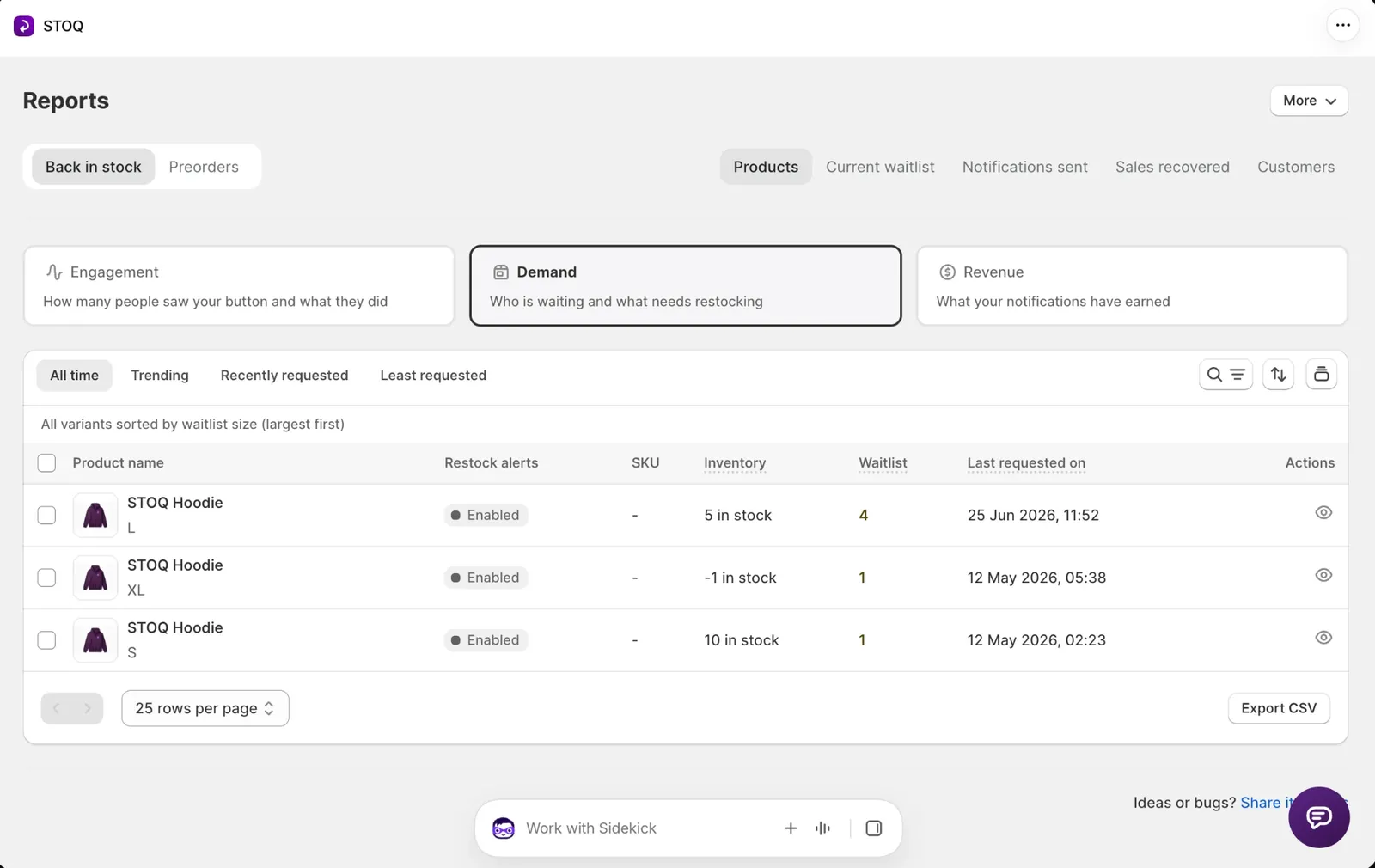
Count each customer once, even if they placed two orders. If shoppers can sign up for several variants, allow for that overlap when you add up total demand.
First launch, no history at all? Start with a cautious assumption, label it a guess, and replace it with real results after the drop.
Calculate a conservative and an upside estimate
Take a hoodie with 1,000 signups across three sizes. Say your past restocks converted 20% to 30% of notified customers, at an average of 1.1 units per order.
These are illustrative numbers, not industry benchmarks. To keep the math simple, the example uses the same rates for every size; use variant-specific rates when your data supports them.
Both columns cover what the waitlist alone might buy. The conservative one assumes the lower conversion rate; the upside assumes the list converts better.
If you can only ship 300 units on time, your allocation stops at 300 unless you change the fulfillment plan. The estimates show you a range of likely demand. They don't promise a sell-out.
Shoppers who weren't on the list can add demand on top. If earlier drops pulled in buyers from outside the waitlist, estimate that from your own order data rather than adding an arbitrary buffer.
Wait time can pull the other way. Someone who signed up months ago may have moved on. Compare conversion across your recent and older waitlist groups before you assume the whole list will buy.
Split the stock by variant
Use waitlist demand and past sales to divide the quantity across sizes, colors or other variants.
In the example, M has half the signups, so it gets half of the 300-unit allocation. An even 100 per size would leave M short and XL sitting on extras.
Treat waitlist share as a starting point. Wherever you have real sales by variant, let them shape the final split.
Set the quantity you can fulfill
Your forecast might say 330. If you can reliably pack and ship 300 inside the window you've promised, the drop is 300.
A drop that sells 330 and ships 300 on time has become an unplanned backorder.
Decide before launch whether there'll be another run. “300 now, another run later” works fine. Promising the product will never return and then reopening sales is how you lose trust.
2. Capture: build your waitlist before the announcement
Once you have a working quantity, start collecting demand.
Collect signups while the product is unavailable
Put a Notify Me form on the product page while it's unavailable. Shoppers who'd otherwise leave without a word tell you exactly what they wanted.
The list also shows you which variants pull the most interest before you commit to inventory. STOQ's back in stock alerts collect those signups and notify shoppers when the product's available, and the demand data feeds straight into your allocation.
Setting one up for the first time? Here's how to create a waitlist on Shopify.
Watch for changes in demand
The list can keep growing between your forecast and drop day. If you can still order more stock, a meaningful jump in signups is your cue to review the quantity.
Say you planned a 300-unit drop from 1,000 signups and the list grows to 1,250. Re-run the forecast with your conversion rate, supplier lead time and fulfillment capacity.
More signups don't automatically justify more inventory. They tell you the original estimate deserves another look.
In STOQ, waitlist signup alerts can email you when a product's waitlist reaches a threshold you choose. The threshold alert is available on all plans, including Free. The alert counts signups, not expected purchases, so treat it as a prompt to revisit the forecast.
Decide what waitlist members get
You can notify the list before the public announcement, offer early-bird pricing, or run an exclusive early-access window.
Be precise about what you've promised. Emailing the list first doesn't mean they can buy before everyone else. If you're promising exclusive access, your store has to actually restrict access during that window.
For the wider pre-launch content plan, see how in-stock preorders give you weeks of launch content.
3. Protect: make sure the drop can't oversell
You've picked the quantity. Now decide how checkout enforces it.
A limit that holds when orders trickle in can fail when hundreds of customers try to buy in the same few minutes.
Why a preorder limit can be exceeded
With STOQ's count-based preorder quantity limit, Shopify accepts the order first. STOQ then counts it against the variant's limit and switches selling off once the limit is reached.
Each of those steps takes a moment. In a concentrated burst, new orders get accepted before the earlier ones have been counted, and sales run past the limit.
We've seen what that looks like. In one collectibles store's launch, the limits across five products added up to just under 700 units. In a rush of roughly ten minutes, around 1,150 units sold, about 470 over the combined limit. The worst-hit product sold nearly four times its limit. The next day went to cancelling orders and refunding customers.
The limits were set up exactly as intended. Orders simply arrived faster than a separate counter could stop them.
Here's the documented behavior and recommended setup: preorder limits during high-volume launches.
Use Shopify inventory as the cap
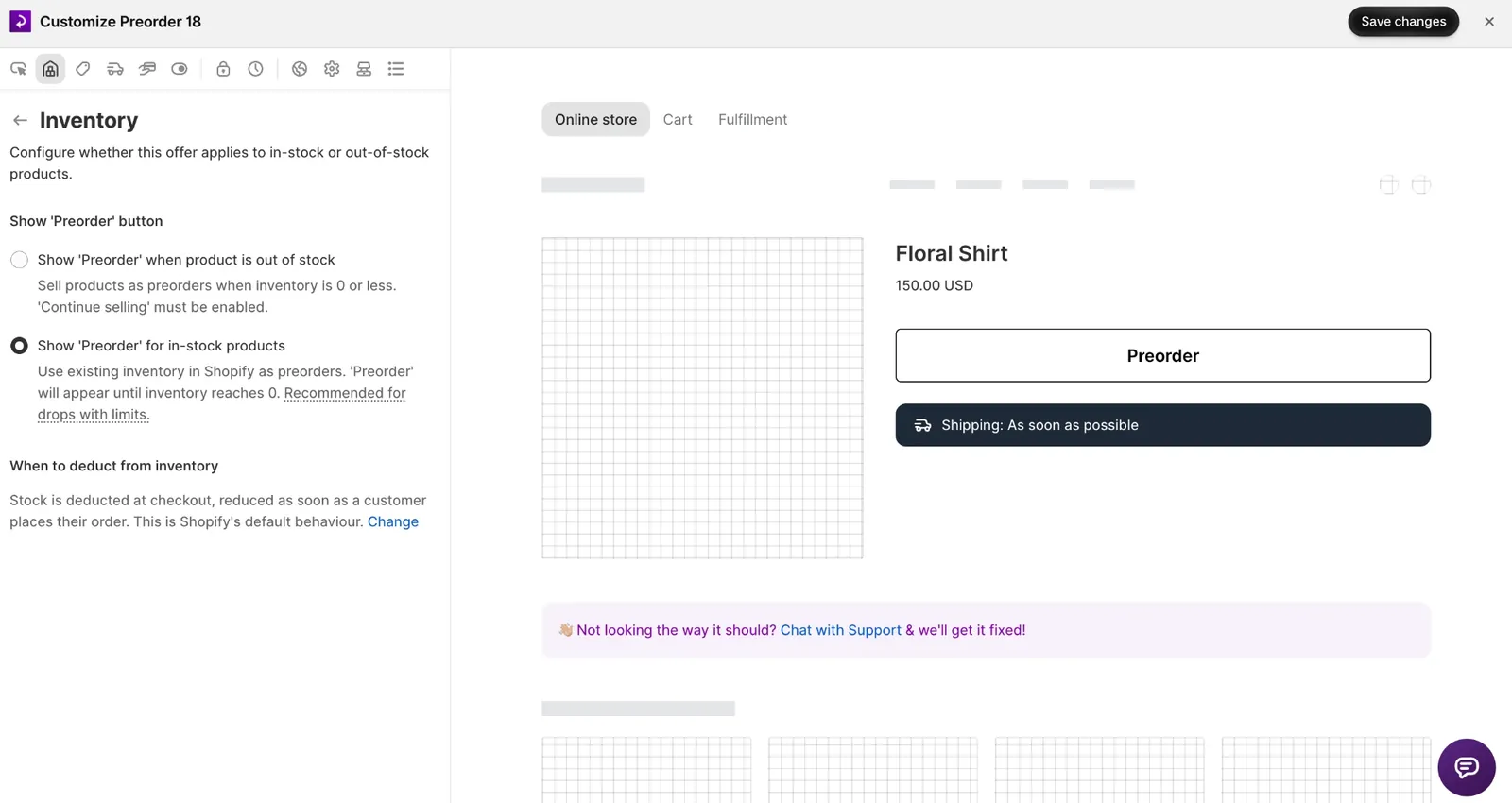
For a high-volume drop where the quantity has to stay inside a set allocation, use Shopify inventory as the cap. Shopify checks availability at checkout, so once available inventory hits zero, online purchases stop, as long as inventory is tracked and Continue selling when out of stock is off.
That cap covers your online checkout. Other sales channels and POS work differently, which step 4 covers.
STOQ's inventory settings guide explains the in-stock preorder option and its restrictions.
Account for stock that's still in transit
The inventory quantity you set for the drop is its allocation. It doesn't have to mean the units are physically on your shelves.
If you're allocating 300 hoodies, you might set 150 for M, 120 for L and 30 for XL, even if the shipment hasn't landed yet.
That allocation has to stay put for the whole drop. A warehouse integration, ERP, POS location sync or inventory app can overwrite it with its own stock count. Reset it to zero and the product goes unavailable. Add stock that wasn't meant for the drop and your cap no longer matches what you promised.
Check that the right quantities sit at the locations fulfilling online orders. Talk to your warehouse and whoever owns your inventory systems, and pause or exclude the drop variants from automatic syncs where you need to. Your allocation, order routing and fulfillment plan all have to agree.
What if you can't allocate inventory?
Some drops are made only after orders close, so there's no quantity to put into Shopify. In that case you'll probably need a count-based preorder limit.
Setting the limit below the most you're willing to fulfill, and avoiding one big simultaneous rush, both lower the risk. Neither gives you a hard cap: a big enough burst can still push past a count-based limit.
If the quantity genuinely can't be exceeded, use the inventory approach wherever your fulfillment setup supports it.
4. Launch: line up checkout, timing and notifications
Before you announce anything, make sure customers can actually complete the purchase on the terms you've promised.
Make sure shoppers see the preorder terms
When someone clicks through from Google Shopping, Facebook or Instagram and lands on your Shopify Online Store product page, they see the same STOQ Preorder button and preorder details as any other visitor. You don't need a separate setup for those traffic sources.
The important thing is that shoppers complete checkout through your Online Store, where the preorder flow is available. The Shop app's own checkout doesn't support STOQ preorders.
If you're also selling in person, test Shopify POS separately. POS doesn't support Shopify selling plans at checkout, so deposits aren't available and customers pay in full. STOQ has a separate Shopify POS preorder guide explaining its POS preorder flow and limitations.
Test the checkout journey before launch
A product page that looks right doesn't guarantee a smooth checkout. Test an actual preorder so you can check the preorder details, payment terms, inventory deduction and expected ship date from the shopper's perspective.
Customers need to see the preorder information before completing their order. To keep shoppers in that flow, STOQ hides express checkout buttons on preorder product pages by default, including Buy it now, Shop Pay, Apple Pay, Google Pay and PayPal. This prevents shoppers from bypassing the standard cart and its preorder details.
Shopify also excludes certain local payment methods from its preorder purchase options. Test your store's actual payment journey with preorders before going live.
Your shipping date matters just as much. Base it on supplier lead times and fulfilment capacity. If you can't ship within the promised window, Shopify requires you to give customers a revised date and explain their right to cancel or get a refund.
Check the launch setup
Before the drop opens, confirm:
- Allocated quantities, fulfillment locations, inventory syncs and shipping commitments are correct
- A test purchase on the same offer setup shows the right preorder message, payment terms, ship date and inventory deduction
- At zero inventory, the product stops accepting orders through your online checkout, and the Notify Me form shows if you've set one up
- Your launch time, public announcement and notifications all use the same time and timezone
Open at the announced time
If the product sits at zero inventory until launch, adding the allocated quantity is what opens it.
Don't load the quantity the night before if someone could find the page and buy early. Assign one person to make the change on time, with a backup in case they're not around.
Once inventory is live, notify the waitlist. Sending every alert at once can start a second rush, so you may want to stagger them.
STOQ supports batched back in stock alerts on paid plans, sending notifications to groups at one-, two- or three-hour intervals while inventory lasts.
Batching can give earlier recipients more time to buy. It doesn't reserve stock for later ones, though. The product page stays open to anyone who finds it, and the drop can sell out before the next batch goes out.
A countdown helps shoppers get ready for the open. If you show a remaining-stock counter, make sure it reflects what's actually available. A counter still showing stock after the drop has sold out creates confusion rather than urgency.
More on running a countdown through launch: the preorder countdown lifecycle.
5. Learn: use the results to plan the next drop
When the allocation sells out, close the loop with customers, then use the numbers to make the next drop better.
Give sold-out shoppers a next step
At zero inventory, the product stops accepting orders through your online checkout. If the Notify Me form is in place, shoppers who missed out can join the list for the next run.
Send an update confirming the sell-out, thank customers, and tell them how they'll hear about another release. Only announce a date for the next run if it's actually planned.
If you oversold, contact the affected customers before they find out on their own. Explain what happened and offer a refund or, if you can honor it, a guaranteed unit from the next run.
Cancel orders you can't fulfill rather than leaving customers waiting with no realistic date. Before launching again, find the cause: a count-based limit, an inventory sync, or a checkout route that skipped the preorder terms.
Review the numbers
About a week after the drop, while the details are fresh, review sales and fulfillment.
Pull these from Shopify orders and fulfillment records alongside your waitlist and preorder reports. STOQ's back in stock reports show notifications and attributed sales, and its preorder Products report shows preorder units sold by product or variant.
Count unique buyers, not orders, when you work out waitlist-to-order conversion. Keep the attribution window the same each time so you're comparing drops like for like.
Feed what you learn into the next forecast
Read the metrics together. No single number is a verdict.
- Sold out fast and the waitlist kept growing: demand may sit above your upside estimate. Consider a bigger allocation or another run, if fulfillment capacity allows.
- Sold gradually and few people joined after sell-out: your allocation may be close to real demand. Check your launch goal and margins before repeating it.
- Some variants sold out, others didn't: shift the allocation toward the variants with stronger sell-through.
- Fulfillment ran late: find out whether it was the quantity sold, supplier delays or warehouse capacity, and fix that before growing the next allocation.
- Cancellations or refunds were high: sort out the cause before scaling up. Review the preorder terms, where the orders came from, and how the cap was enforced.
A sell-out on its own doesn't tell you the drop was well planned. The quantity, the demand, what customers expected and how fulfillment went all have to add up.
The takeaway
A drop is a number you promise, an audience that's waiting for it and a minute you open the doors. Forecast the number from your own data, put it where checkout can actually hold it, and treat every sell-out as the forecast for the next one. That's the flywheel: each drop makes the next number easier to get right.
Planning a drop? → Install STOQ from the Shopify App Store to collect waitlist signups, read demand by variant and run preorders.
Already using STOQ? Here's the help guide: preorder limits during high-volume launches to set up your drop.
FAQs
What is a limited product drop?
A limited product drop releases a fixed quantity at an announced time. Because the quantity and release window are set in advance, inventory planning and who gets access matter more than in a normal launch.
How do I estimate demand for a product drop?
Multiply the customers you'll notify by your conversion rate and average units per order. Use past drop data if you have it, or restocks as a proxy. Work out a conservative and an upside figure, split it by variant, and cap it at what you can ship on time.
How do I prevent a limited drop from overselling?
For a high-volume online drop, use tracked Shopify inventory as the cap, with Continue selling when out of stock turned off. Check fulfillment locations, inventory syncs and checkout routes. A count-based preorder limit can be exceeded in a sudden rush.
Where should I sell a preorder drop on Shopify?
On your Online Store or a supported custom storefront, where shoppers see the preorder details. Google & YouTube and Facebook & Instagram work when they send customers to your Online Store to check out. The Shop app doesn't support STOQ preorders. Test POS separately.

Rajat is CMO at Artos Software, leading growth for STOQ and our portfolio of Shopify apps through SEO, content, partnerships, and AI-driven marketing.