Shopify back in stock automation: Auto‑notify waiting customers
As a merchant, you may run ‘out of stock’ for mostly two reasons:
- A product becomes an overnight hit, and demand grows exponentially
- Inventory and supply issues
Now, whatever may be the reason, when you go out of stock, only customers don’t lose. Your revenue can take a considerable hit, too. The worst part is that these customers had real and high intent to buy and maybe never return.
There is a way to avoid this: Shopify back-in-stock automation
But how does this work? In this blog, we answer exactly this and provide a step-by-step guide on Shopify back-in-stock notifications, so your out-of-stock problems don’t turn into serious revenue issues.
How does Shopify back in stock automation work?
Since Shopify's native system doesn't send automated back-in-stock alerts, merchants need to rely on third-party apps from the Shopify App Store to bridge this gap.
Here’s how the process generally works:
- You install an app. It adds a button or form to your product pages when something sells out.
- Interested customers enter their email or phone number on that form. They are now on a waitlist for that exact item. The app connects to your Shopify admin and monitors your stock levels 24/7.
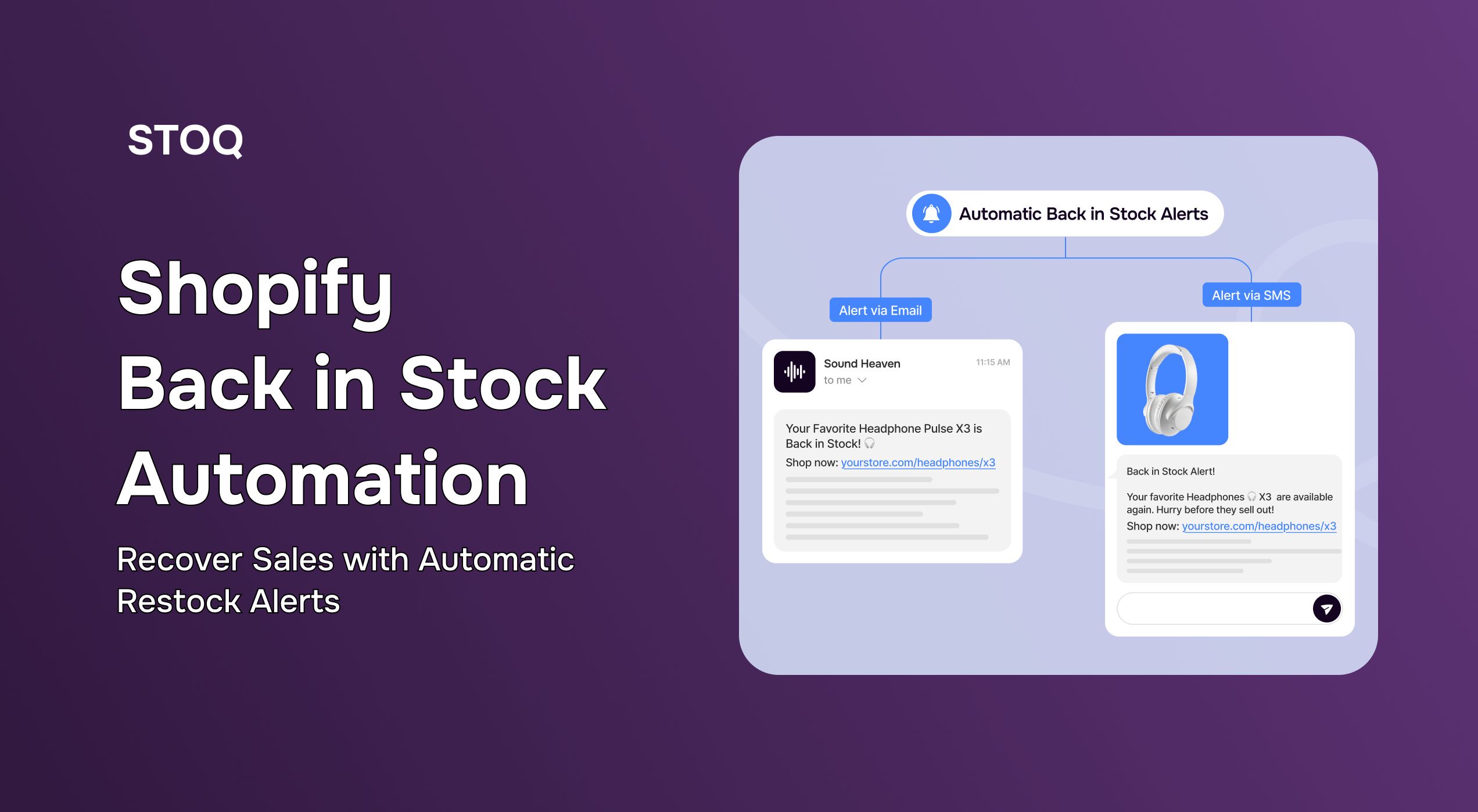
- The moment you update the inventory quantity for that product, the app triggers automatically. The app instantly sends an email or SMS alert to everyone on that product's waitlist.
And while this system works, the experience can vary. Some apps are clunky, others lack key features, and setup isn't always intuitive. Below, we explore how STOQ overrides most third-party app limitations to help you set up the most friction-free automated back-in-stock notifications.
How to automate back-in-stock notification with STOQ? Step-by-step guide
Here’s how you can activate Shopify back in stock automation with STOQ in minutes:
Step 1: Turn on the 'Notify Me' widget
This is the button customers see. Once you are done installing STOQ from the Shopify Store, go to the ‘Apps’ section and click on ‘Back in stock alerts’ as seen in the image below
You should immediately see a pop-up on the right-hand side: ‘Signup Widget.’

Upon clicking the ‘Customize widget’, you’d be guided to a page that looks as below:
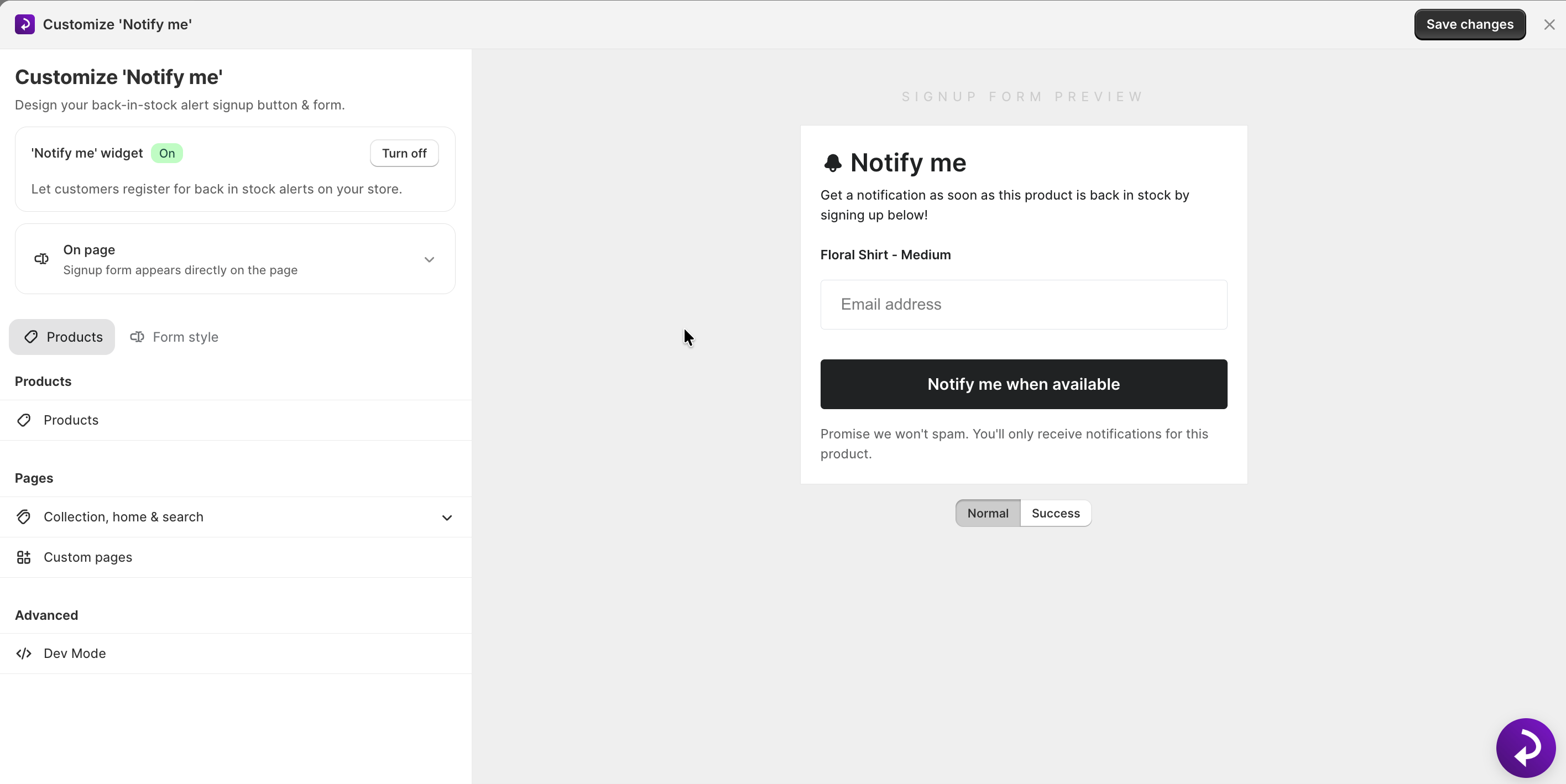
Next to the ‘Notify me’ widget, press ‘Turn On.’ Choose how it looks, like a 'Button + Popup.' Customize the style, position, pages, and more. You also have an advanced dev mode for deeper customization.
Once you are done, simply click on ‘Save changes.’
Step 2: Set your notification rules
Tell STOQ when to send alerts. In the ‘Notifications’ section, turn 'Send automatic notification' on. This sends an alert as soon as you restock, and perhaps is the most important step for Shopify back-in-stock automation.
For extra power, you can also turn on a ‘reminder notification.’ This sends a second nudge to any customer on the list who hasn’t purchased yet. You can even set a minimum restock quantity (STOQ will only send alerts when restocked inventory is equal to or greater than this number.)
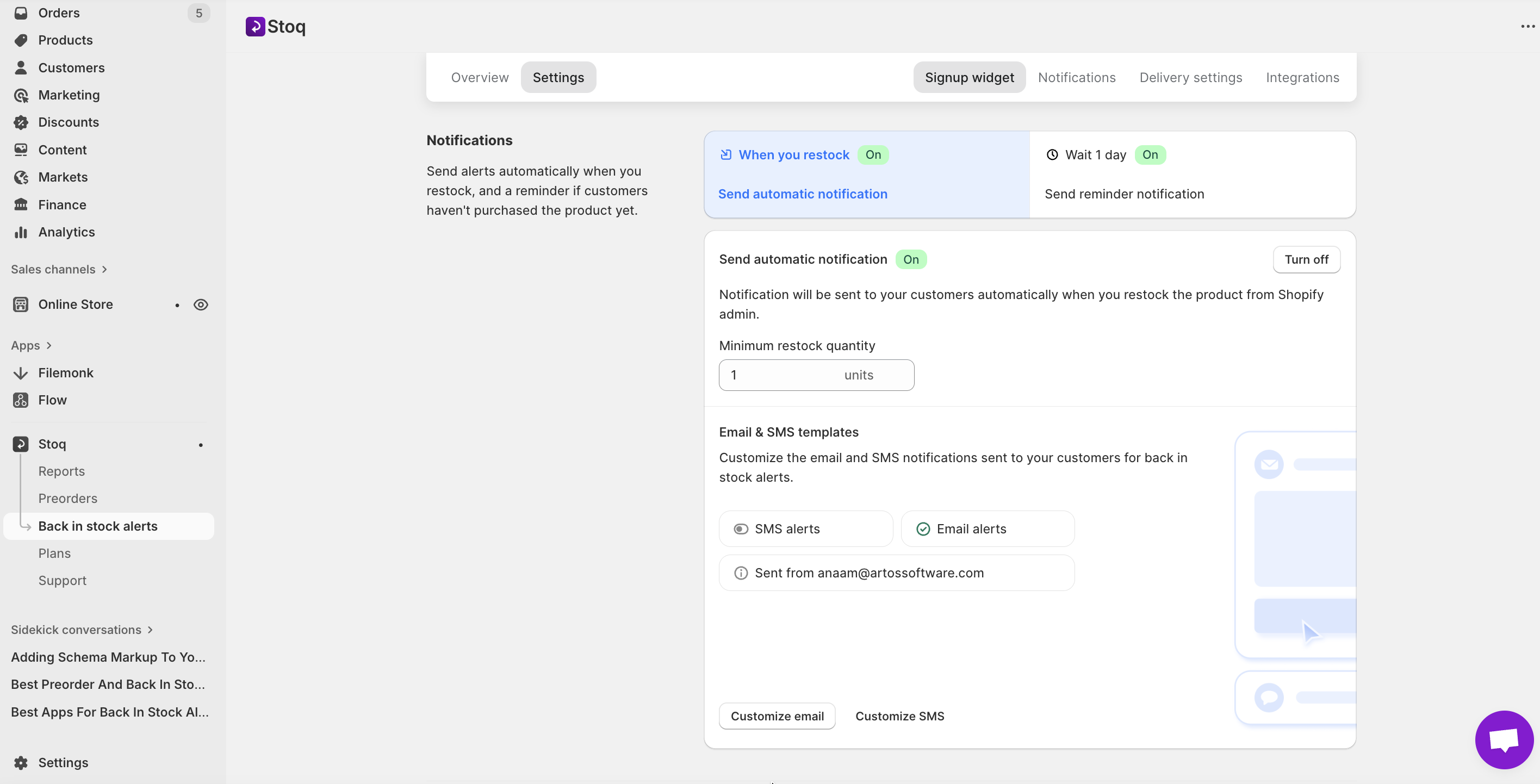
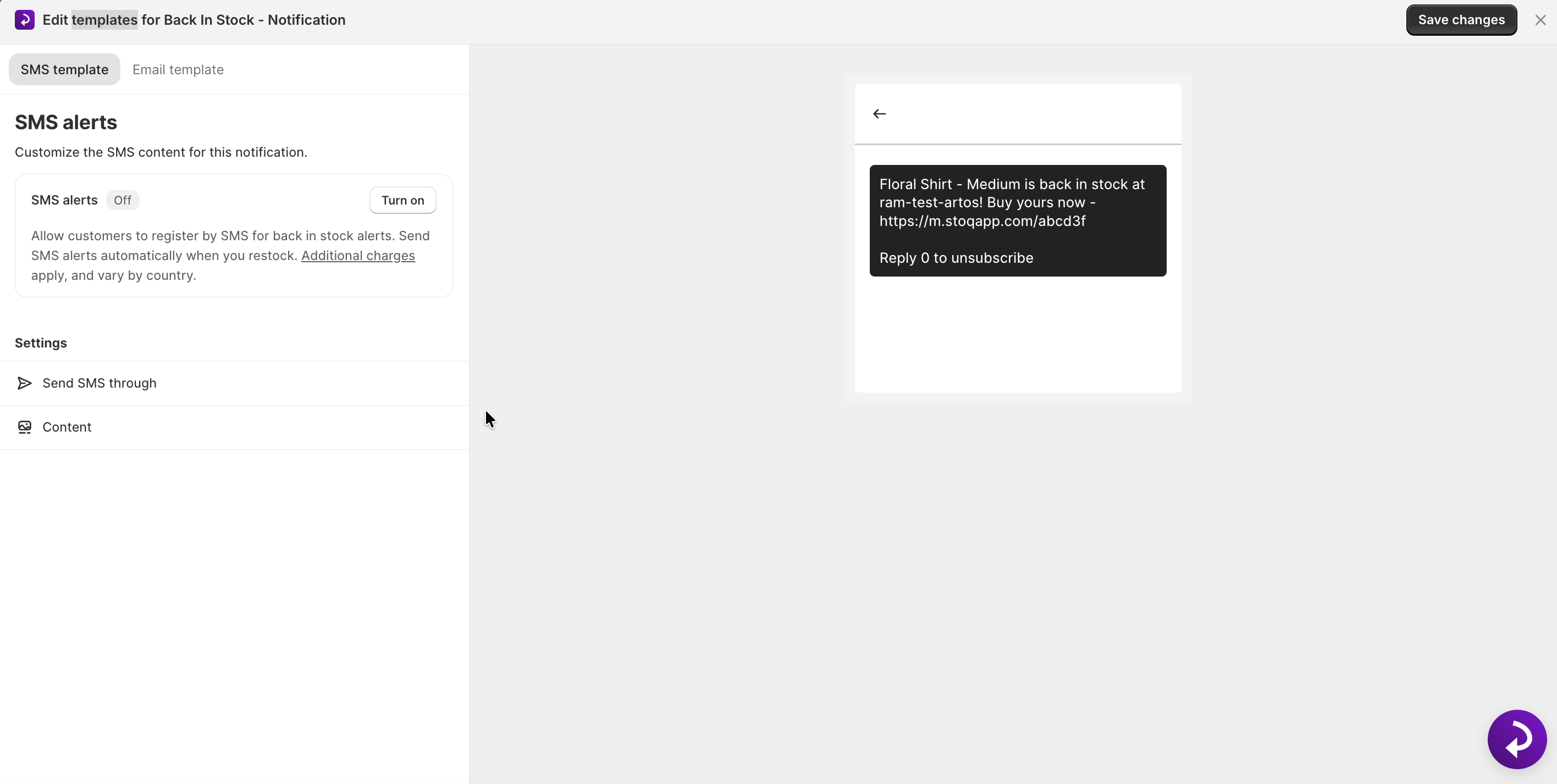
And of course, you can customize SMS and email templates, just like the ‘Notify me’ button. Remember to click on the ‘Turn on’ button next to ‘Email alerts’ and ‘SMS alerts.’

Edit the pre-written messages, colors, and style. Make sure the 'From' address uses your store name. A friendly, branded email/SMS message gets more clicks than a plain automated one.
Step 3: Adjust the delivery settings
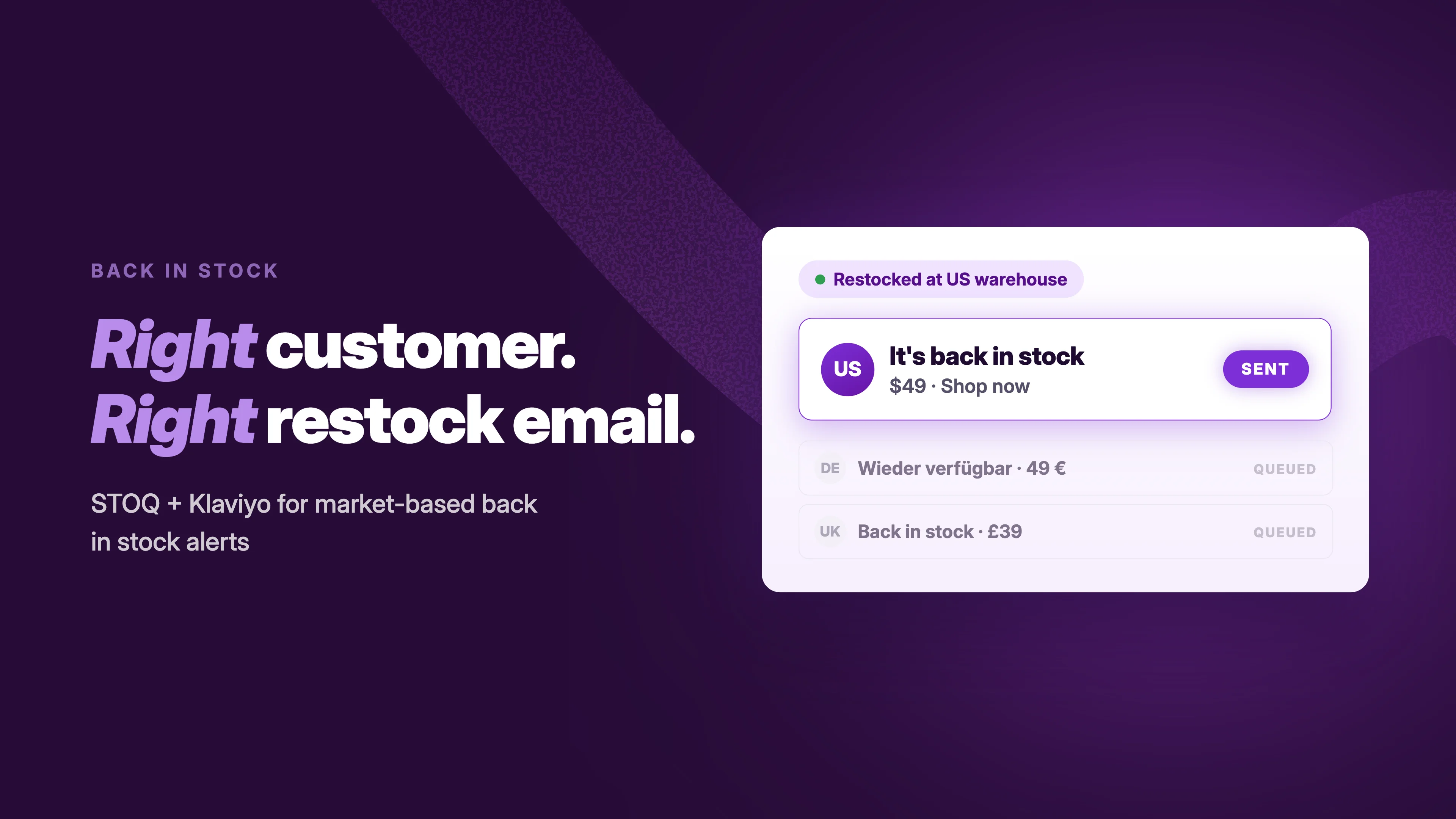
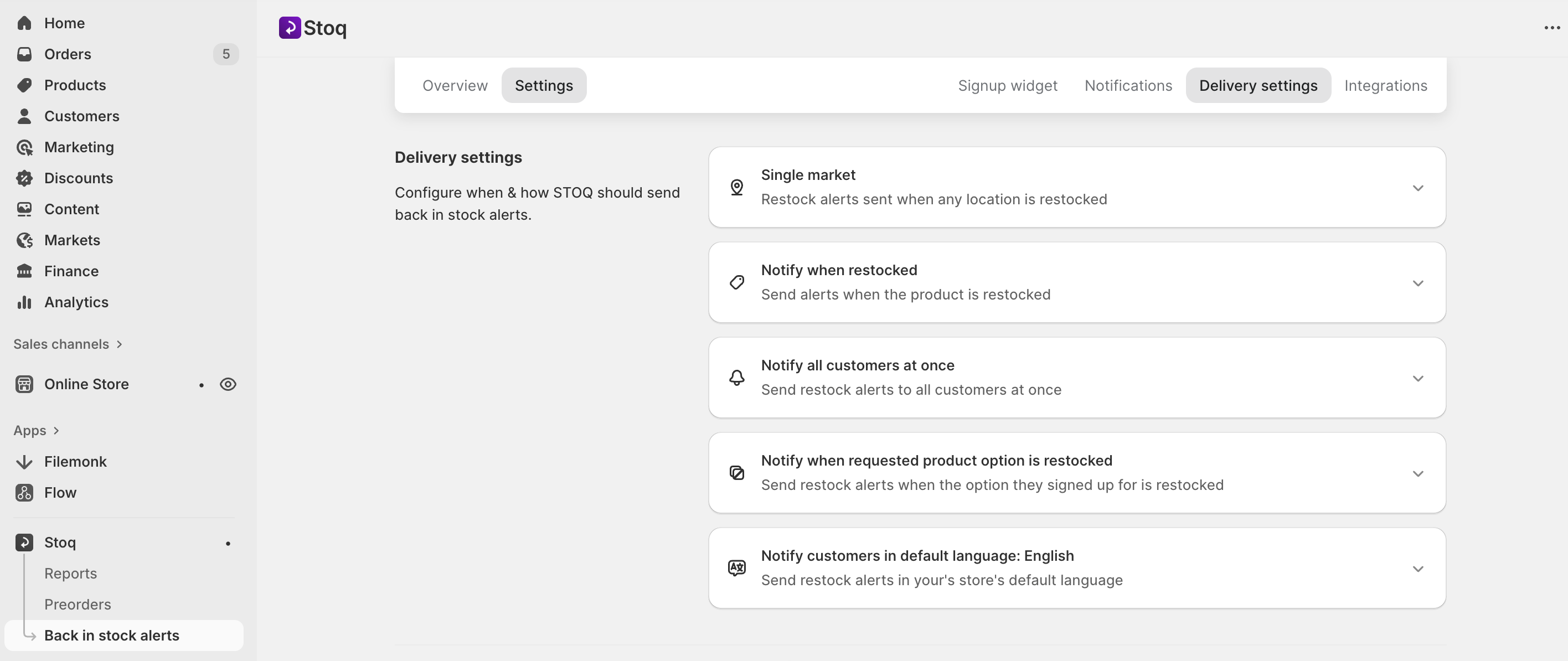
This controls the details. Choose if you have one store ('Single market') or use Shopify Markets for multiple countries ('Multiple markets'). Decide if you want to notify all customers at once or in batches. You can even choose to only alert a customer when their exact size or color is back in stock.
Step 4: Integrate with other apps
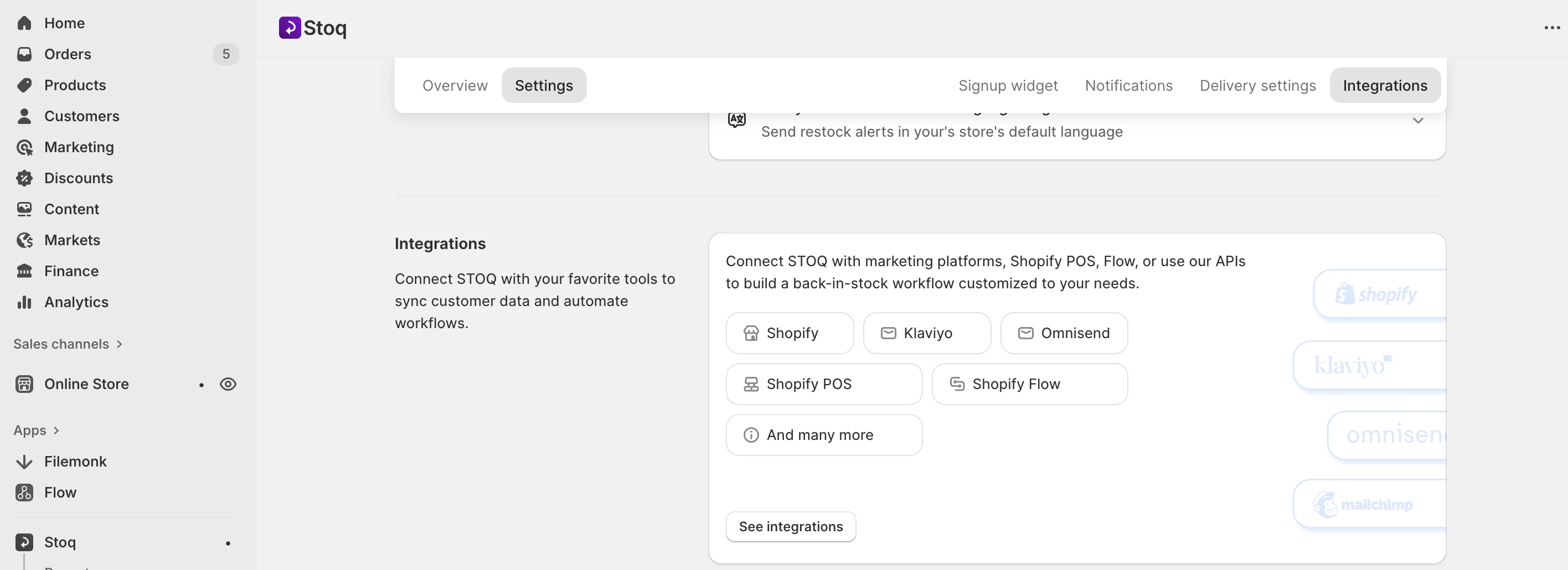
Link STOQ to tools you already use. Go to the ‘Integrations’ section. Connect your email service like Klaviyo or Omnisend to sync your waitlist contacts. You can also connect Shopify POS or use the import tool to bring over waitlists from other apps easily.
That's it. In four steps, you've built a solid Shopify back in stock automation system that works for you 24/7, capturing sales you were missing before.
Key benefits of Shopify back in stock automation
If you're wondering if a third-party app is worth the effort, here are the key Shopify back in stock automation benefits:
1. You recover sales automatically
The most direct benefit is revenue recovery.
A customer who signs up for a back in stock alert is showing high purchase intent: they wanted your product enough to leave their contact information. By automatically alerting them the moment it's available, you shortcut the buying process. They don't need to remember to check your site again; you bring the product to them.
These alerts have shown exceptionally high click-through and conversion rates, often outperforming standard marketing emails.
2. You save hours of manual work
Once STOQ is set up, it runs itself. You don't have to track who wants what or remember to send alerts. The automation handles everything. This frees up your time to focus on marketing, product development, or customer service instead of administrative tasks.
3. You build a powerful customer and inventory list
Every sign-up is a hot lead. The list created is far more valuable than a general newsletter sign-up because you know exactly what these customers want.
With STOQ Shopify back in stock automation and integration features, you can feed these contacts into your email marketing platform, allowing you to segment them for targeted campaigns, such as promoting complementary products or offering exclusive restock previews. So, what have you done here? You essentially turned a restock tool into a marketing engine.
Your waitlist is also invaluable for inventory planning: what to reorder, in what quantities, and with what priority. By monitoring which products have the longest or fastest-growing waitlists, you gain real-time data on what your customers crave. You can identify breakout trends before they peak and avoid overstocking items with low demand.
4. You improve the customer experience
'Out of stock' is frustrating. A 'Notify Me' flips that frustration. When you alert them quickly, they feel valued, making them more likely to return to your store in the future.
Pro tips from STOQ for maximum impact
Looking for some solid Shopify back in stock automation tips? STOQ’s got you covered!
1. Place your button where customers look
The 'Notify Me' button must be easy to find. Put it right where the 'Add to Cart' button normally is. On mobile, make sure it's large enough to tap easily. Test different colors so it stands out on the page. A visible button gets more sign-ups, which means more recovered sales.
2. Write clear, urgent messages
Your alert should make people act. In your STOQ templates, use simple, direct language.
- Subject Line: 'Your [Product Name] is back in stock!'
- Body: 'Hi [Name], the item you wanted is available again. Stock is limited, so shop now to secure yours.'
A clear reminder with a hint of scarcity works best. You can also mention the number of units restocked if it's a low quantity. This psychological nudge is proven to increase conversion rates significantly.
3. Test and optimize your sign-up widget placement
The ‘Notify Me’ button must be seen to be used. Work with your web developer or use your theme editor to test its placement.
Make sure it's clearly visible on both desktop and mobile. Use STOQ's Shopify back-in-stock automation and customization options to ensure the button color contrasts with your page so it stands out.
A/B test different button texts like 'Notify Me When Available,' 'Get Restock Alert,' or 'Join Waitlist' to see which resonates most with your audience.
💡Pro Tip: Not everyone buys from the first email. Turn on the 'reminder notification' in STOQ settings. This sends a second alert a day later. It’s a gentle nudge for people who got busy or missed the first message. This one setting can recover an extra 10-15% of potential sales from your waitlist!
So far, you have read about the benefits of back in stock automation and how Shopify does not natively support this feature. You will have to install a third-party app. STOQ can come to rescue here and fulfil this need exactly the way mentioned above.
Still in two minds about Shopify back-in-stock automation? Sign up today and test the free plan. Win back revenue and customers you would have lost otherwise.

Anaam heads Merchant Success at Artos Software, working with Shopify merchants to help them unlock the full potential of STOQ and our other apps.