How to set up back in stock notifications on Shopify
Quick answer: Shopify doesn’t send back in stock notifications on its own. To set them up, install a back in stock app like STOQ, turn on its “Notify me when available” button for sold-out products, and choose email, SMS or both. When you restock, the app emails or texts everyone who signed up, automatically.
When a product sells out, shoppers who land on its page can only leave, and most won’t come back to check. A back in stock notification gives them another option: they click “Notify me when back in stock”, leave an email or phone number, and you message them when the product is available again.
What are back in stock notifications?
A back in stock notification (also called a restock notification or out of stock notification) is an automatic message sent to shoppers who asked to hear when a sold-out product returns.
It works in three parts:
- Signup. On a sold-out product, the “Add to cart” button is replaced by a “Notify me when available” button or form.
- Waitlist. Each signup is saved against the exact product and variant (size, color) the shopper wanted.
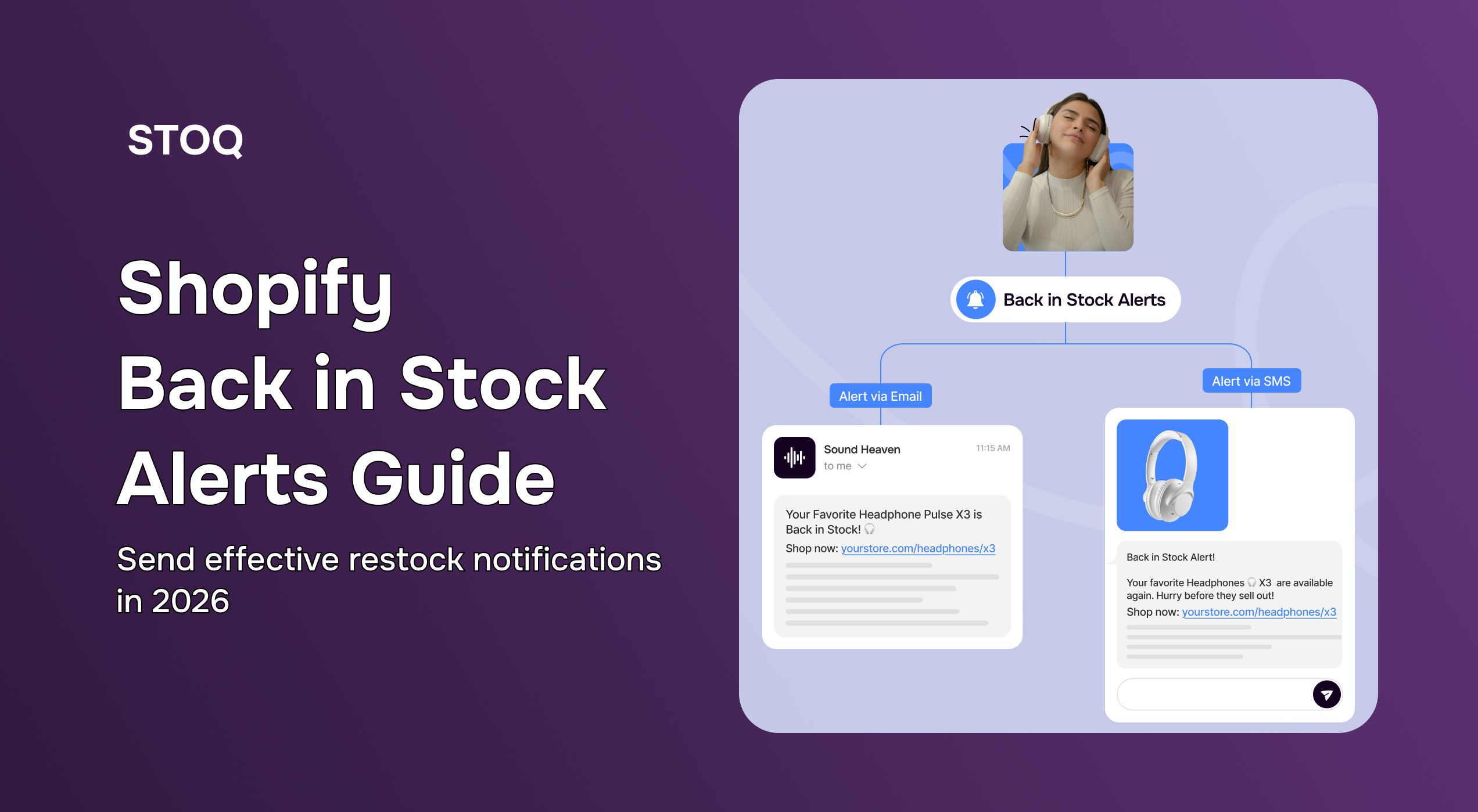
- Alert. When inventory goes back above zero, the shopper gets an email or SMS with a link straight to the product.
Shoppers asked for these messages about a product they already wanted, so they usually open and click them more than regular marketing emails. The waitlist also shows which products to restock first.
Does Shopify have back in stock notifications?
Not as a built-in feature. Shopify will mark a product as sold out, but it doesn’t add a “Notify me” button, keep a waitlist, or email shoppers when you restock.
Some merchants build a workaround: a Shopify Forms signup, a Shopify Flow workflow that tags those customers, and a Shopify Email sent by hand when stock returns. That’s fine for a few products, but you track variants yourself and send every alert manually.
With more than a few products, use a back in stock app. It adds the button, keeps a waitlist for each variant and sends the alert when you restock. To compare apps, see the best Shopify back in stock apps.
How to set up back in stock notifications on Shopify
These steps use STOQ, and everything below works on the free plan unless marked.
Step 1: Install STOQ
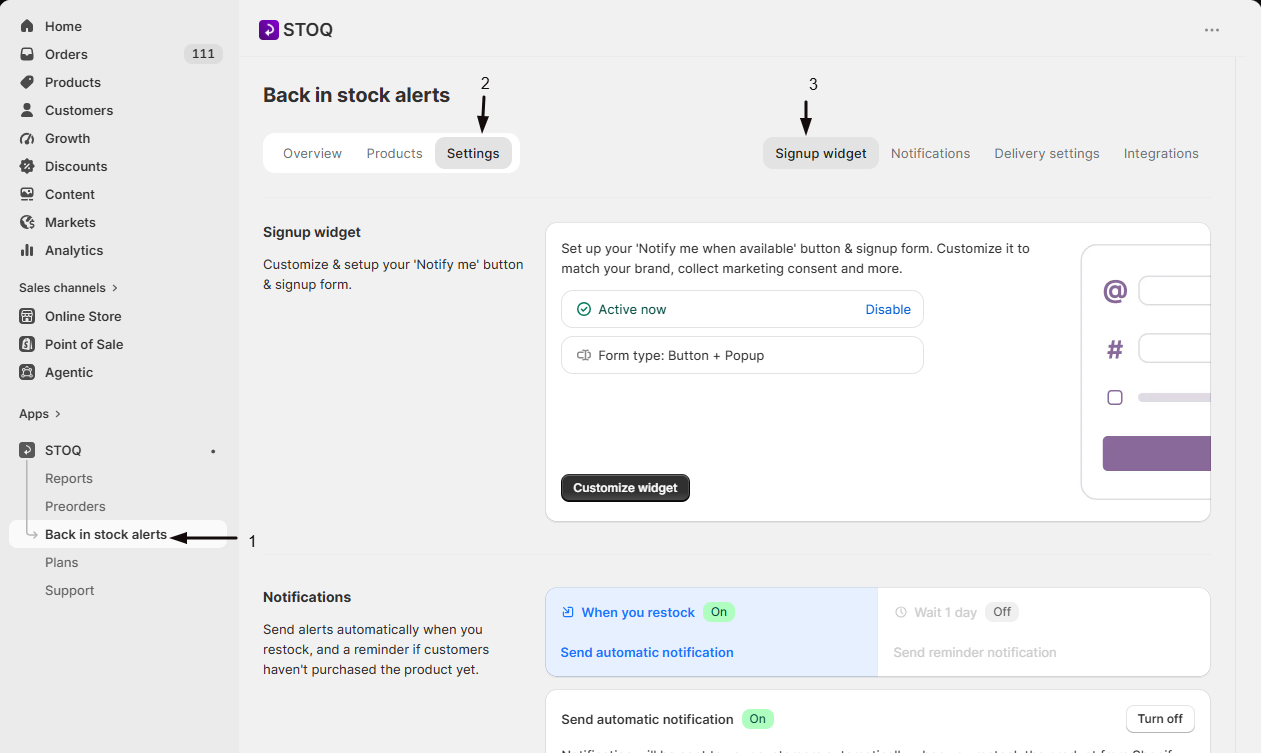
Install STOQ from the Shopify App Store and open it from Apps in your Shopify admin. Then go to Back in stock alerts. You’ll see three tabs: Overview, Products and Settings. Setup happens under Settings.
Step 2: Turn on the “Notify me” widget
In Settings → Signup widget, find the widget status card and click Enable. The card should now read Active now.
This one switch controls whether the button can appear anywhere on your store. The card also shows your form type: Button + Popup (a button that opens a signup form) or Embedded (the form sits right on the product page).
Step 3: Turn on STOQ’s app embed in your theme
If you see a yellow Turn on app embed badge next to the page title, click it, then Open theme editor. Under App embeds, switch STOQ on and click Save.
The button won’t show on your store until this is on. App embeds are per theme, so check again whenever you publish a new theme.
Step 4: Choose which products show the button
Open the Products tab. By default, the button shows on any product or variant that’s out of stock, and this list shows where it’s active, with signup counts.
You can change visibility per product (for example Always show or Never show) or narrow it with rules such as product tags.
Step 5: Add the button to collection, home and search pages (optional)
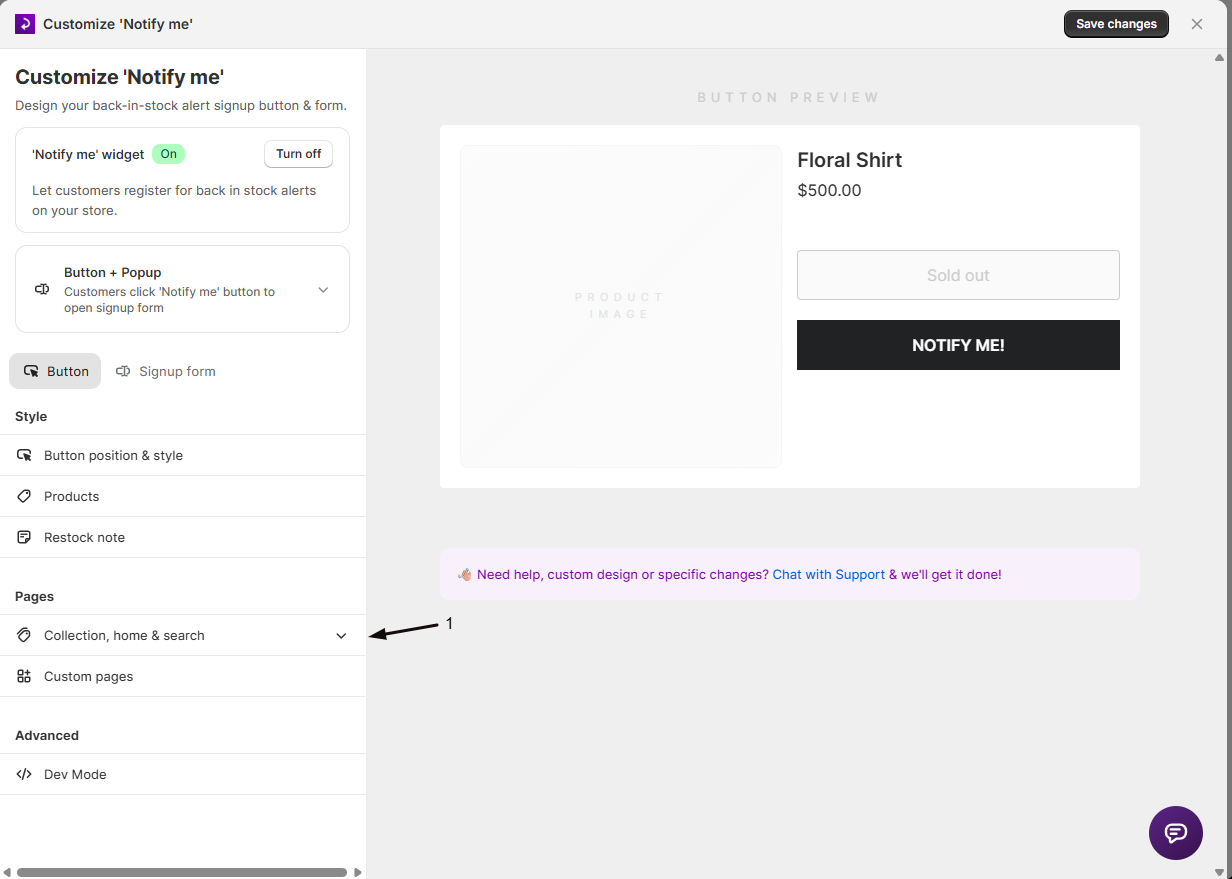
By default, the button appears on product pages. To catch shoppers earlier, go to Signup widget → Customize widget → Button → Pages and turn it on for Collection, Home or Search pages. On collection pages you can also show it when just one variant is sold out.
Step 6: Customize the button and form
Click Customize widget to change the button text, colors, border radius and position, and the form’s fields and messaging. Use your theme’s colors and button style. If you sell in the EU, you can require double opt-in. You can also add a checkbox that lets shoppers join your mailing list when they sign up.
Step 7: Pick your channels: email, SMS or both
In the widget editor, open Signup form → Channels.
- Email is on by default and available on every plan.
- SMS needs a paid plan and has a per-message carrier charge. Your store also needs carrier verification before texts send.
With both on, shoppers pick one when they sign up. To compare the two, see email vs SMS for back in stock alerts.
Step 8: Customize the restock email
In Settings → Notifications, click Customize email to edit the subject line, content, colors and branding of the alert. Keep it short, with the product name, an image and a button back to the product. For copy ideas, see our back in stock email examples and templates.
If you already run email through Klaviyo, you can send the alert from your own Klaviyo flow instead. See Klaviyo for preorder and back in stock emails.
Step 9: Turn on a reminder
Some shoppers miss the first alert. In the notification sequence, click the stage below When you restock (labeled Wait 1 day), turn on Send reminder notification, and set the days to wait.
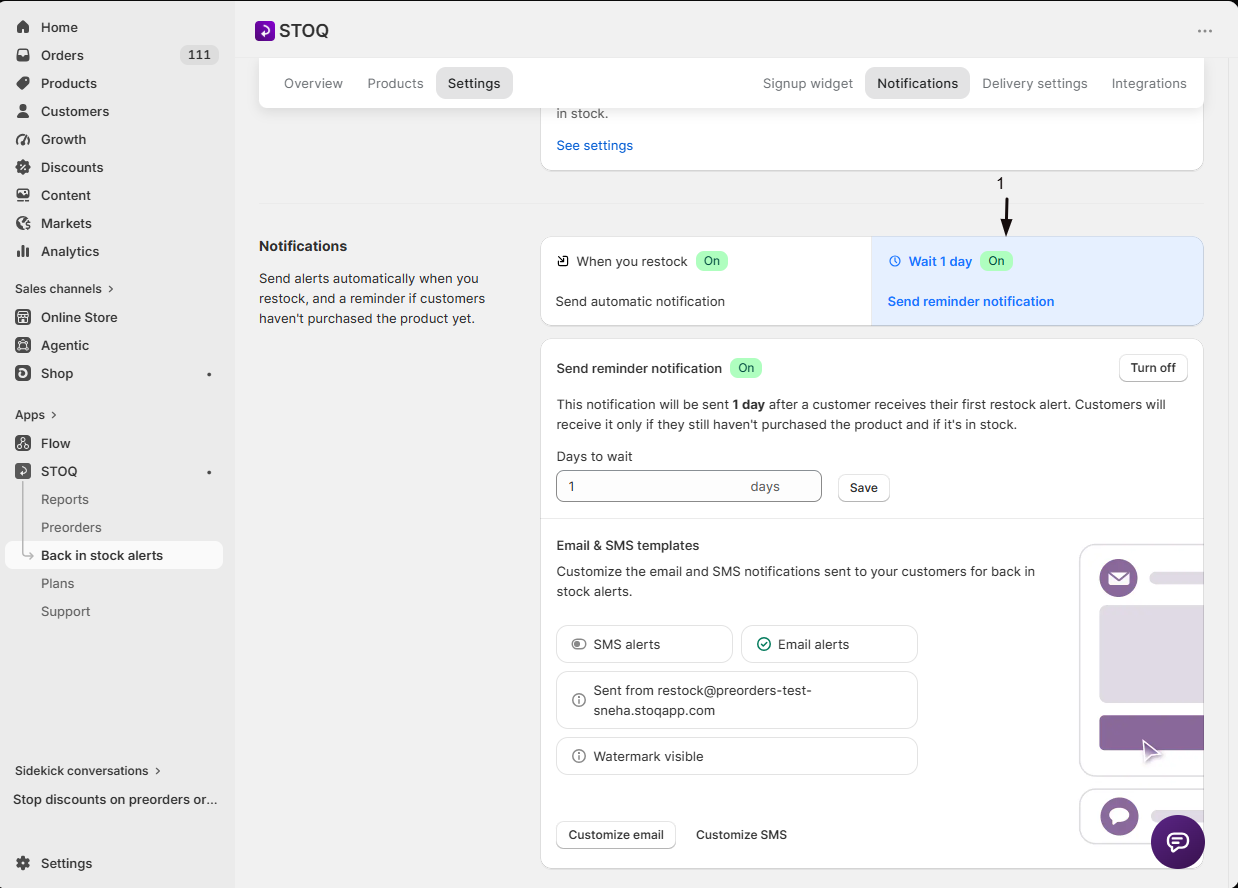
Reminders only go to people who haven’t bought yet, and only while the product is still in stock.
Step 10: Test it end to end
- On your live store, open a sold-out product and check the “Notify me” button appears.
- Sign up with an email you can check (placeholder and disposable addresses are blocked).
- In Shopify, raise that variant’s inventory above your minimum restock quantity.
- Wait a few minutes and check your inbox. In STOQ, the send shows under Reports → Back in Stock → Notifications sent.
After this, alerts go out automatically each time you restock.
Settings worth knowing about
These settings are useful for larger catalogs and busy restocks:
- Minimum restock quantity. Only send alerts when a restock reaches a set number of units, so 2 units don’t trigger 500 emails.
- Send in batches. Notify the waitlist in waves (every 1–3 hours) so the first group gets a head start before the next is notified. Paid plans.
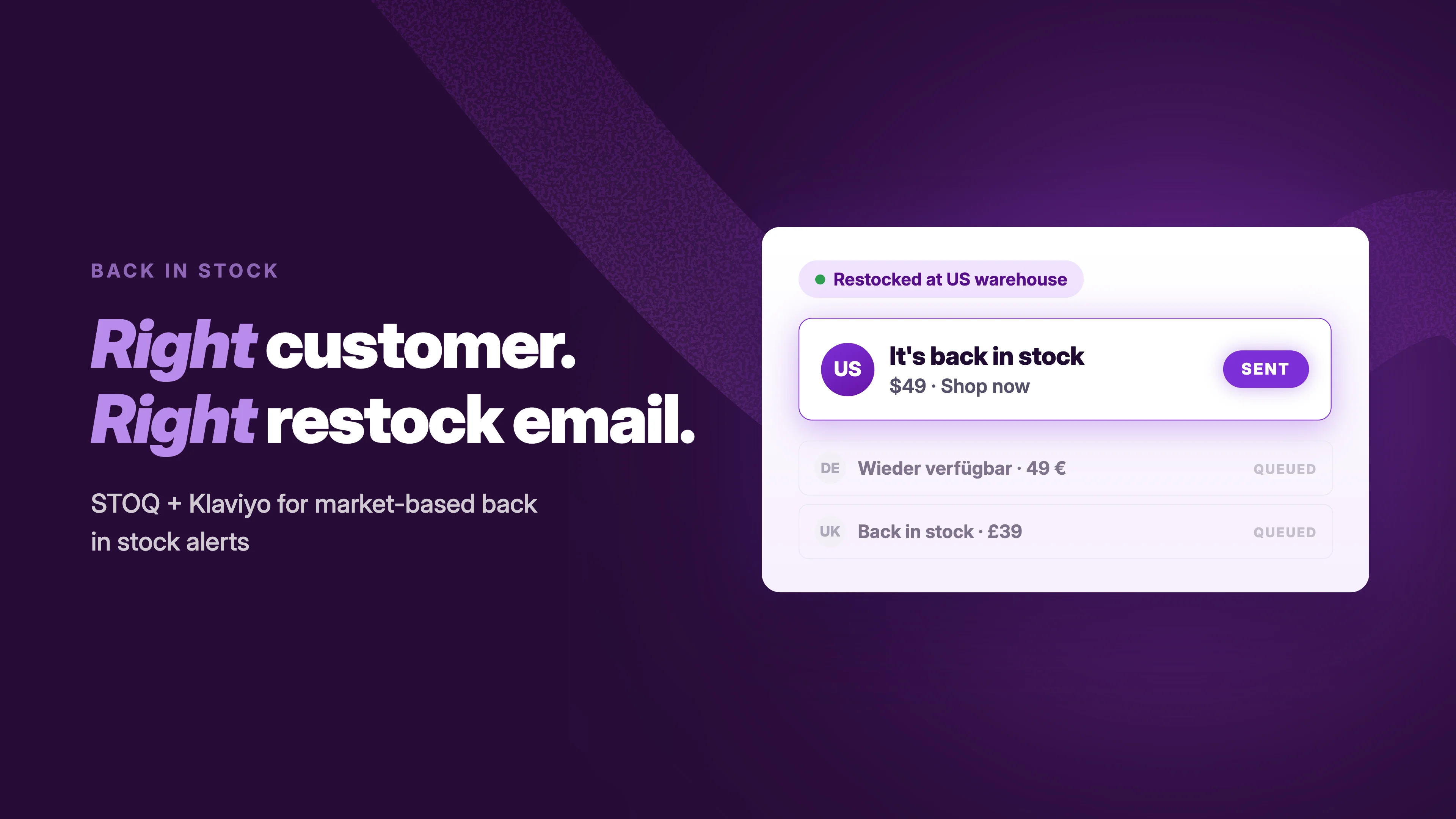
- Location and market alerts. If you sell in several countries with Shopify Markets, only notify shoppers in the market that restocked. Paid plans. More in market-based back in stock alerts.
- Alert on any variant. Notify a shopper when any size or color returns, not only the one they picked. Paid plans.
- Alert on publish. Notify the waitlist when a product is first published, not only when it restocks. Paid plans.
- Alert language. Send each alert in the shopper’s own language.
- Sync signups. Add every signup to Klaviyo, Mailchimp or Omnisend automatically.
- In-store signups. Staff can add customers to a waitlist from Shopify POS.
Best practices for back in stock notifications
- Keep signup short. Ask for an email or phone number and nothing else. Extra fields mean fewer signups.
- Put the button where shoppers browse. Product pages first, then collection and search pages.
- Send as soon as stock arrives. The longer you wait, the more shoppers buy elsewhere.
- Personalize. Use the customer’s name and the exact product and variant they asked for.
- Say how many are left. If a restock is small, put the number in the message.
- Send one reminder. It catches people who missed the first alert. More than that can feel like spam.
- Use the waitlist to plan inventory. Signup counts show which products and variants to restock first and how many units to order.
How to measure your back in stock notifications
Track four numbers:
- Signups. How many shoppers join the waitlist for each product. This shows demand.
- Open and click rates. How well the alert message works.
- Conversion rate. How many notified shoppers buy.
- Revenue recovered. Sales that would have been lost to the stockout.
STOQ’s Overview tab and Reports show waitlist signups, notifications sent and the orders that followed. For more on what to watch, see back in stock alert metrics to track.
Common mistakes to avoid
- Forgetting the app embed. Without it, the button doesn’t show at all.
- Alerting everyone for a tiny restock. Use a minimum restock quantity or batches.
- Generic messages. Name the product and variant in the subject line.
- Hiding sold-out products. A hidden product can’t collect signups, and deleting the page loses its search traffic. Keep it live with a “Notify me” button. See how to hide out-of-stock products for when hiding does make sense.
- Using alerts when a restock date is certain. If stock is confirmed and dated, let shoppers buy now with a backorder or preorder instead of making them wait for an email.
Frequently asked questions
How do I add a “Notify me when available” button on Shopify?
Shopify doesn’t include a “notify me when back in stock” button, so you add one with an app. With STOQ, enable the Signup widget under Back in stock alerts → Settings, turn on the STOQ app embed in your theme editor, and the button appears automatically on sold-out products.
Can I set up back in stock notifications on Shopify for free?
Yes. STOQ’s free plan includes the “Notify me” button and automatic email alerts, up to 30 alerts a month. SMS and higher limits need a paid plan, from $10/month with a 14-day free trial. See STOQ pricing.
Does Shopify send restock emails automatically?
No. Shopify doesn’t keep a waitlist or email shoppers when you restock. A back in stock app watches your inventory and sends the alert the moment a variant goes from zero back to available, whether you restock by hand, by CSV import or through a connected 3PL.
Do back in stock notifications work for variants?
Yes. Shoppers sign up for the exact variant they want, such as a size or color, and are notified when that variant restocks. You can also choose to notify them when any variant of the product returns.
Can customers get back in stock alerts by text message?
Yes. Turn on SMS alerts in STOQ (paid plans) and the signup form adds a phone number field. Each text has a per-message carrier charge.
What’s the difference between back in stock and out of stock notifications?
They’re usually the same thing: a shopper signs up while a product is out of stock and is notified when it’s back. “Out of stock notification” sometimes also means an internal alert to the merchant when inventory runs low; for that, see low stock alerts on Shopify.
Start sending back in stock notifications
A sold-out product page can still collect signups. Install STOQ for free, turn on the “Notify me” button, and your next restock will email everyone who asked.

Anaam heads Merchant Success at Artos Software, working with Shopify merchants to help them unlock the full potential of STOQ and our other apps.