Shopify inventory policy: what Deny and Continue do, and where they don't apply
Shopify inventory policy is the per-variant setting that decides what happens when stock hits zero. Deny, the default, stops the sale. Continue keeps taking orders and lets the count go negative. In the admin it's the "Continue selling when out of stock" checkbox.
Used on the right variants, it lets you take orders for stock that's already on its way. Most problems with it come from two places: the channels and locations it doesn't cover, and the apps and automations that change it without telling you.
Deny vs Continue: what each value does
Two conditions apply to both. The setting only exists when the variant's inventory is tracked, so a variant with tracking off sells forever whatever the policy says. And it belongs to each variant, so a product with eight sizes has eight policies.
Continue doesn't tell the customer anything. The product page still says "Add to cart", and nothing on it says the item ships in six weeks unless your theme or an app adds that. It also lets a customer order past what you have: with 3 in stock, someone can check out 4 with no warning in the cart or at checkout, and the extra unit is a normal order with no ship date.
Continue hides your waitlist too. A variant at zero with Continue on counts as available to Shopify, so a back-in-stock app sees nothing to sign up for: the product page shows Add to cart, not Notify Me (why the Notify Me button doesn't show). To offer both, preorders for people who'll pay now and a waitlist for people who won't, the app has to show the Notify Me button on preorder products, side by side with Preorder.
Short version: Continue fits preorders, made-to-order and restocks with a firm date. Leave Deny on for anything you can't promise a date for. The full decision is in when to keep selling when out of stock.
Where to set it, for one variant or a thousand
On the product page
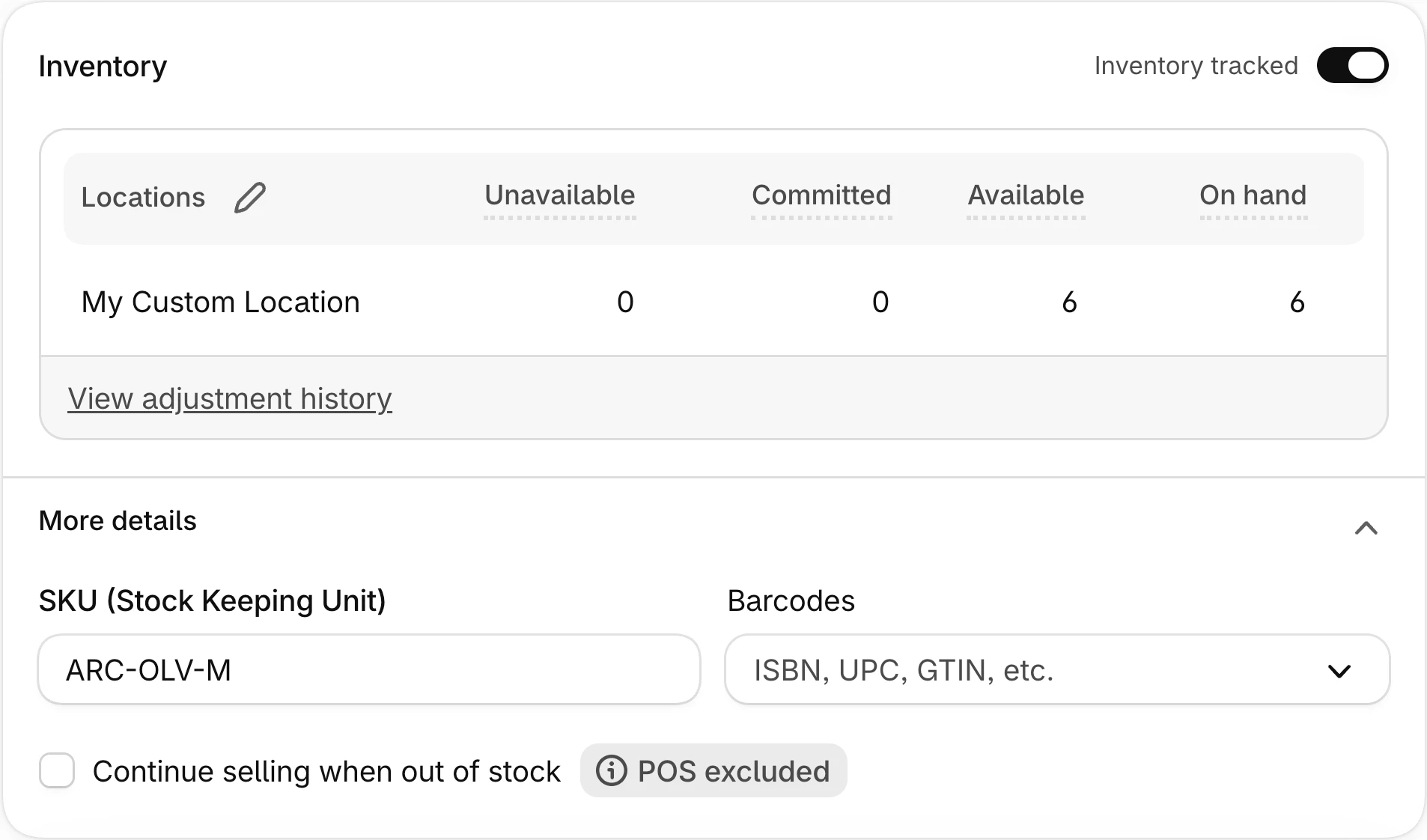
If the product has only one variant, the product page shows a "Sell when out of stock" summary reading On or Off. Click it to open More details, where the "Continue selling when out of stock" checkbox lives; ticked is Continue. If it has several, click the variant, make sure "Inventory tracked" is on in the Inventory section, open More details and tick "Continue selling when out of stock".
In the bulk editor
For a few dozen variants, select the products in Products, click Bulk edit, then add the "Continue selling when out of stock" column from Columns. Each variant gets its own checkbox. This is the quickest fix for a collection of preorder items, and the easiest way to switch the wrong ones by accident.
With a product CSV
For hundreds of variants, or a supplier sheet, use the product CSV. The column you'll see in an export is "Variant Inventory Policy", next to "Variant Inventory Tracker". Shopify's help page calls it "Continue selling when out of stock", and the import accepts either name. It takes two values, deny or continue.
Don't leave a policy cell blank. Shopify rejects the whole import with "Inventory policy is not included in the list", even with "Overwrite products with matching handles" ticked. Shopify's own help says a blank cell means deny; in our test it didn't. Leave the column out of the file entirely and new products come in on deny.
Through the API or an integration
The field is inventoryPolicy on the product variant, and the bulk variant mutations default it to DENY when you don't send it (ProductVariantsBulkInput). So an integration that creates variants without setting the field gives you Deny everywhere.
Where Shopify inventory policy doesn't apply
Shopify POS
Shopify POS ignores the setting. The checkbox itself carries a "POS excluded" badge, and Shopify's help says the setting "doesn't apply to orders placed from Shopify POS". Staff can keep selling at zero and below; POS warns them first. So Deny online doesn't stop staff selling a unit in store that the website already sold, and both orders land on the same last unit.
Per location
Stock is counted per location, but the policy is one value for the variant. If you run stores with Click & Collect, turning Continue on for a backordered item means customers can pick a store that has none. Shopify decides online availability from the total across the locations that fulfill online orders, and an oversold order goes to the first location in your fulfillment priority or splits across locations (Shopify on locations).
Per market
The policy can't be set per market either. Turn Continue on to take preorders for the US and the same variant takes orders in every market that sells it. To take zero-stock orders in only some markets, you need a preorder app that limits its button to chosen markets (STOQ does, under restrict a preorder offer to specific markets), or a separate product you sell only in that market.
Draft orders and invoices
Draft orders follow the policy only at the customer's checkout. Staff can add a sold-out Deny variant to a draft order and still create the order by marking it as paid. Send it as an invoice and the customer who clicks "Complete your purchase" gets an "Out of stock" screen instead of checkout (Shopify on draft orders).
If you take wholesale or phone orders on invoice, turn Continue on for those variants before you send it. The catch: online shoppers can then order them at zero too, so switch it back once the invoice is paid.
What changes it without asking you
The policy is a plain field, so anything with product write access can change it, and Shopify doesn't show who did.
Preorder apps are the usual source, because Shopify needs Continue on before anyone can buy a variant at zero. Apps that automate this turn it on when a variant sells out so the preorder button can take orders, and off again at a cap or when stock returns. Supplier-feed and stock-sync apps can map a feed value to the policy on every sync, which quietly undoes anything you set by hand. A CSV import from an old export resets every variant in the file to whatever the file says.
Shopify Flow is the other one. A common setup is two workflows: turn Continue on when inventory reaches 0, turn it off when inventory goes up. It breaks when the "inventory went up" trigger fires for something that isn't a restock. Restock a one-unit return during a preorder run and the second workflow switches Continue off, so the preorder stops while you still have no stock.
Flow has no built-in action for the policy, so these workflows change it with the "Send Admin API request" action. To make the off-switch ignore returns, build it like this:
- Trigger: "Product variant inventory quantity changed".
- Conditions, all three:
productVariant.inventoryQuantityis at least 5. Pick a number bigger than a normal return.inventoryQuantityPrior, the quantity before the change, is 0 or less.productVariant.inventoryPolicyisCONTINUE, so it only acts on variants that are on Continue.
The catch: a restock that leaves fewer than 5 available won't switch it off, so do those by hand.
- Action: "Send Admin API request" with the
productVariantsBulkUpdatemutation, which sets the variant's policy toDENY. The request body:{ "productId": "{{product.id}}", "variants": [ { "id": "{{productVariant.id}}", "inventoryPolicy": "DENY" } ] } - Test it on a spare product at 0 with Continue on. Receive 1 unit: Continue stays on. Set it back to 0 and receive 10: it switches off.
A jump from -6 to 14 passes all three. A return that takes -6 to -5, or 0 to 1, doesn't.
In STOQ: collection, tag and all-products offers turn Continue on at stockout by themselves only when you pick "Track all". The default mode covers only products where Continue is already on. STOQ checks every 15 minutes and skips draft and unlisted products. Specific-products offers use the two workflows in prevent preorder overselling with Shopify Flow; give the second one the conditions above.
When a variant hits its preorder limit, STOQ turns Continue off. Raising the limit later doesn't turn it back on; use the "Update 'Continue selling'" button on the offer page. Deleting an offer asks whether to turn Continue off for its products too, and the default is yes.
Find every variant set to Continue
Run this after any app install, bulk edit or import, and once a month otherwise.
- In "Products", click "Export", choose "All products" and "CSV for Excel, Numbers, or other spreadsheet programs", then "Export products".
- Open the file and filter the "Variant Inventory Policy" column for
continue. - The product export has no stock numbers, so export those too: Products > Inventory > Export, all locations, all variants. You get one row per variant per location, with an "Available (not editable)" column. Match the two files by Handle and option values (SKU works only if every variant has one). Check the
continuevariants that still have stock first: those can oversell today. - For each
continuevariant, write down why it's on: an active preorder, made-to-order, a dated restock. Anything with no reason goes back todeny. - Fix the rows in the same file and re-import it, or use the bulk editor for a short list.
Keep the filtered list. Next month, compare it with the new one: a variant that appears without a reason means something on your store is switching it.
What happens to the count when you restock
Say a hoodie variant is on Continue and sells 6 units past zero. Shopify shows -6. A box of 20 arrives and you receive it, so available goes to 14.
Those 14 are what you can sell, but your shelf has 20 and 6 of them already belong to customers waiting since the sellout. Ship those 6 first, oldest order first, or the people who paid earliest wait longest. If you switch the variant back to Deny now, you'll sell 14 more, not 20.
The bottom line
Every variant on Continue should have a reason you can name, and the CSV audit is how you find the ones that don't.
New to STOQ? Take preorders at zero stock with a clear ship date, limits that switch Continue off for you, and Notify Me forms for everything else. Install STOQ from the Shopify App Store.
Already using STOQ? See how each preorder button setting uses Continue selling in configure inventory settings.

Ram leads SEO at Artos Software, optimizing discoverability for STOQ and our portfolio of Shopify apps across Google, AI search, and LLMs.