How preorder apps turn out of stock products into sales on Shopify
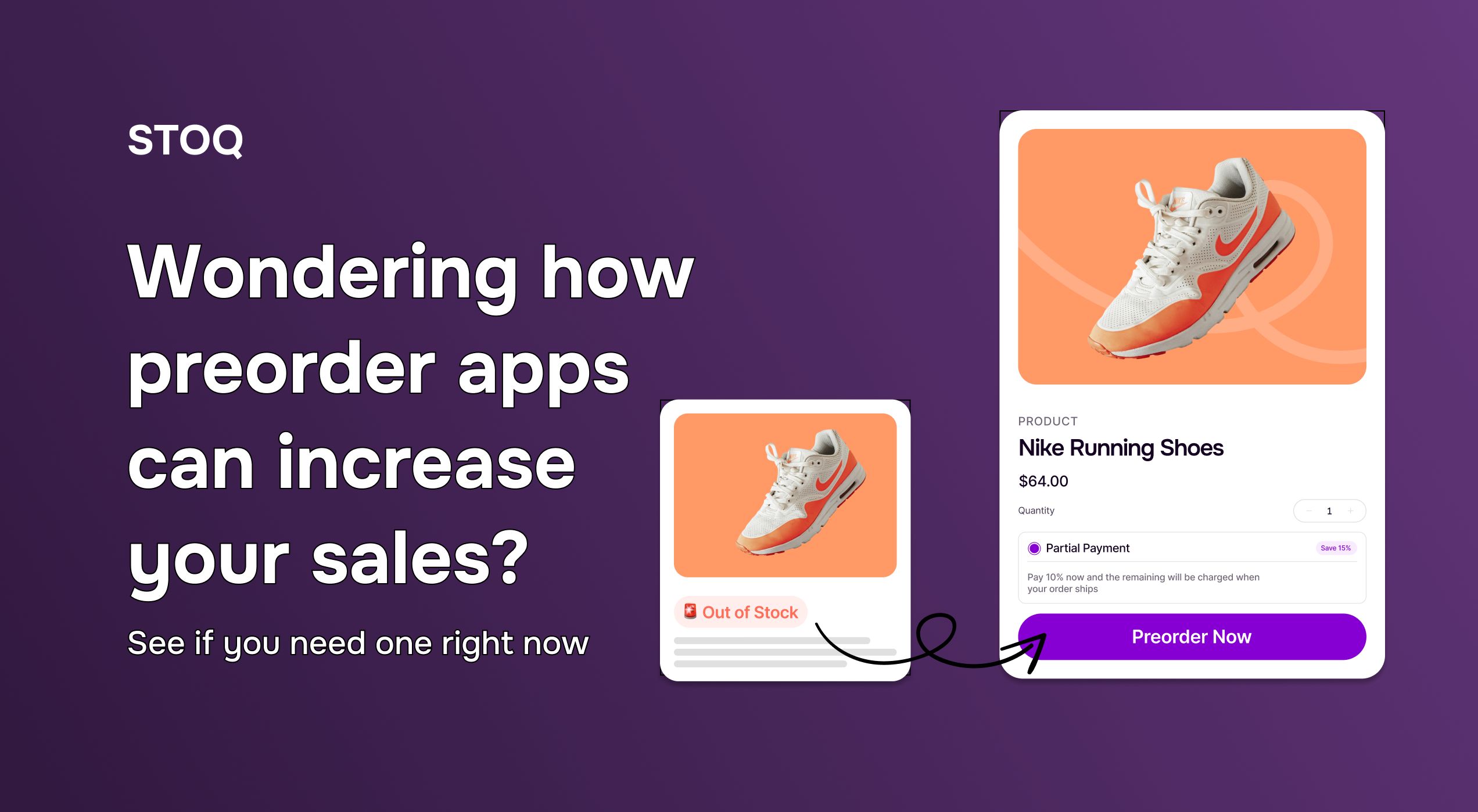
A customer discovers your product and is ready to buy, but the “Add to Cart” button is grayed out as “Out-of-Stock.” There is no restock date, no way to reserve the item, and no reason to wait. So, they leave!
Over time, this costs you more than just one sale. Your most loyal customers — often worth 300% more in lifetime value — start purchasing from your competitors. Result? You lose brand loyalty that’s hard to earn back.
However, all this can be prevented by adding a simple “Preorder” button to your Shopify store. Why?
Instead of hitting a dead end, customers can now place the order, see when it will ship, and stay connected to your brand while you restock — helping you capture demand instead of letting it slip away.
Why use preorder apps for your Shopify store?
Studies by Harvard Business Review show that product unavailability can cause retailers to lose nearly 50% of intended purchases. But when you enable the preorder feature, you let your customers purchase when the buying intent is at its highest.
This helps you:
1. Capture revenue that slips away
One of the biggest strengths of preorders is their ability to capture lost sales. Especially with the right payment structure in place, preorders can support healthy cash flow that can be used to fund the final stages of production or marketing instead of pausing sales entirely.
2. Build smarter inventory with less risk
Inventory decisions become risky when you’re forced to guess. Overstock ties up cash, while understock kills momentum.
Preorder apps replace this guesswork with real demand data. You see exactly how many customers are willing to wait, which variants matter most, and how strong demand actually is. This, in turn, makes restocking and purchasing decisions far more predictable, so you avoid costly inventory mistakes as your store grows.
3. Keep customers excited, not annoyed
Two out of three customers are willing to wait for orders if you clearly communicate the timelines with them. Clear preorder messaging sets the right expectations by showing:
- Estimated shipping dates
- “Preorder” badges on product pages
- Real-time updates if timelines change
This level of transparency builds customer anticipation that they’ll receive a high-demand or limited-edition product that otherwise sells out quickly.
Also See: Shopify backorder messages: Examples and best practices for high sales
4. Build demand for new launches
Preorders aren’t just for sold-out products — they’re a smart way to launch new ones. You open sales early, see whether customers are willing to buy, and use that signal to decide what to produce and how much.
If demand is there, you move faster. If it isn’t, you adjust before spending heavily on stock.
5. Automate manual hassles
While Shopify lets you keep selling out-of-stock products, it doesn’t offer a built-in preorder feature. That means you’re left managing preorders manually — updating product pages, tracking inventories, and communicating with customers one by one — which quickly becomes hard to scale.
A simpler solution is to automate the process by integrating a dedicated preorder app like STOQ within your Shopify store.
To do so, go to the Shopify App Store and install STOQ. Since the app is built natively for Shopify, it auto-detects your theme and products.
Once done:
Add a dedicated preorder button to your product page. You can choose from a range of customization options (e.g., button colour, text, badges, etc.) to match your store interface.
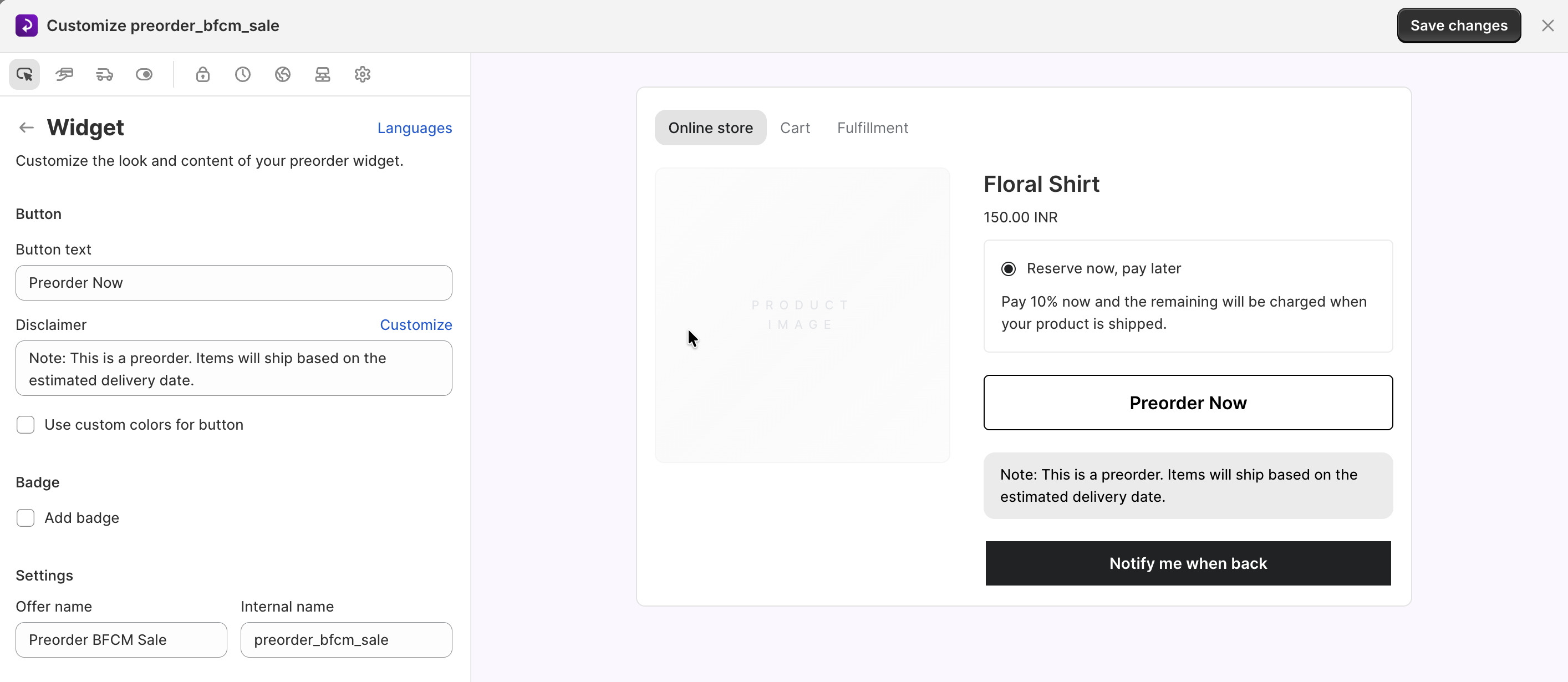
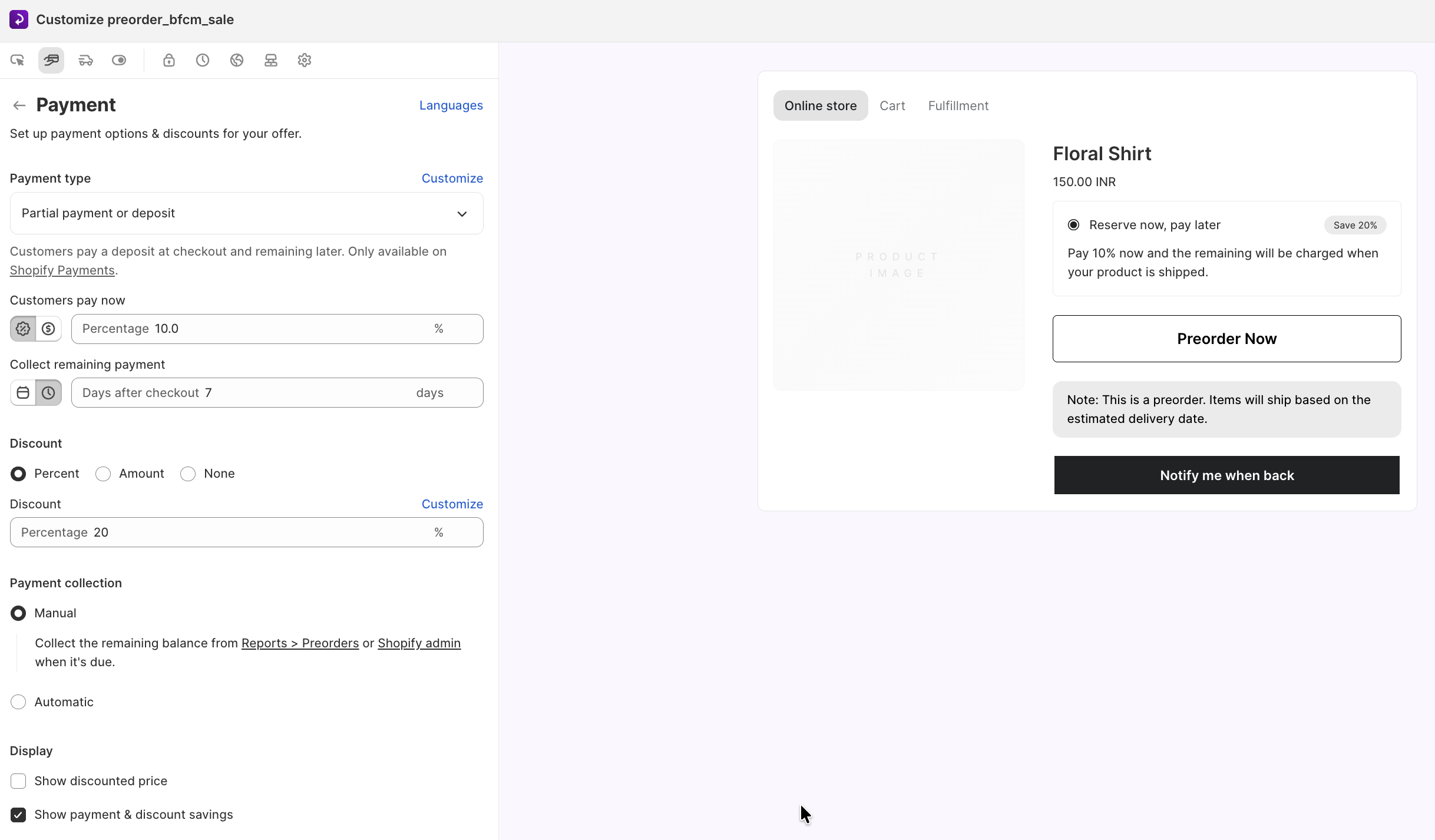
STOQ also lets you customize the backend workflow, including partial payment options, shipping timelines, payment collection, and automatic notifications. Your product page automatically reflects all your settings, so everything stays in sync.
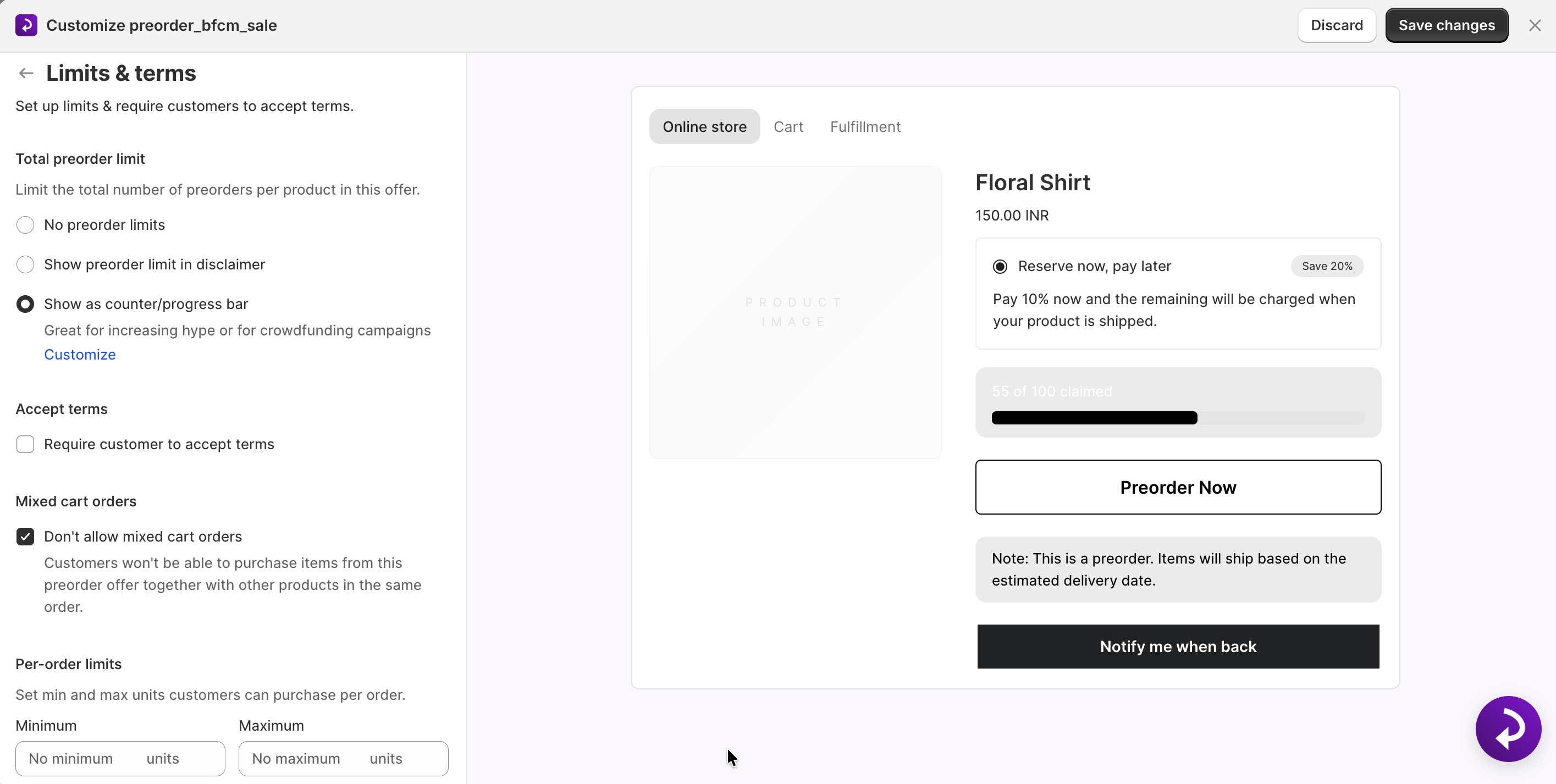
Finally, set up the preorder limits to avoid overselling. One especially useful way to automate demand visibility is through STOQ’s preorder progress bar. This visual element shows your customers how many units are left and builds a sense of urgency to place their order.
Once your customer places a preorder, STOQ automatically sends confirmation emails and timely follow-ups to keep them engaged throughout the waiting period.
When to use preorders for your Shopify store
Preorders aren't required for stores at every stage. If you’re unsure whether they fit your store right now, use the checklist below to help you decide.
If you checked more ‘Yes’ than ‘Not yet,’ it’s a strong signal that integrating a preorder app can help you boost your Shopify store sales. Remember, you can always begin small, test what works, and scale as demand grows.
Wrapping up
When used intentionally, preorders for your Shopify store keep sales high even if products sell out. Finally, whether you decide to use Shopify’s native features or a dedicated preorder app, it’s important to set the right delivery expectations with your customers.

Rajat is CMO at Artos Software, leading growth for STOQ and our portfolio of Shopify apps through SEO, content, partnerships, and AI-driven marketing.