How to set up Shopify preorders by asking Claude or ChatGPT

Quick answer: connect your preorder app to Claude or ChatGPT, then describe the preorder in plain sentences: which products, when it opens, how customers pay, when it ships. With STOQ connected, each sentence becomes a saved setting, and the assistant tells you what it changed.
Take a pair of shorts that hasn't been made yet, launching in three sizes. Six short messages set up the whole preorder: scheduled, taking 25% deposits, showing a ship date and capped at three per order. The STOQ dashboard never comes into it.
Here's each message, what the assistant did with it, and where it stopped to flag something a dashboard would have let slide. We ran every step in Claude. ChatGPT connects to STOQ the same way, so you can follow along there with the same prompts.
What you need before you start
- STOQ installed and turned on in your theme. The assistant changes STOQ's settings; the Preorder button only shows on your store when STOQ's app embed is on.
- Claude or ChatGPT. Claude's free plan allows one custom connector, which is enough for STOQ.
- Shopify Payments, if you want deposits. STOQ charges the remaining balance to the customer's saved card later, which needs Shopify Payments. Without it, preorders are full payment only.
Shopify has its own Claude and ChatGPT connectors, and they're useful for products, orders and inventory. Preorder settings live in your preorder app, so that's the connection that lets an assistant set one up.
Connect STOQ to Claude or ChatGPT
In both assistants you add STOQ as a custom connector with one URL, then approve the connection in Shopify. It takes a couple of minutes.
- Claude: Settings → Connectors → Add → Add custom connector, then paste STOQ's MCP server URL.
- ChatGPT: Plugins → Add → Create MCP App, then paste the same URL.
You'll find the URL on STOQ's Integrations page, in the AI connectors section (Preorders → Settings → Integrations), and the full walkthrough with screenshots in our help center: Connect AI assistants to STOQ.
Once connected, Claude lets you choose which STOQ tools it can use without asking. Keep the tools that make changes on ask-first until you're comfortable.
Create the preorder and pick the products
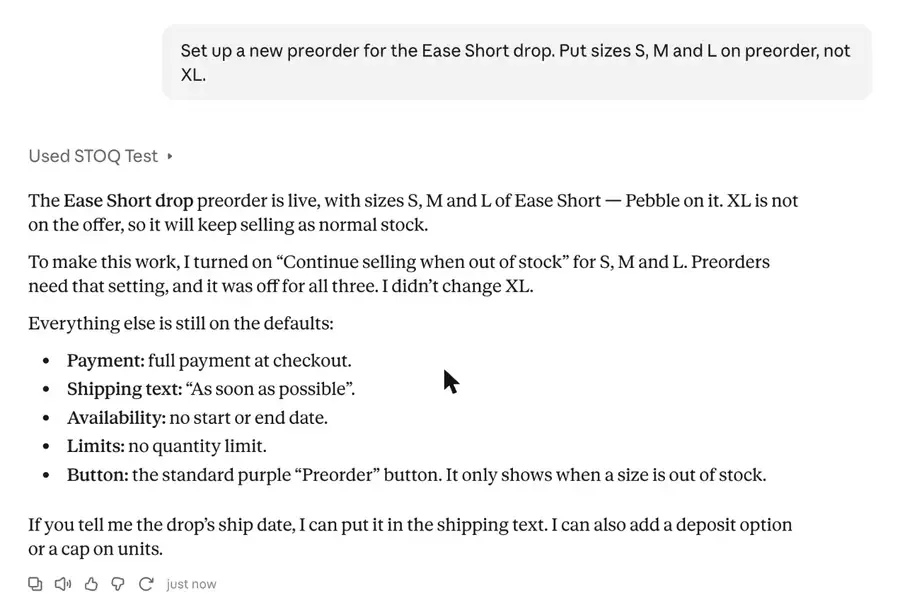
We started with the product, and named the sizes we wanted:
“Set up a new preorder for the Ease Short drop. Put sizes S, M and L on preorder, not XL.”
The assistant created the offer and added S, M and L. Those sizes had Shopify's Continue selling when out of stock turned off, which means Shopify would refuse the order at zero inventory no matter what the Preorder button said. So it turned the setting on for those three sizes, left XL alone, and said so in its reply. It also listed everything still on the defaults: full payment, “As soon as possible” shipping, no dates, no limits.
A preorder that looks live but can't be bought is one of the easiest setups to get wrong. Here the fix happened in the same step, and the reply told you about it.
One thing to know: whether a preorder is taking orders comes down to its Offer status setting, and the first reply tells you what it is. Here it said the preorder “is live”, meaning the status was Available now, so any of those sizes that's out of stock could take preorders before a launch date was set. If you're not ready to sell, ask the assistant to set the offer to Not available, or put the launch window in the same message as the products.
Set the launch window
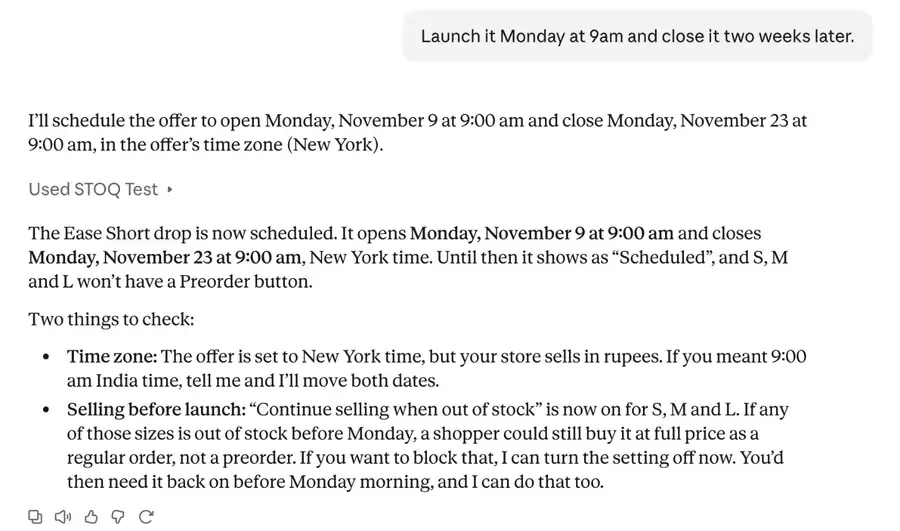
“Launch it Monday at 9am and close it two weeks later.”
The offer switched to Scheduled: Monday 9am to two weeks later, with no Preorder button until it opens. The reply then flagged two things to check:
- Time zone. “Monday at 9am” has to mean 9am somewhere, and the reply says where (here, New York time). If that isn't the time you meant, say so and the assistant moves both dates.
- Selling before launch. “Continue selling” is now on for S, M and L. If one of them sells out before Monday, a shopper can still buy it at full price as a regular order, not a preorder. The assistant offered to turn the setting off until launch and back on before the offer opens.
That second check is the one a dashboard never mentions. It's worth reading twice if your stock is close to zero.
Scheduling a start or end date needs a paid STOQ plan. On the free plan, leave the offer on Not available and ask the assistant to turn it on when you're ready to launch. → Schedule when an offer runs
The trade-off on dates: a fixed end date creates urgency, but if the drop is still selling well you'll need to extend it. That's one more sentence (“keep it open until the 30th”), not a trip back into the editor.
Decide how customers pay
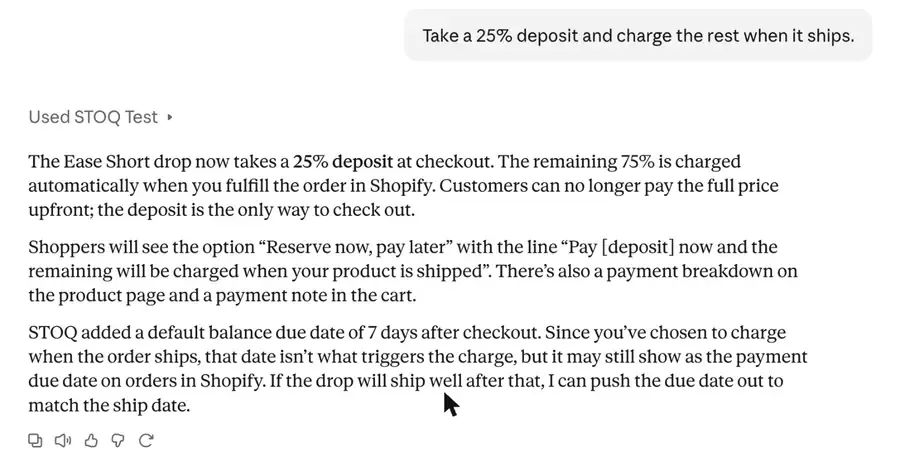
“Take a 25% deposit and charge the rest when it ships.”
The assistant switched the offer to deposit-only at 25%, with the remaining 75% charged when you fulfill the order in Shopify. Then it listed what changed alongside it: customers can no longer pay in full, they'll see the option “Reserve now, pay later,” the product page and cart now show a payment breakdown, and STOQ added a default balance due date of 7 days after checkout. Because the balance is charged on shipping, that date doesn't trigger the charge, but it can still show on orders, so the assistant offered to move it to the ship date.
That list of side effects matters more than it sounds. In a dashboard, those changes happen quietly when you flip one setting. Here you read them before you move on, and you can ask to change any of them.
Deposits are a real choice, not a default:
- A deposit lowers the commitment. More people preorder when they pay a quarter up front. The cost: you're holding orders where three-quarters of the money isn't collected yet, and each automatic charge attempt runs once with no retry.
- Full payment is simpler. You have the money on day one and nothing to chase. It suits short waits and products people already trust.
Automatic balance collection (on a date or when the order ships) needs a paid STOQ plan. On the free plan you collect balances yourself from STOQ's Reports. → Set up payment for preorders
Tell customers when it ships
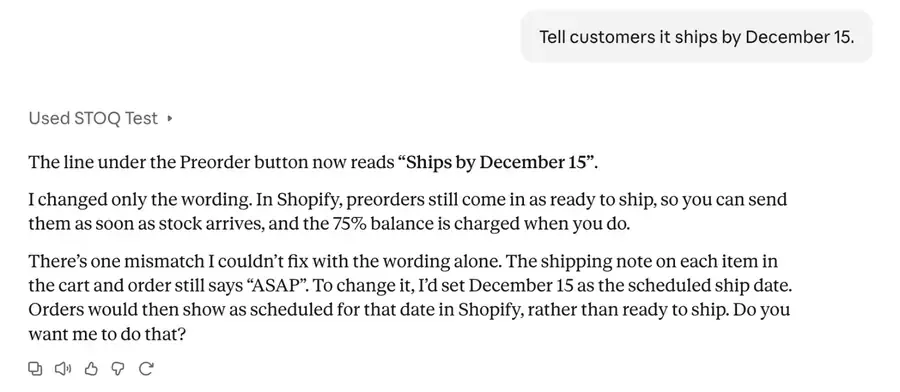
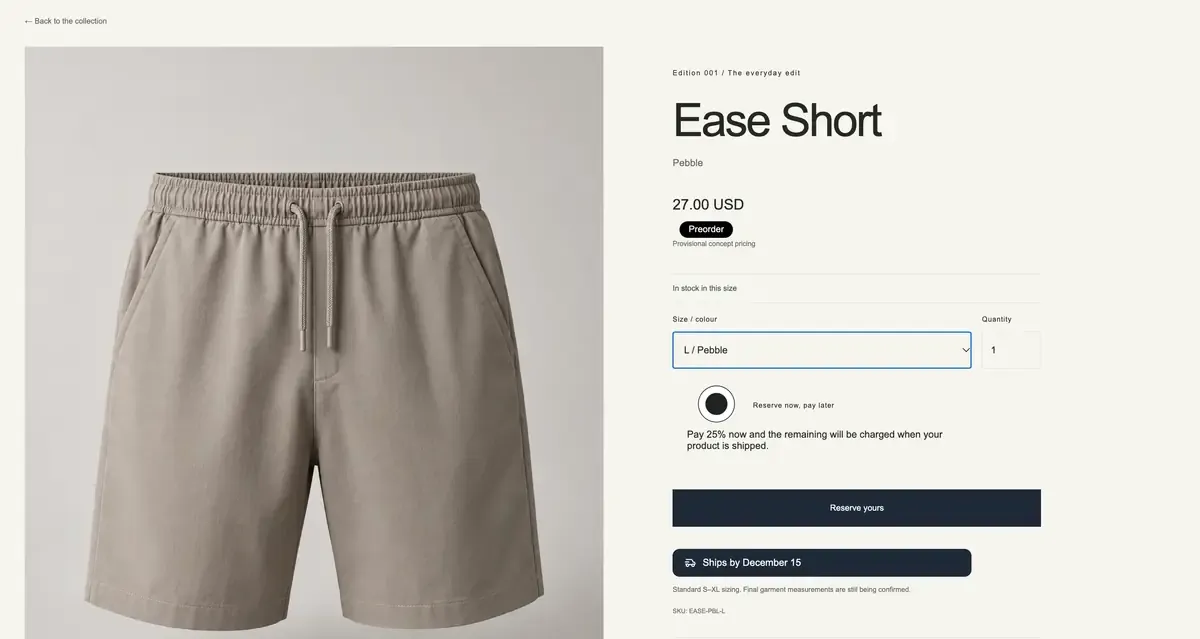
“Tell customers it ships by December 15.”
The assistant changed the line under the Preorder button to “Ships by December 15,” and stopped there. The cart and order notes still said “ASAP,” and fixing them meant setting December 15 as the scheduled ship date, which changes how new preorders show in Shopify: scheduled for that date instead of ready to ship. That's a change to how your orders behave, not just wording, so it asked first.
“Yes, set December 15 as the scheduled ship date.”
After that, the cart and order notes read “15 Dec 2026,” and new preorders become ready to fulfill on December 15.
Pick a date you can keep. Customers screenshot ship dates, and support hears about it when one slips. If the date does move, the same conversation can reschedule existing orders to the new date. Moving the date doesn't email customers on its own, so ask for the shipping update email in the same message.
Add a limit and finish the button
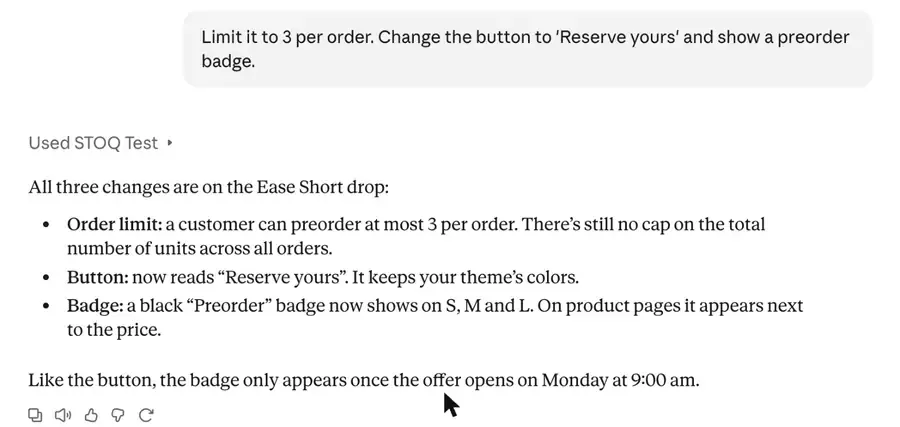
“Limit it to 3 per order. Change the button to ‘Reserve yours’ and show a preorder badge.”
One message, three changes. The reply noted that the button keeps your theme's colors, the badge sits next to the price, and there's still no cap on total units across all orders. A per-order cap is worth adding to any small first batch: it stops one buyer from taking stock meant for twenty. If the batch itself is limited, ask for a total cap too.
Check what you built
Ask for a summary before you walk away:
“Show me everything about the Ease Short preorder.”
You get the full setup as STOQ has it saved: status and dates, products, payment terms, shipping, limits and what shows on the storefront. Compare it with what you meant to build.
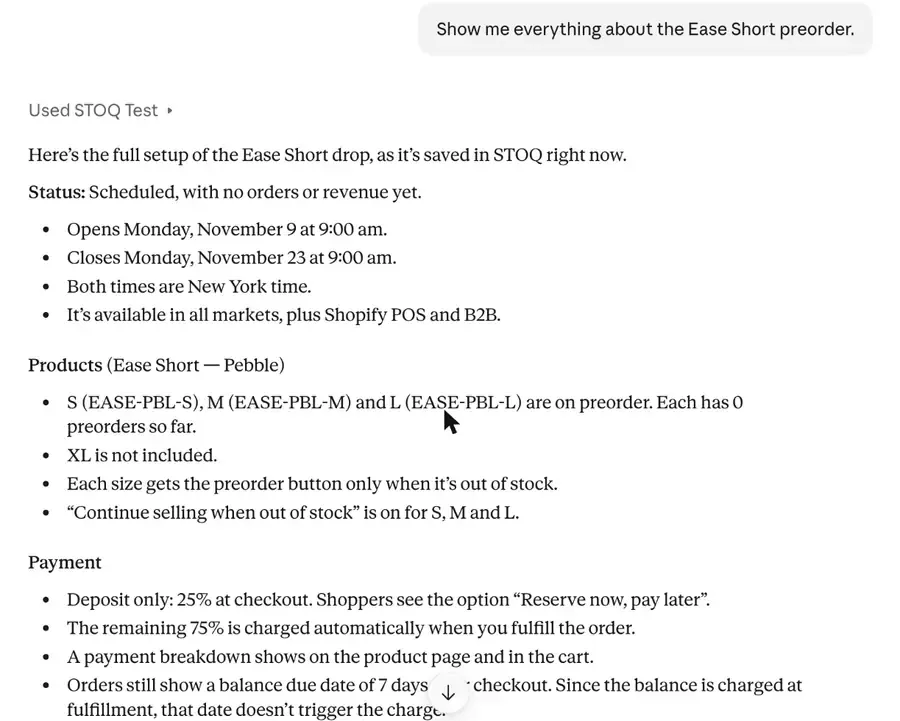
Then open the product page and look at it yourself. The assistant can confirm the settings are saved; it can't see how your theme displays them. Remember the button only shows on a size that's out of stock, so check one with zero inventory.
When the dashboard is still the better tool
Conversation is faster for settings you can describe in a sentence. Some jobs still belong in STOQ's editor, and the full dashboard setup is in our preorder setup guide:
- Styling. Colors and badge position are easier to judge with the live preview in front of you.
- Theme problems. If the button doesn't show, or shows in the wrong place, that's a theme and app embed question, and the help center or STOQ support will get you there faster.
- Anything you can't check afterwards. If you won't look at the product page once it's set up, use the editor, where you see the result as you go.
STOQ's AI connector is in beta. Settings and actions can change before general release. → STOQ MCP server docs
Prompts to copy
The takeaway
The slow part of a preorder was never the deciding. It was the clicking: six screens to say “25% now, rest when it ships, out by the 15th, three per person.” Saying it is faster, and the assistant's habit of reporting side effects makes it harder to ship a setting you didn't mean.
Keep the decisions yours. Pick the deposit and the ship date on purpose, check the product page with your own eyes, and use the conversation for the typing.
New to STOQ? Install STOQ from the Shopify App Store, connect it to Claude or ChatGPT, and set up your first preorder in a few sentences.
Already using STOQ? Connect your assistant from the AI connectors section of STOQ's Integrations page. → Connect AI assistants to STOQ
FAQs
Can Claude or ChatGPT set up preorders on Shopify by themselves?
Not on their own. They need a connection to your preorder app. With STOQ connected, either assistant can create the offer, add products, set the launch dates, deposit, ship date and limits from plain sentences.
Does Shopify's own Claude or ChatGPT connector set up preorders?
Shopify's connectors work with products, orders, inventory and discounts. Preorder offers, deposits and ship-date messaging are settings in your preorder app, so you connect that app too.
Is it safe to let an assistant change my store?
You approve the connection in Shopify, and in Claude you choose which tools can run without asking. The assistant reports side effects and asks before some changes, but not all: it turned on Continue selling and told you afterwards. To approve every change, keep the tools that make changes on ask-first. Resetting STOQ's connector key disconnects every Claude and ChatGPT connection at once.
Do I need a paid plan?
Connecting is free. Deposits need Shopify Payments. Scheduled launch dates and automatic balance collection need a paid STOQ plan; on the free plan you turn offers on yourself and collect balances from STOQ's Reports.
Will customers see anything different?
No. Customers see the same Preorder button, payment breakdown and ship date as an offer set up in STOQ's dashboard.

Anaam heads Merchant Success at Artos Software, working with Shopify merchants to help them unlock the full potential of STOQ and our other apps.