Shopify multi-location inventory: how to manage stock across locations
Adding a second location to Shopify feels like a storage decision. Then the first odd order comes in. Your warehouse has 5 units, your shop has 2, and an online shopper adds 7 to cart. Or the warehouse is empty, the shop still has stock on the shelf, and the product page says sold out.
Neither one is a bug. Both come from how Shopify multi-location inventory works: every location keeps its own count, and only some of those counts reach your online store. Once you know which ones, most "my stock numbers are wrong" problems turn into a settings fix.
Quick answer: Shopify tracks inventory separately at each location, such as a warehouse, a retail store or a 3PL. You choose which locations stock each product, order routing rules decide which location ships each online order, and transfers move stock between locations. Basic, Grow and Advanced plans allow 10 active locations; Shopify Plus allows 200. If a product shows sold out while you have stock, the stock is usually at a location that doesn't fulfill online orders, or the product isn't stocked there.
What is an inventory location on Shopify?
A location is any place where you keep stock, ship orders from or sell in person: a warehouse, a stockroom, a retail store, a pop-up, or a 3PL or dropshipping app that holds stock for you.
Each location keeps its own count for every variant. A t-shirt can have 40 units at your warehouse and 6 at your store, and Shopify keeps those counts apart until you transfer stock between them.
How many locations can you have on Shopify?
Deactivated locations don't count toward the limit, so last summer's pop-up can sit there, ready to reactivate, without using a slot. Apps that hold stock for you, like 3PL and dropshipping apps, don't count either. They sit under "App and custom fulfillment locations".
So "10 inventory locations" on the Basic plan means 10 active places of your own, plus any app locations on top.
How to set up multiple locations on Shopify
Set up each location in two steps: add it and decide whether it ships online orders, then stock your products there. Get the first step wrong and you'll be chasing confusing stock numbers later.
1. Add a location
- Go to Settings → Locations → Add location.
- Enter a name and address, then save.
- Decide whether this location ships online orders. The setting is called "Use inventory at this location to fulfill online orders" (we'll call it "fulfill online orders" from here), and it's on by default.
Turning it off for a store that only sells in person keeps the store's stock out of your online counts. That stock can still fill draft orders and orders from other sales channels. The tradeoff: the store then can't offer local pickup (click and collect) either, because pickup is a way of fulfilling online orders. If your shops do pickup, their stock will count online.
Your default location can't be deactivated, and you always need at least one active location.
2. Stock products at the location
A product can only be sold or shipped from a location where it's active. To add a product to a location:
- Open the product and go to the Inventory section.
- Click the pencil icon next to Locations, select the locations, then save.
- Enter the quantity at each location.
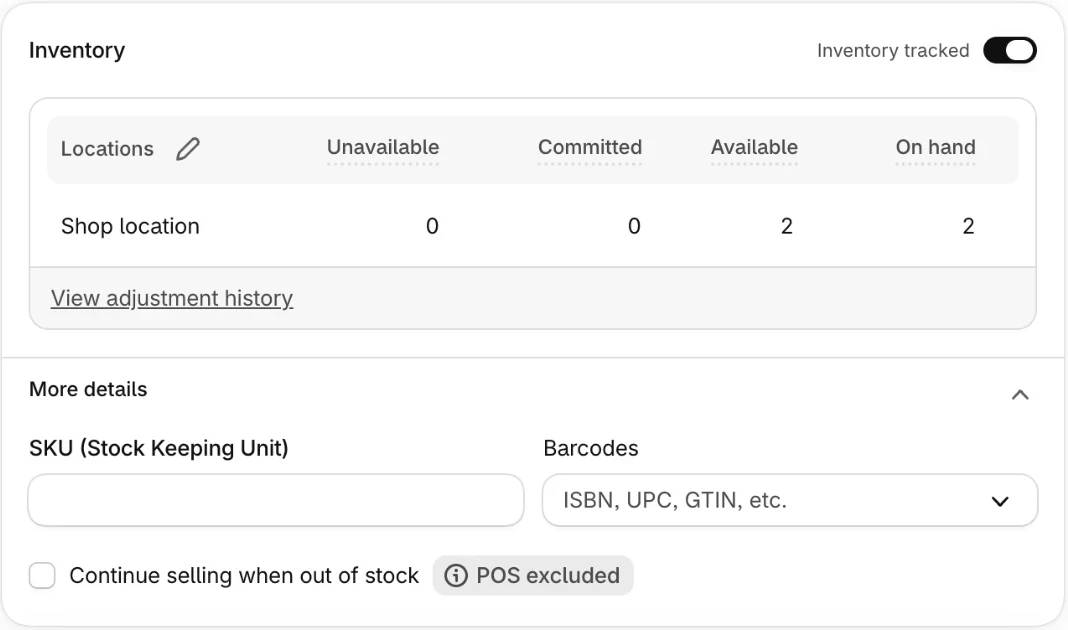
For a bigger catalog, use the bulk editor (up to 50 products at a time) or an inventory CSV import, which Shopify recommends for more than 100 products. Every product has to be active at one location or more, and you can't remove a product from a location that still has unfulfilled orders or open transfers for it.
How Shopify tracks inventory at each location
Every location holds five numbers for each variant, and only one of them is the number your store sells from.
This is where "the numbers don't match" usually comes from. Ten units on hand with ten committed to unfulfilled orders means zero available, and your product page goes by available.
How to see Shopify inventory by location
Open Products → Inventory and pick a location from the location filter to see every product's stock there. Each product's inventory card also lists its quantity at every location. To get the numbers out of Shopify, export the Inventory page as a CSV (one row per location, with every inventory state). You can export a single location or all of them.
How Shopify decides which location fulfills an order
Order routing is how Shopify handles multi-location fulfillment: it picks which location ships each online order. It needs two or more active locations, and the rules live under Settings → Shipping and delivery → Order routing. They run from top to bottom, and each rule narrows down the locations that could take the order. These are the main rules:
The first three are on by default, in that order, and Shopify recommends keeping "Ship from closest location" last. Drag the rules to reorder them.
Ranked locations give you control: warehouse first, stores only as backup. The catch is that a customer who lives next to your store may wait for a parcel from a warehouse across the country.
Routing can also split an order. If no single location has every item, the order ships from more than one place and the customer gets more than one package. That's the 7-unit order from the start: if your shop also fulfills online orders, it can end up as 5 from the warehouse and 2 from the shop, in two parcels. Our partial fulfillment guide covers how to handle split shipments.
What routing won't do is stop overselling. Shopify can still send an order to a location without enough stock, and you then transfer stock there or change the location by hand.
Quick note: many guides still describe "fulfillment priority", a single ranked list of locations. That's the old setup, and Shopify moved stores over to the routing rules above.
How to change the fulfillment location of an order
- Open the unfulfilled order.
- Click the ⋯ menu and choose Change location.
- Select the items and the new location, then confirm.
You can move single line items, and with order routing on, Shopify suggests the next-best location. Local delivery and in-store pickup orders can't be moved this way.
How to transfer inventory between locations
Transfers are built into the Shopify admin, so you don't need an app to move stock from your warehouse to a store.
- Go to Products → Transfers → Create transfer.
- Choose the origin and destination locations.
- Add products and quantities (or import a CSV), then save.
A transfer moves through these statuses:
- Draft: nothing has moved yet.
- Ready to ship (optional): the units are committed at the origin.
- In progress: the units are in transit and show as incoming at the destination.
- Transferred: the units are received and available at the destination.
You can receive all or part of a shipment and add tracking and costs. A transfer can be cancelled while it's in Draft or Ready to ship, which puts committed units back to available at the origin. Once it's In progress, you cancel any items that never shipped when you receive it. On Shopify POS, staff can fulfill and receive transfers but can't create them, and the location needs POS Pro.
Quick note: a transfer doesn't stock the product at the destination on its own. When you receive it, choose "Stock and fulfill", or the units arrive but can't be sold there.
What happened to Stocky?
Shopify's Stocky app stopped working after August 31, 2026. Transfers and purchase orders are now built into the admin, but your old Stocky data (purchase orders, stocktakes, suppliers) doesn't move over, so export what you need soon: Stocky's read-only access is only temporary. You receive a purchase order (Products → Purchase orders) through a linked transfer, so the stock lands at the right location.
Why a product shows sold out when you have stock
Your online store only sells stock it can ship to the shopper in front of it.
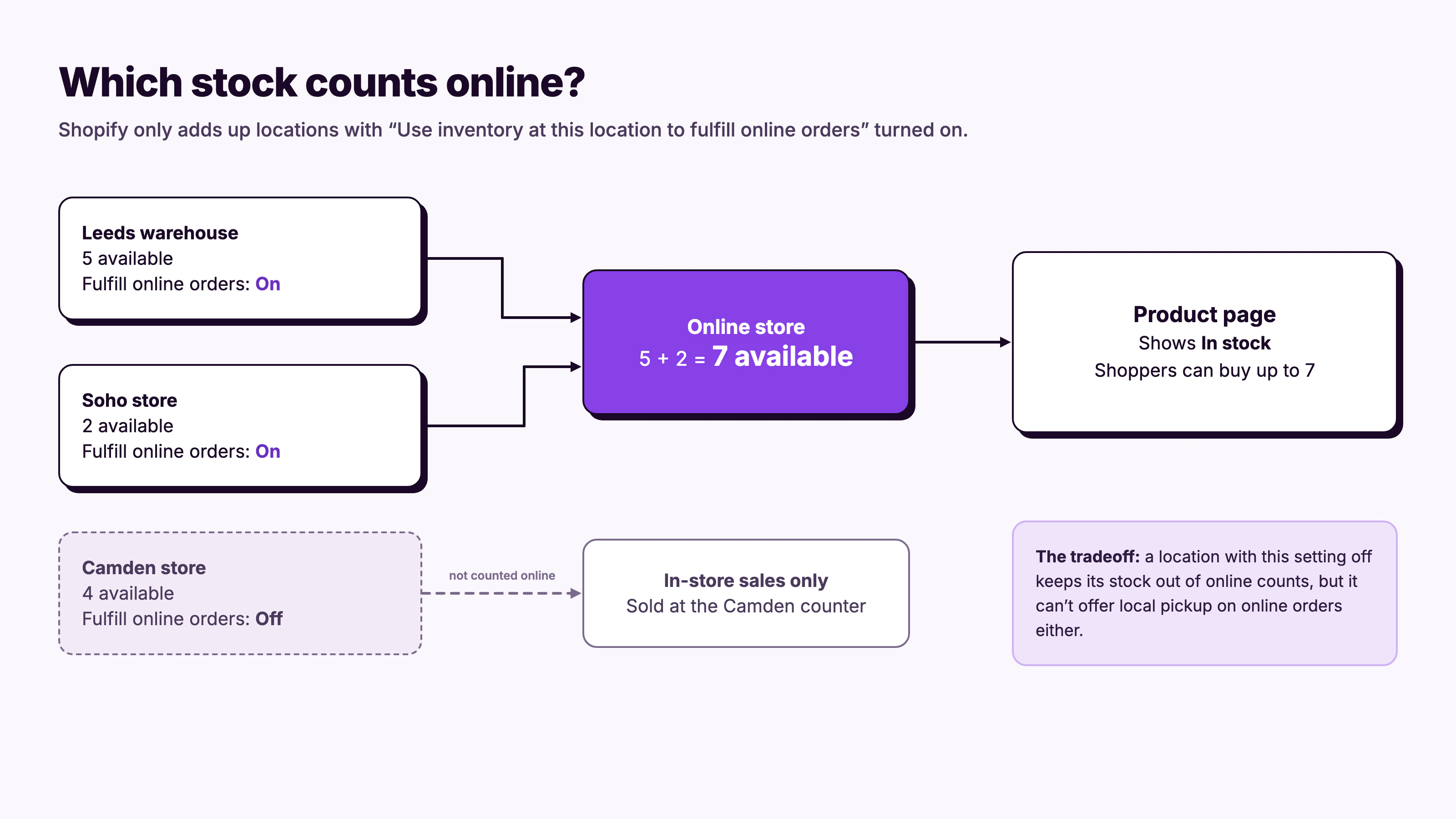
When the product page disagrees with your stock count, check these first:
- The location doesn't ship online orders. Stock at a store with "fulfill online orders" turned off doesn't count online. If your warehouse is at zero and only the store has units, the product shows as sold out online (unless "Continue selling when out of stock" is on, in which case it oversells).
- The product isn't stocked at that location. If the product isn't active at a location, Shopify ignores its stock there. Open the product, click the pencil icon next to Locations and add it. This is usually what "inventory is not stocked at this location" means (more below).
- No location ships to the shopper's zone. Shoppers can only buy stock from locations that ship to their shipping zone. A US warehouse with 2 units and a Canadian one with 0 means US shoppers can buy and Canadian shoppers can't. On stores created since April 2024 the product shows as sold out; on some older stores it shows as available and checkout fails.
- The units aren't available. Committed and unavailable units don't count. Check the inventory states for that location.
The reverse happens too: a product stays buyable after your warehouse runs out because another location that fulfills online orders still has stock. Turn the setting off for locations that shouldn't sell online.
"Inventory is not stocked at this location": what it means
Add the product to that location and the message goes away: open the product, click the pencil icon next to Locations in the Inventory card, select the location and enter a quantity. The message means the product isn't active at that location, so Shopify won't sell or ship it from there. You'll see "Not stocked" next to that location in the product's Inventory section and on Products → Inventory, usually for a product you created before the location existed. Inventory apps and CSV imports can also show the error when they try to update stock there.
A similar message, "inventory is not tracked at any location", usually means inventory tracking is off for that variant. Open the variant and look at the top of its Inventory card: if the toggle reads Inventory not tracked, there are no per-location quantities to show. Switch it on (it changes to Inventory tracked), then add stock at each location.
When every online location is at zero
You have three options:
- Move stock. Transfer units from a store, or let that store ship online orders if it can pack and post them.
- Take preorders or backorders. If a restock is confirmed, keep selling with a ship date. Read how to keep selling when out of stock on Shopify and what a backorder is.
- Collect "Notify me" signups. If there's no date yet, let shoppers ask to hear when it's back. See how to set up back in stock notifications.
STOQ lets the buttons and alerts follow the right locations as you add more:
- Preorders follow your online stock. STOQ shows the Preorder button based on the stock at locations that fulfill online orders. If you use STOQ's Single market mode, you can also pick exactly which locations count (Filter locations), on product pages as well as collection, home and search pages.
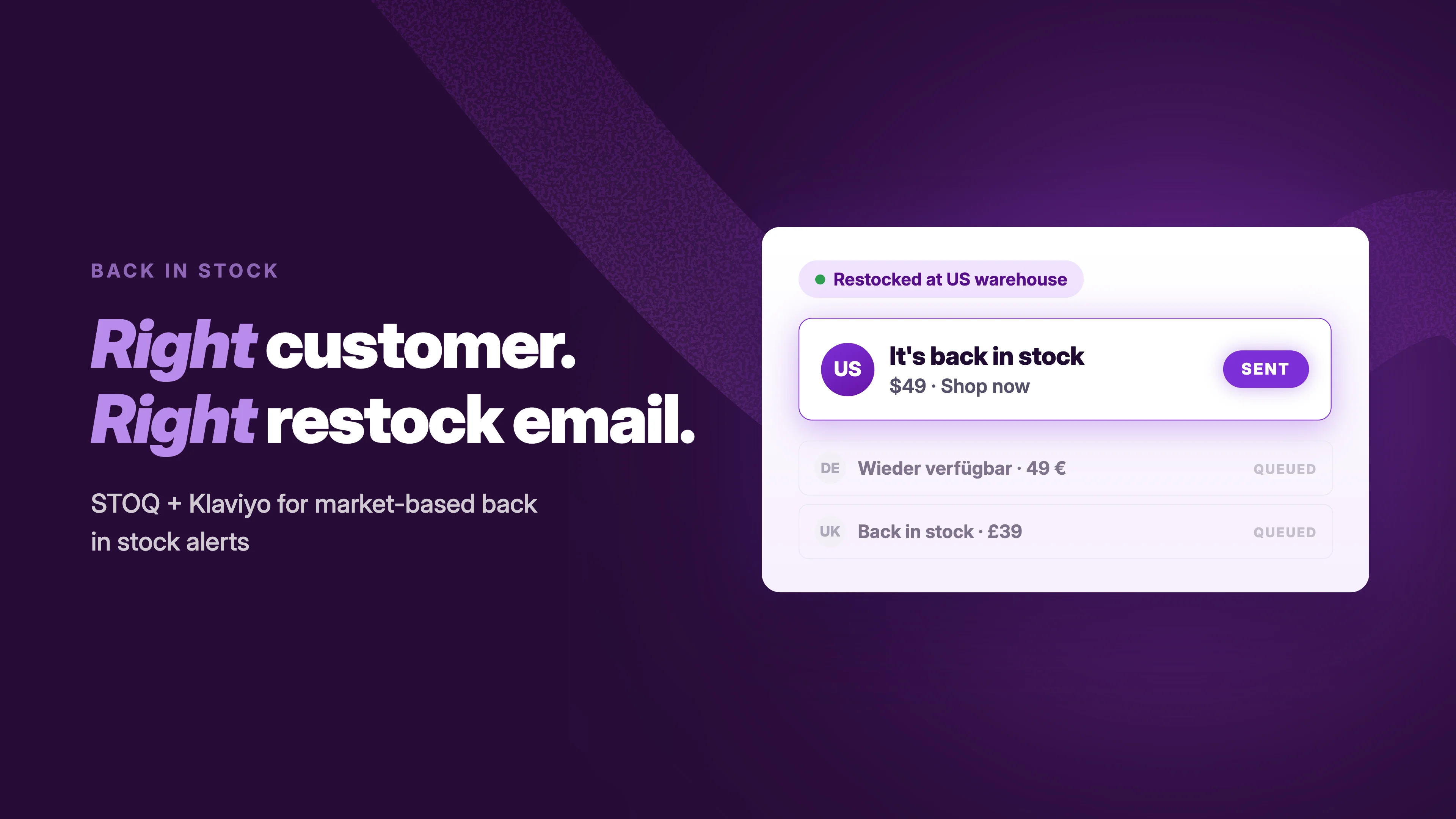
- Alerts follow the locations you choose. By default, a restock at any location sends back in stock alerts. With Location-based alerts on, only restocks at the locations you pick do, so a delivery to a shop that only sells in person doesn't email online shoppers about stock they can't buy. Anyone can still sign up; the setting only decides which restocks send the alert.
- International stores can map markets to locations. A shopper in the UK only gets an alert, or sees a Preorder button, based on the locations that serve the UK. More in back in stock alerts across Shopify Markets.
- It works at the counter too. STOQ's tiles for Shopify POS let staff take preorders and sign customers up for back in stock alerts in store.
Five multi-location inventory habits worth keeping
- Name locations clearly. "Leeds warehouse" and "Soho store" are easier to read in reports and routing rules than "Location 2".
- Decide which locations ship online. Turn off "fulfill online orders" for any store that can't pack and post orders.
- Stock existing products when you add a location. New products are stocked everywhere by default, but your existing catalog isn't stocked at a new location until you add it.
- Check routing rules after adding a location. New locations go to the bottom of the routing list.
- Deactivate before you delete. Deactivating frees a slot and can be undone. Deleting is permanent, though order and sales history stays in your reports.
Frequently asked questions about Shopify multi-location inventory
What are inventory locations on Shopify?
Inventory locations are the places where you keep stock, ship orders from or sell in person, such as a warehouse, a retail store or a 3PL app. Shopify keeps a separate stock count for each product at each location.
Does Shopify support multi-location inventory?
Yes, on every plan. Starter allows 2 active locations, Basic, Grow and Advanced allow 10, and Shopify Plus allows 200. Deactivated locations and fulfillment app locations don't count toward the limit.
Can one product be stocked at several locations?
Yes. Open the product, click the pencil icon next to Locations in the Inventory card and select each location. Shopify tracks a separate quantity at each one, and stock only moves between locations when you transfer it.
How does Shopify choose which location fulfills an order?
Order routing rules decide. By default, Shopify tries to avoid split shipments, keeps the order within the customer's market, then picks the closest location. You can add ranked locations or location metafields under Settings → Shipping and delivery → Order routing.
Does Shopify split orders across locations?
It can. If no single location has every item, order routing can split the order so it ships from more than one location. The "Minimize split fulfillments" rule keeps this to a minimum.
What does "inventory is not stocked at this location" mean on Shopify?
The product isn't active at that location: add it with the pencil icon next to Locations on the product (details in the section above).
What does "inventory is not tracked at any location" mean?
Inventory tracking is usually off for that variant: switch on the Inventory tracked toggle and add stock at each location (details in the section above).
How do I move inventory between Shopify locations?
Create a transfer under Products → Transfers. Pick the origin and destination, add products and quantities, mark it in transit and receive it at the destination. The units then become available there.
Why does my product show sold out when another location has stock?
The location with stock probably doesn't fulfill online orders, the product isn't active there, or no stocked location ships to the shopper's shipping zone. Fix the location settings, transfer stock, or take preorders or back in stock signups until stock is back.
The takeaway
When multi-location inventory on Shopify goes wrong, the cause is usually a setting: a location that sells online when it shouldn't, one that doesn't when it should, or a product that isn't stocked where the units are. Decide, location by location, whether it ships online orders. That one decision explains most of what your product pages show.
And when every location that ships online is empty, don't leave a dead "Sold out" page. Take preorders if the restock is confirmed, or collect back in stock signups if it isn't.
New to STOQ? Install STOQ for free to start taking preorders and back in stock signups.
Already using STOQ? Read how to filter alerts by location or market and set up locations and markets for preorders.

Ram leads SEO at Artos Software, optimizing discoverability for STOQ and our portfolio of Shopify apps across Google, AI search, and LLMs.